Export Open Findings
Export Open Findings lets you download the complete list of open findings across all assets in a workspace as a CSV file for offline analysis and reporting.
Prerequisites
Before using Export Open Findings:
- You must have at least one asset added to the workspace.
- Select the correct Team before accessing the Workspace screen.
Access the feature
- Select App Security → Workspace in the menu.
- Select a Team from the dropdown in the top-right corner.
- Make sure you are on the All Assets tab.
- Click Export Open Findings — located above the asset list, to the right of the "Assets (N)" label and to the left of the Sort dropdown.
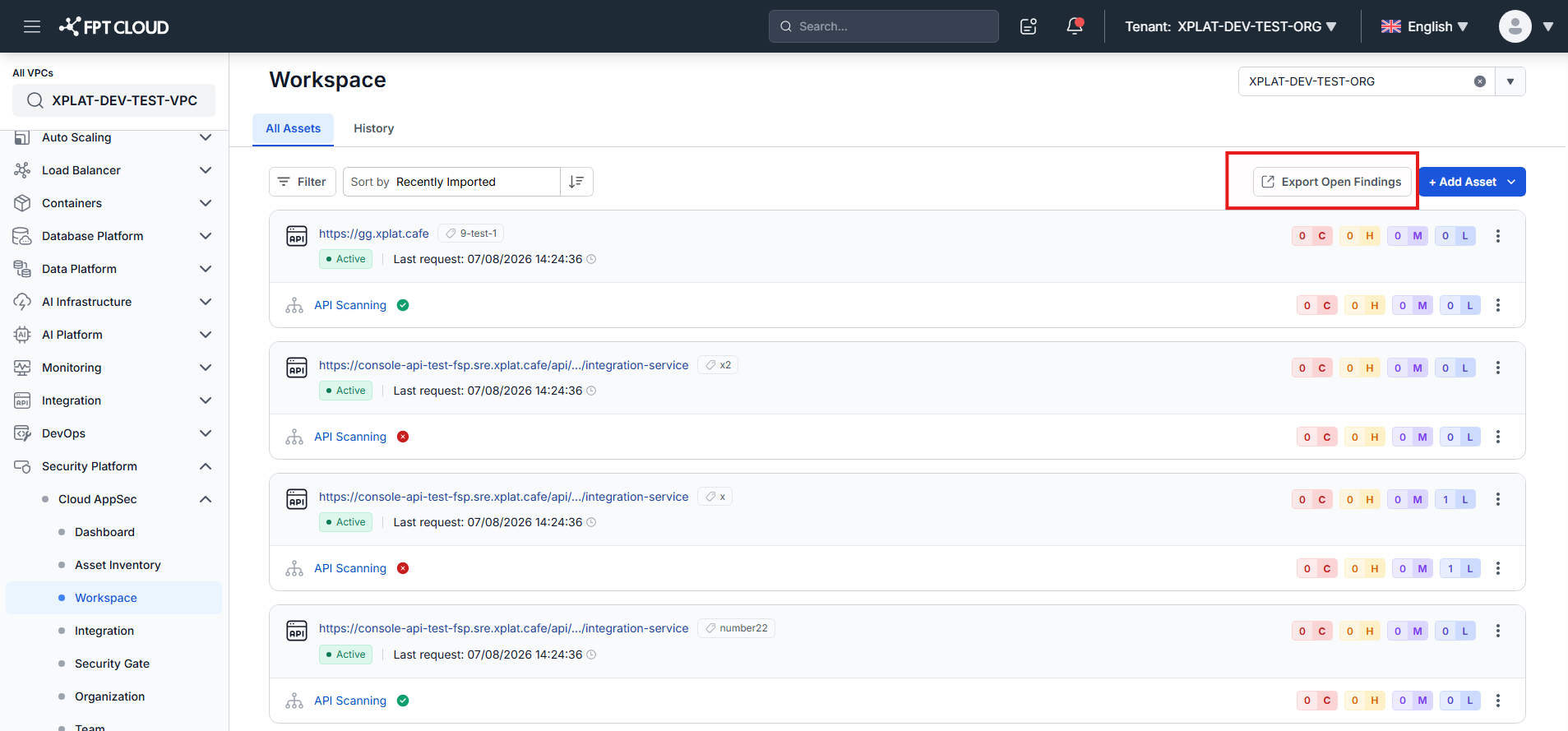
The Export Open Findings dialog opens.
Configure filters and export
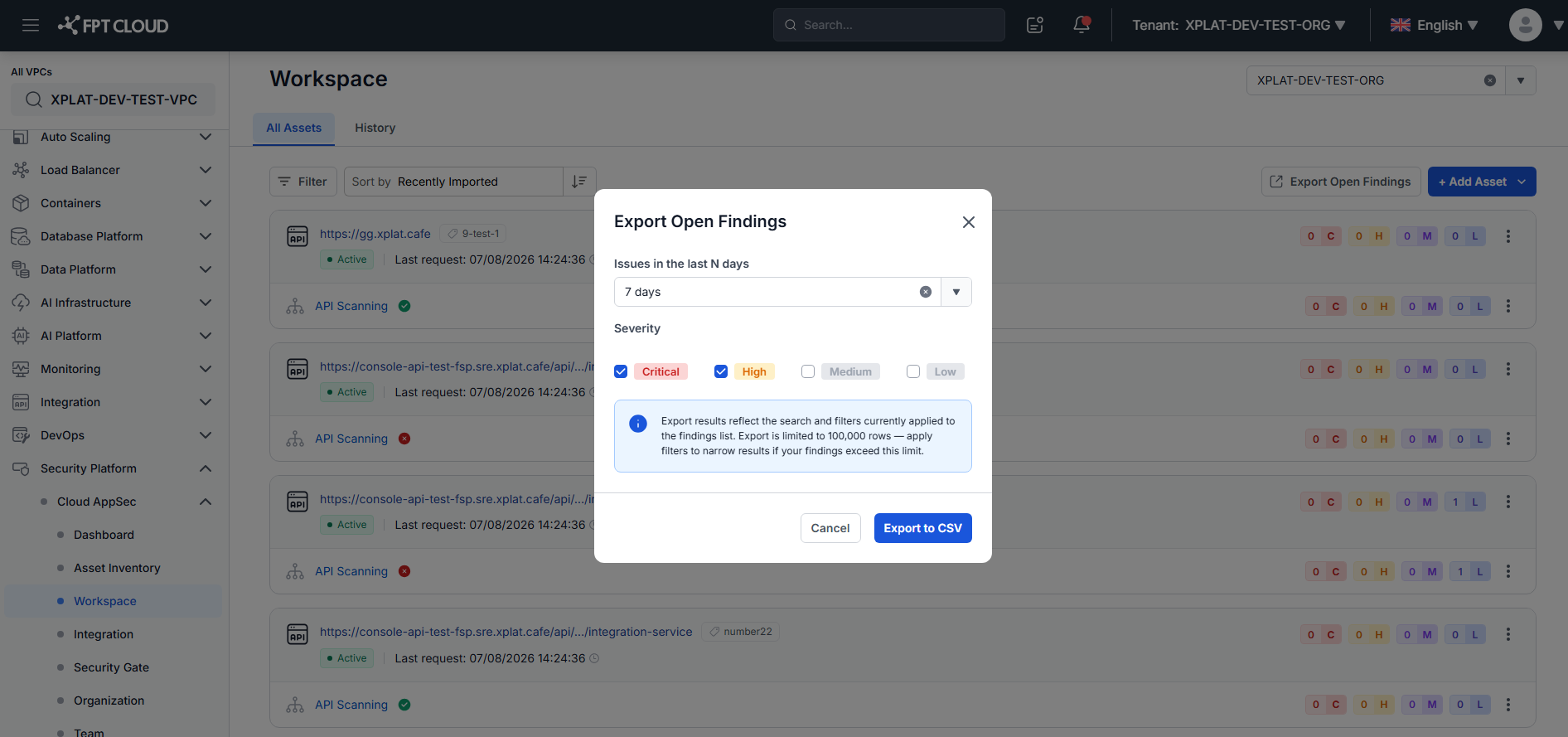
- Set Issues in the last N days — select a time range from the dropdown.
- Options: 1 day / 3 days / 7 days / 15 days / 30 days / 60 days / 90 days
- Default: 7 days
- Select one or more Severity levels to include: Critical / High / Medium / Low.
- Default: Critical and High are pre-selected.
- At least one severity must be selected. If all are deselected, the Export to CSV button is disabled.
- Click Export to CSV.
- The system generates the file and downloads it automatically. The filename follows this pattern:
AppSec-opened-Findings-YYYY-MM-DD.csv. - The dialog closes automatically after a successful export.
note
Click Cancel or the X icon to close the dialog without exporting.
CSV file structure
The exported file contains 16 fixed columns:
| # | Column | Description | Scan type |
|---|---|---|---|
| 1 | Severity Level | Critical / High / Medium / Low | All |
| 2 | Severity Score | Score on a 0–10 scale | All |
| 3 | Scan Type | SAST / Secret / IaC / Image / DAST | All |
| 4 | Issue | Finding or vulnerability name | All |
| 5 | Status | Open / False Positive / Accepted Risk | All |
| 6 | Identifier | CWE-xxx or CVE-xxxx-xxxxx (if available) | All |
| 7 | Location | File path (SAST/Secret/IaC) or endpoint URL (DAST) | SAST · Secret · IaC · DAST |
| 8 | Line | Line number in source file | SAST · Secret |
| 9 | Platform | Terraform / Helm / CloudFormation / OCI / Docker | IaC · Image |
| 10 | Current Version | Current version of the package or library | Image |
| 11 | Fixed Version | Patched version | Image |
| 12 | HTTP Method | GET / POST / PUT / DELETE | DAST |
| 13 | Response | HTTP response code | DAST |
| 14 | Description | Detailed finding description | All |
| 15 | Remediation | Remediation guidance | All |
| 16 | Detected At | Detection timestamp in YYYY-MM-DD HH:MM:SS format | All |
note
Columns 8–13 are conditional — they are populated only for their corresponding scan type. Other scan types leave these columns blank.
Important notes
- Open findings only: the export includes only findings with Open status. Findings with Ignored, False Positive, or Accepted Risk status are excluded.
- Filter inheritance: the export applies all search and filter conditions currently active on the Workspace screen, combined with the filters set in the dialog.
- Row limit: the export is capped at 100,000 rows. If your findings exceed this limit, use filters to narrow the scope before exporting.
- Filters reset on each open: every time you open the dialog, filters reset to the default (7 days + Critical + High). Previous selections are not saved.
- Empty result: if no findings match the conditions, the CSV file downloads with only the header row and no data rows.