Change issue status
Issue status can be changed from both the Issue list and the Issue detail screen.
Change status from the Issue list
- In the asset detail, select the Issue tab. Each issue card shows the current status.
- Click Note status (or the status action button) on any issue card.
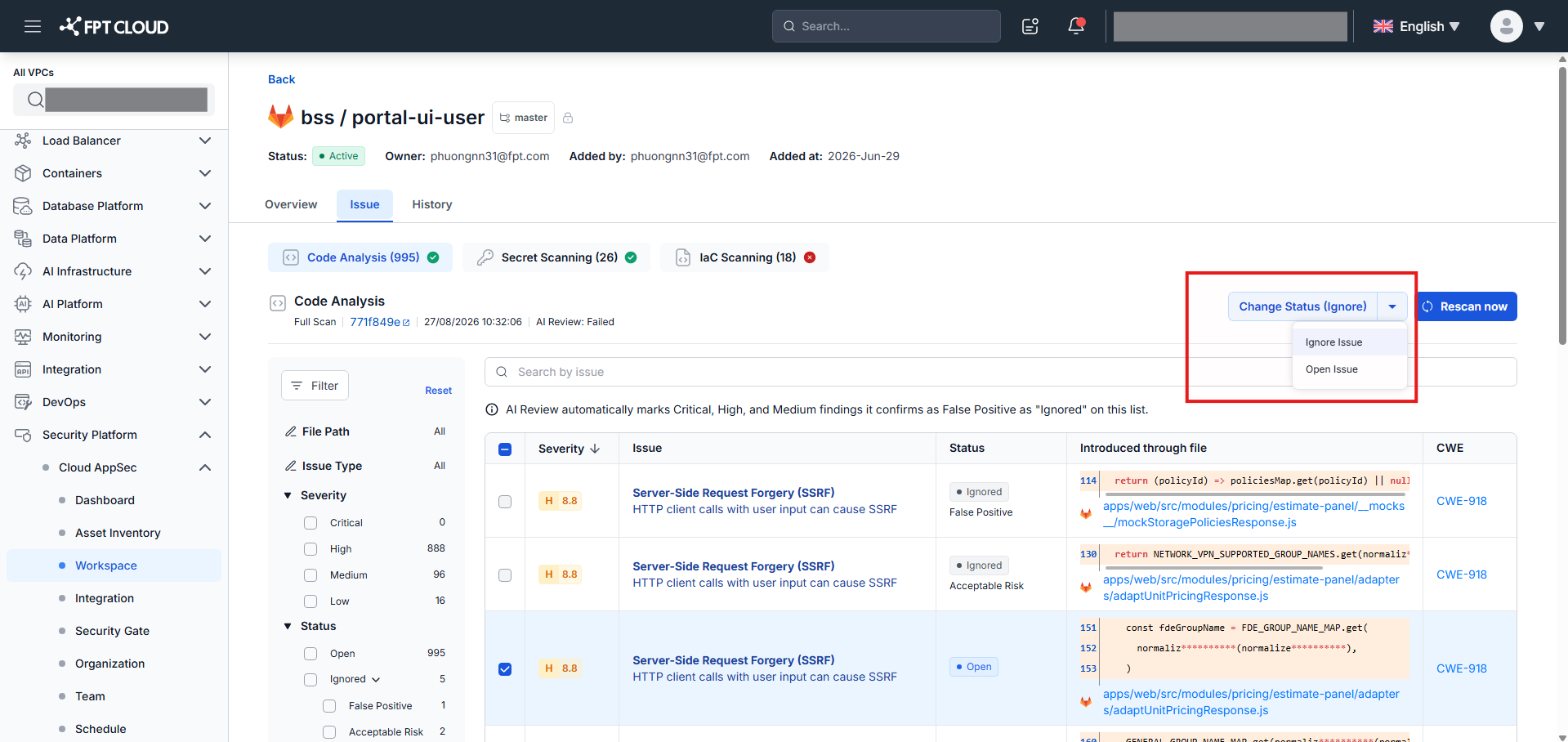
- Select the target status:
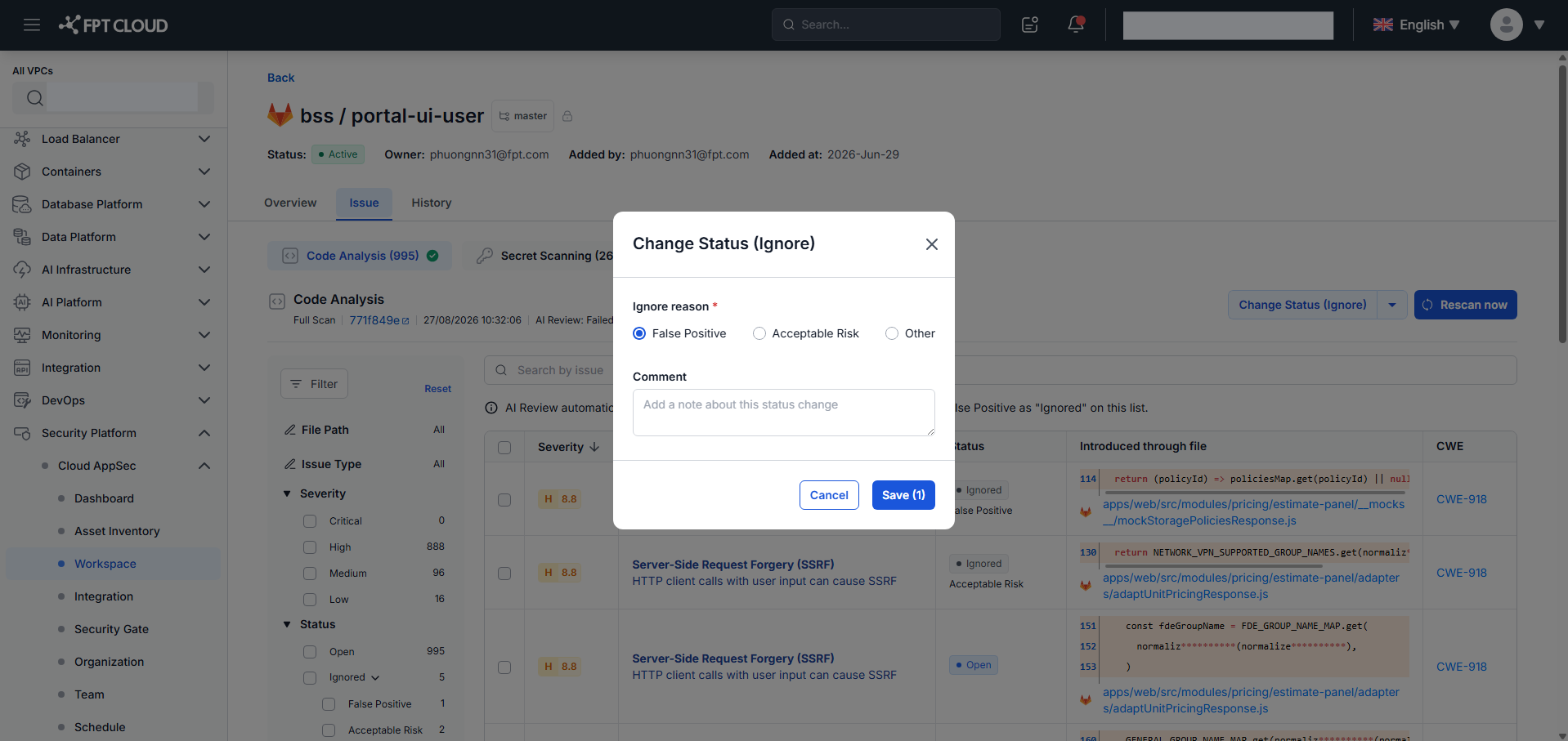
Open → Ignore:
Select an ignore reason (required), optionally add a comment, then click Save.
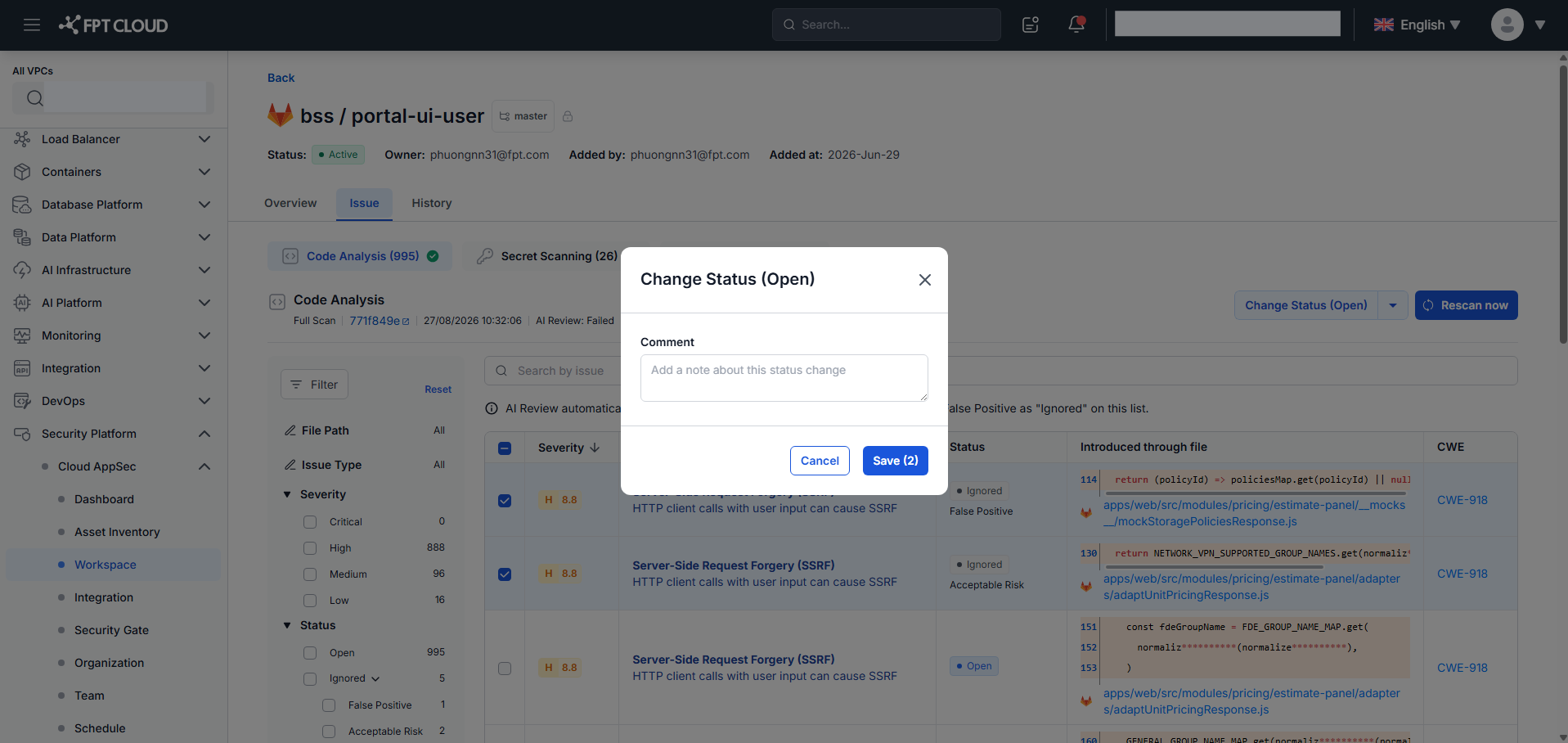
Ignore → Open (Reopen):
Optionally add a comment, then click Save.
note
The issue status change takes effect at the next scan.
Change status from the Issue detail
- In the Issue list, click Details on any issue to open the Issue Detail popup.
- In the Issue Detail, click Note status to change the status.
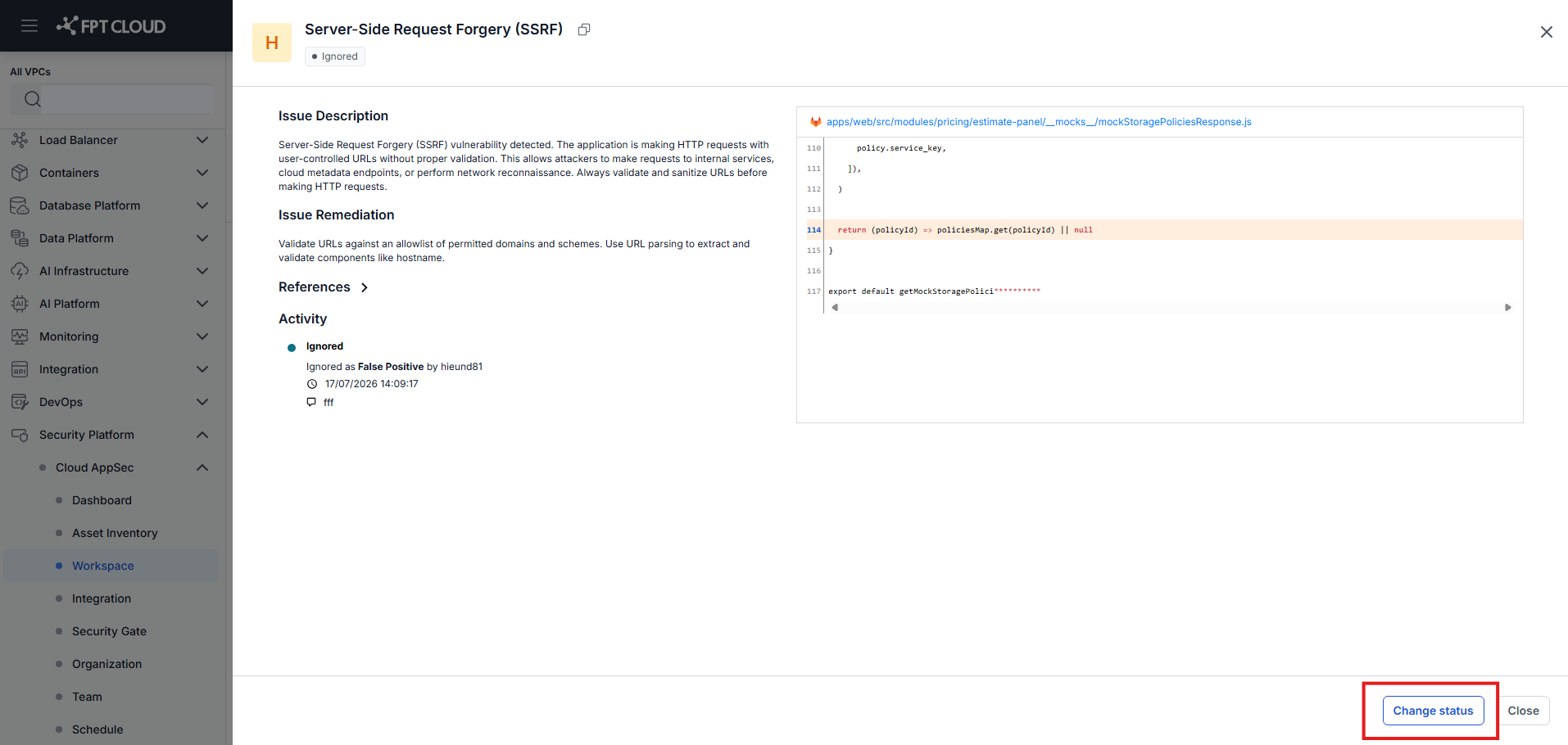
- Select the target status, optionally add a comment, then click Save.
- View the full status change history in the Activity section of the Issue Detail.