DAST API asset operations
DAST API assets cover API sources configured via the DAST API integration.
For general asset actions (Disable, Enable, Delete), see Manage assets.
Add a DAST API asset
- In Workspace, click Add Asset.
- Select DAST API.
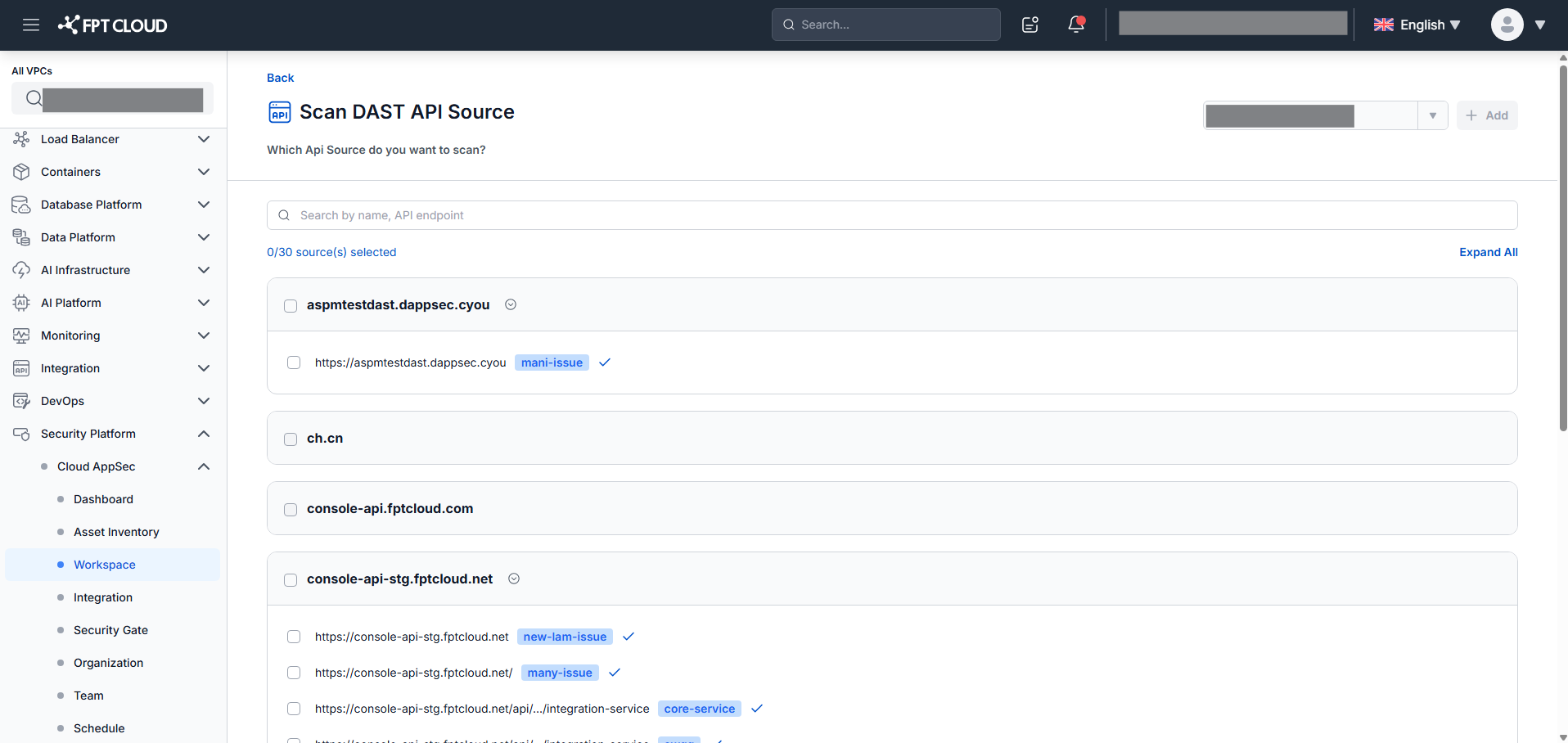
- Select the API Source you want to scan, then click Add.
After adding, the system automatically runs the first scan and displays results in the All Assets tab.
View asset overview
Click any DAST API asset name to open the Asset Overview screen.
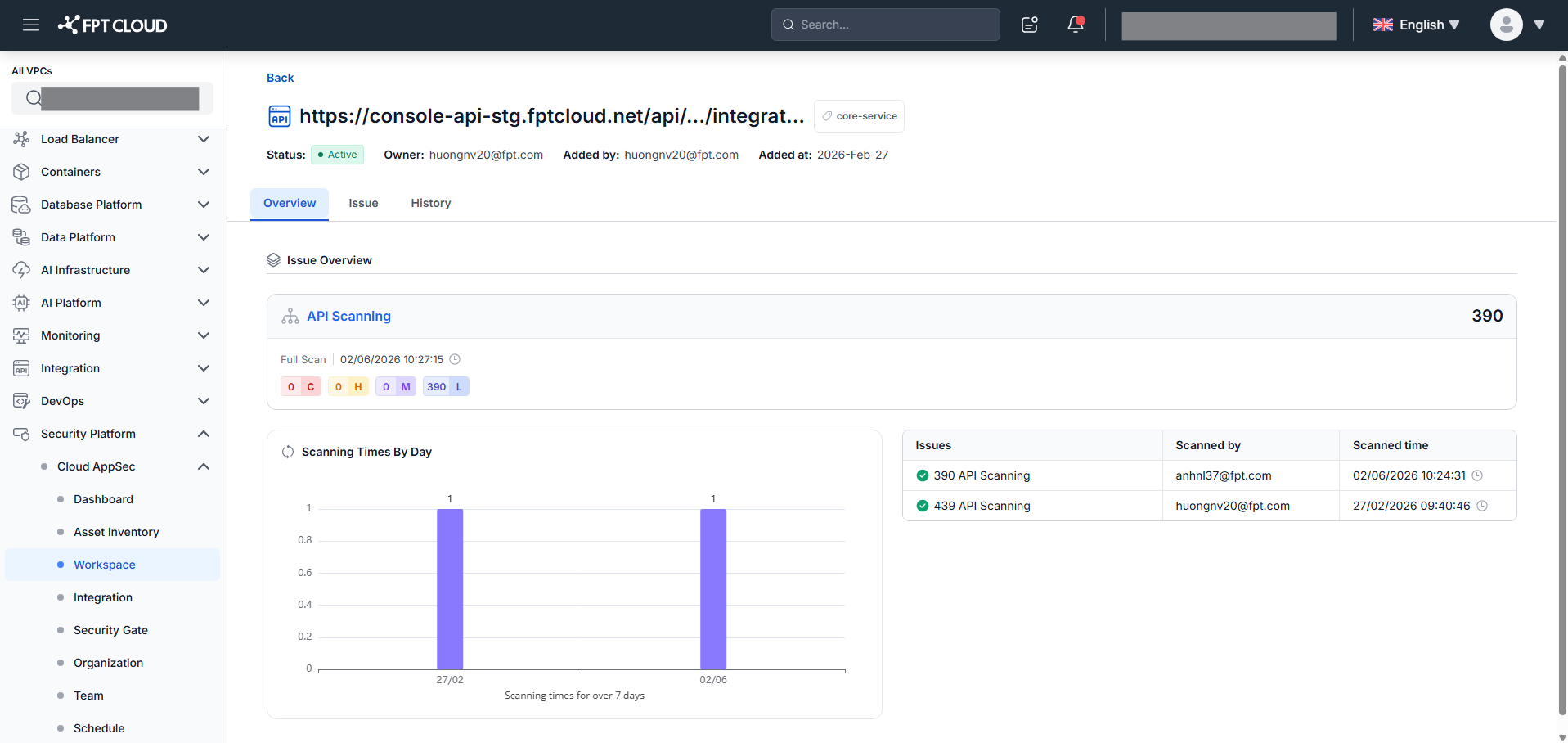
The overview shows:
- General information: Asset Name, Asset Access (Public/Private), Status, Owner, Added By, Added At
- Issue overview: Scan Type, Scan Time, Total Open Issues, Severity counts, Scanning Times By Day (last 7 days)
- Latest requests: up to 3 most recent scan requests
View scan history
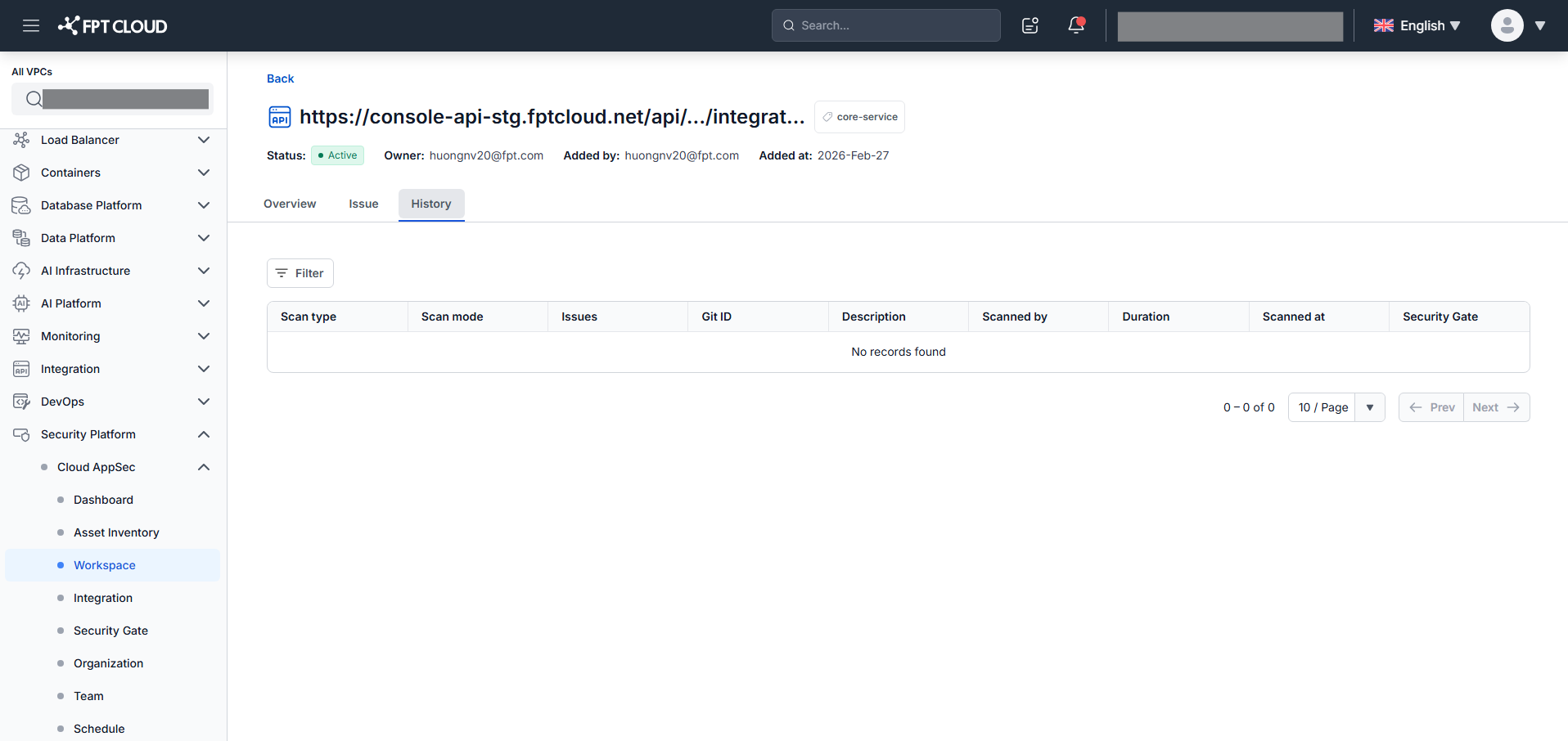
Select the History tab on the Asset Overview screen.
View the issue list
Select the Issue tab on an asset to view issues.
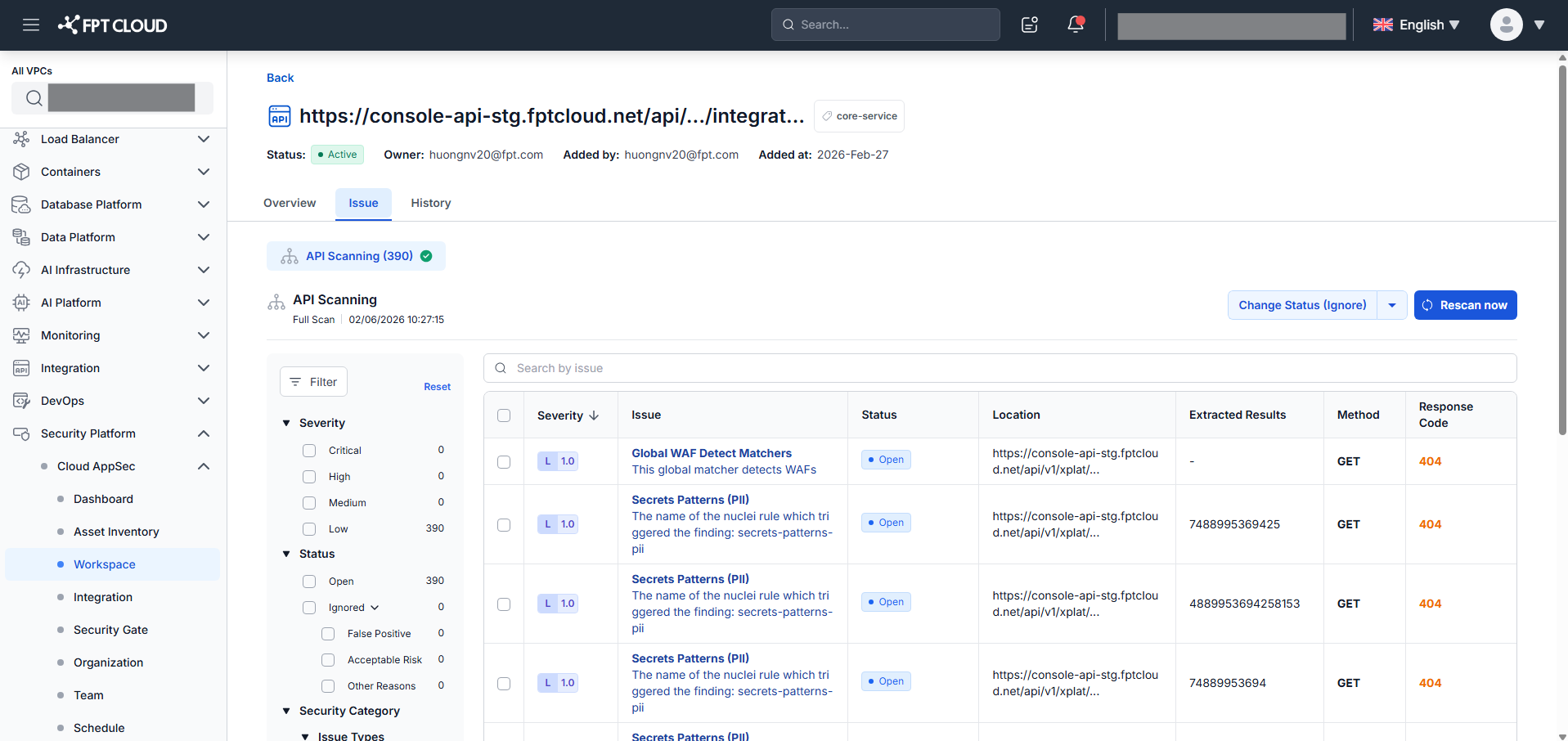
Each issue card shows: Severity, Score (0–10), API Source Name, Issue Title & Description, Issue Status, Location, HTTP Method, Response Code, and Extracted Results.
Filter by: Severity, Status, Priority Score (0–10), Issue Type.
Sort by: Severity (C→H→M→L), Score. Default: Score descending.
View issue details
Click Details on any issue card to open the Issue Detail popup.
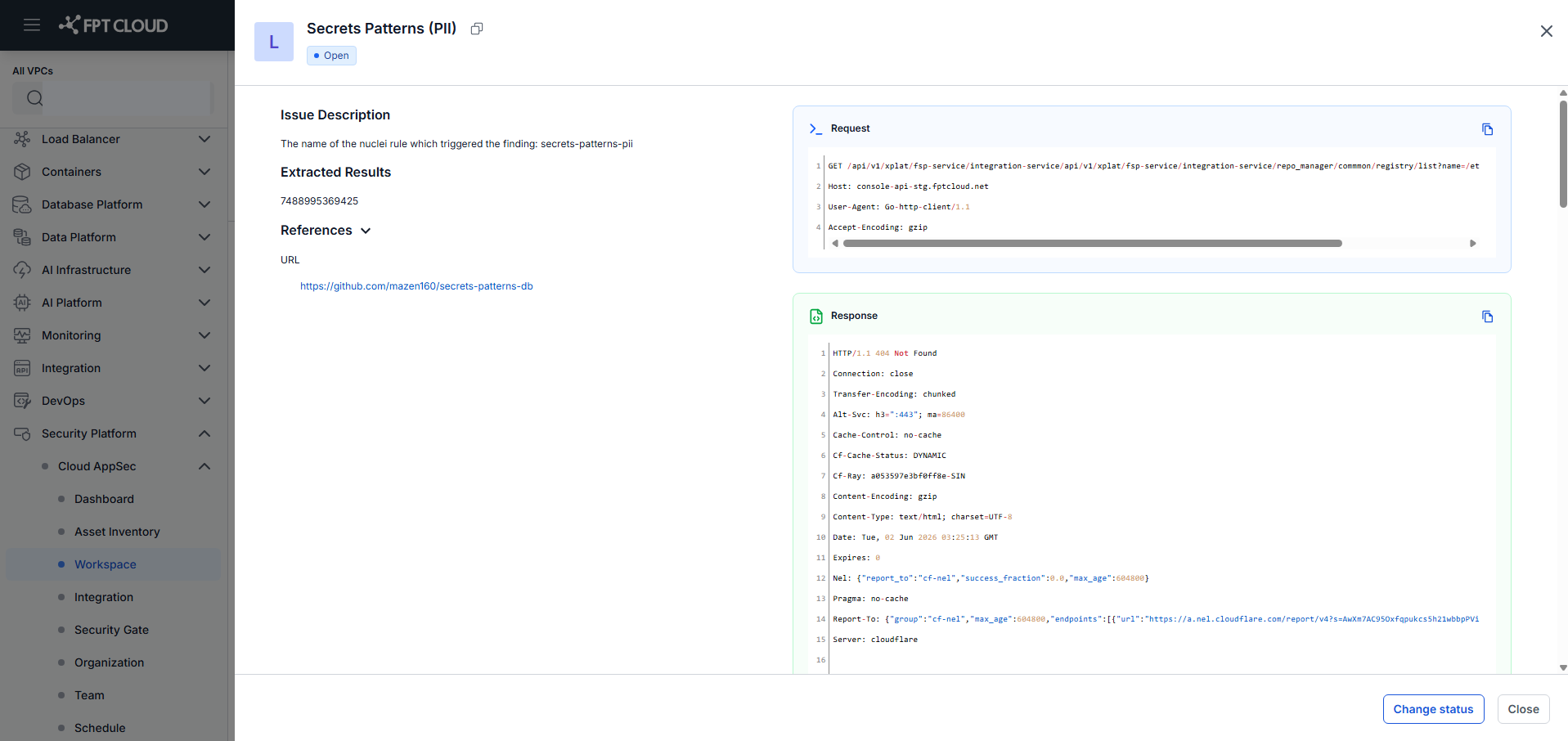
The Issue Detail shows the full details of the issue including request/response information, description, remediation guidance, and Activity log.