Add / Edit / Delete Network Access Rule
Manage Network Access Rules from Rule Management → Network Access tab. Changes only take effect after you click Apply Policy.
Add a rule
-
Click Add Rule.
-
Fill in the rule details:
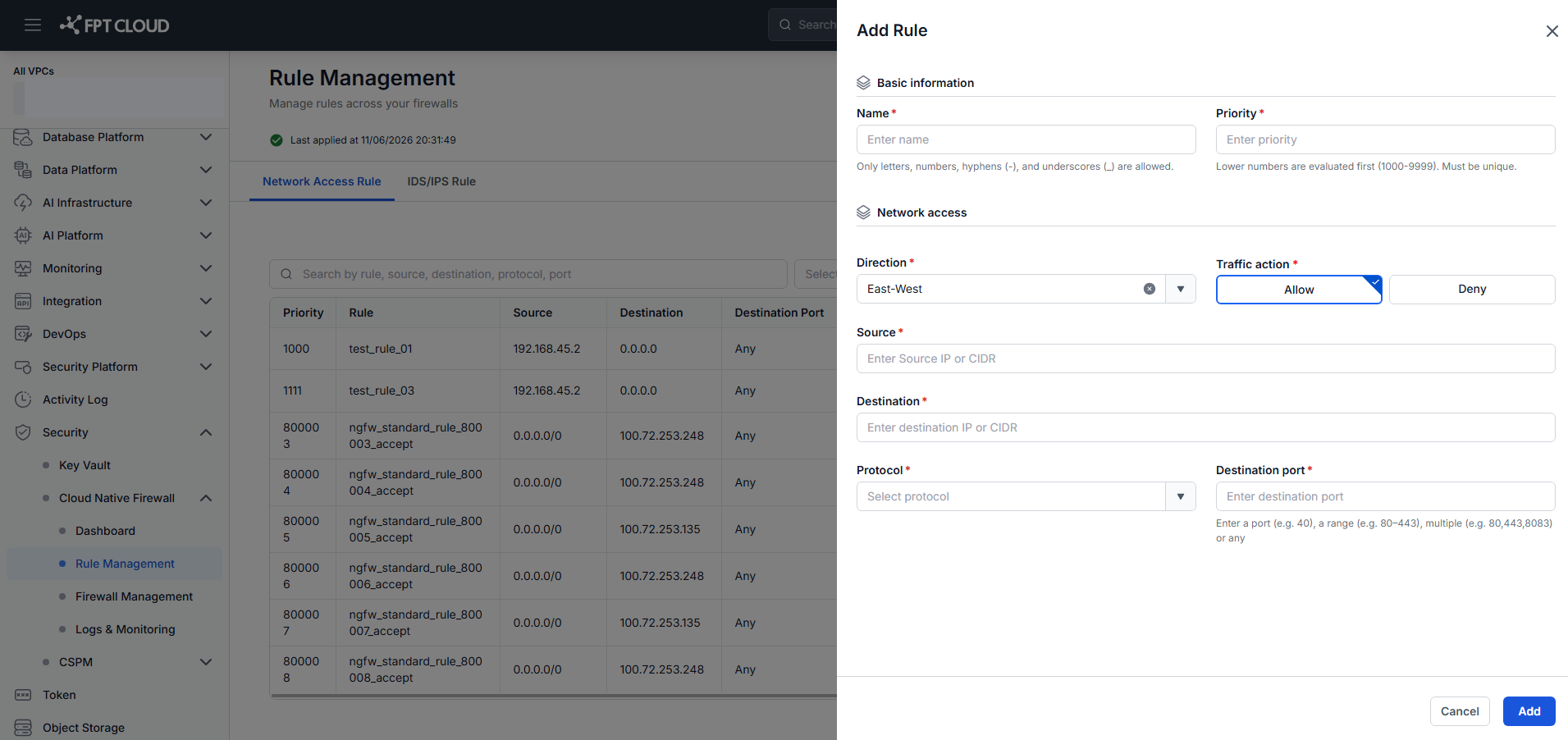
Field Description Name Rule name. Unique within the Firewall policy. Max 50 characters. Priority Evaluation order (1000–9999). Lower values checked first. Must be unique. Direction East-West/Outbound/Inbound. Default: East-West.Traffic Action Allow/Deny. Default: Allow.Source Source IP or CIDR. Destination Destination IP or CIDR (East-West / Outbound), or Floating IP (Inbound). Protocol TCP / UDP / ICMP / ICMPv6 / GRE / ESP / AH / SCTP / OSPF / VRRP / IGMP / All. Default: TCP. Destination Port Single port, range, or multiple ports. Applies only when Protocol = TCP or UDP. Direction-specific NAT fields:
- Outbound — SNAT: select a Floating IP to NAT outbound traffic.
- Inbound — DNAT: enter Translated Destination (internal IP) and Translated Port.
-
Click Add. The rule appears with Status = Not Applied (Added).
Maximum 100 rules per Firewall policy. The Add Rule button is disabled when the limit is reached.
Edit a rule
- Click Edit on the rule row.
- Modify the fields — Direction cannot be changed after creation.
- Click Edit. Status changes to Not Applied (Edited).
Delete a rule
- Click Delete on the rule row.
- Type delete (lowercase) in the confirmation field and click Confirm.
The rule is marked Not Applied (Deleted) until Apply Policy is run.
Apply Policy
Apply all pending changes (add / edit / delete) to the Firewall.
- Click Apply Policy — the button shows the number of pending changes.
- Confirm in the popup.
The system shows "Applying policy. This may take a few minutes." During this time, Apply Policy, Add Rule, Edit, and Delete are all disabled.
After the apply completes:
- Rules applied successfully → Status = Applied
- Rules that failed → removed from the list; an Apply Failed icon appears in the header with a tooltip listing the failed rules
While a Firewall is applying a policy, actions on the IDS/IPS Rule tab or Associate Subnet screen for that Firewall will show "Firewall is being updated. Please wait."