View Network Access Rules
Network Access Rules control which traffic the Firewall allows or denies. Access them from the dedicated Rule Management menu.
Steps
- Select Rule Management in the sidebar.
- Click the Network Access tab.
- Select a Firewall from the dropdown (default: first Firewall alphabetically).
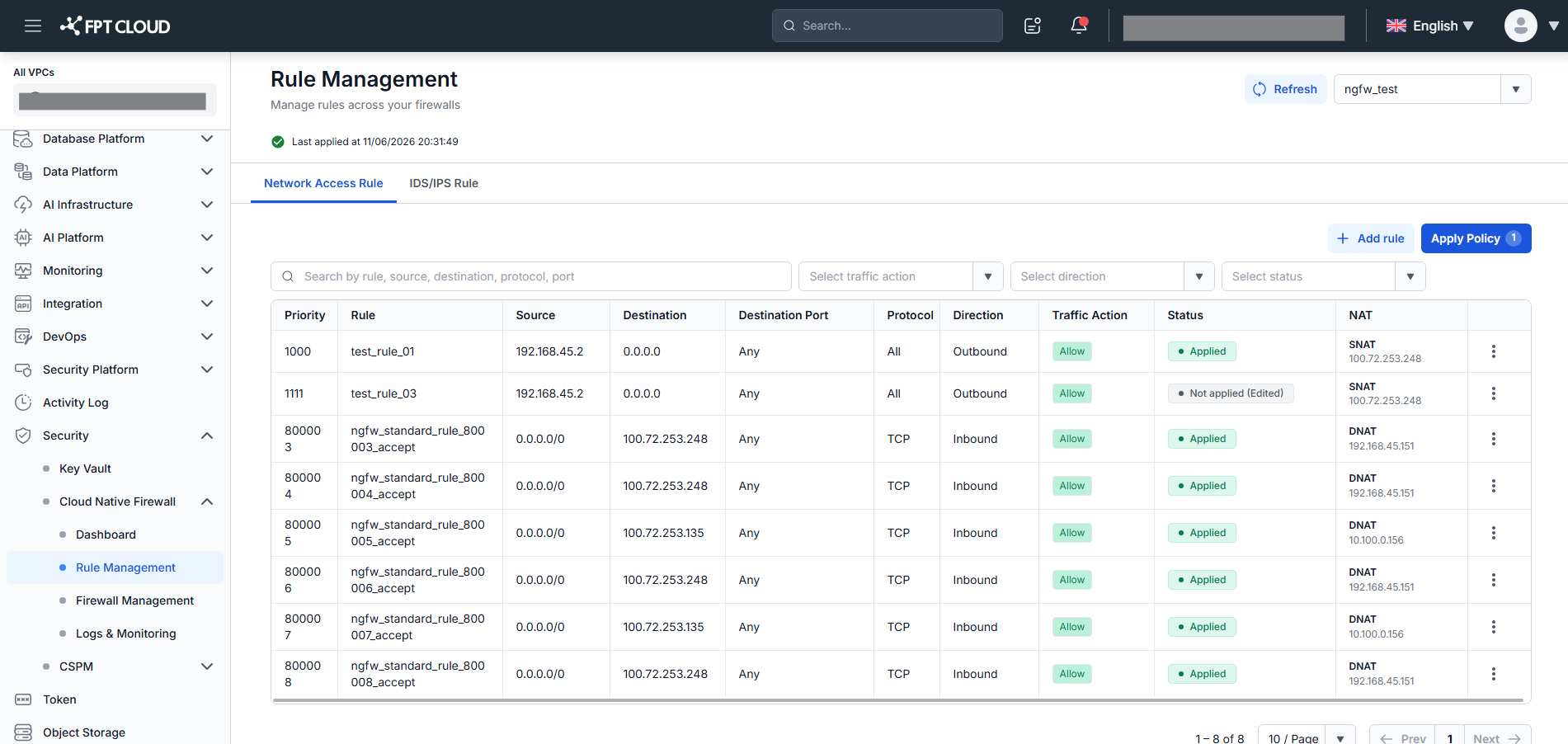
Rule list columns
| Column | Description |
|---|---|
| Priority | Evaluation order — lower values are checked first. |
| Rule Name | User-defined rule name. |
| Source | Source IP or CIDR. |
| Destination | Destination IP or CIDR. |
| Destination Port | Port or port range the rule applies to. |
| Protocol | TCP / UDP / ICMP / ICMPv6 / GRE / ESP / AH / SCTP / OSPF / VRRP / IGMP / All. |
| Direction | East-West / Inbound / Outbound. |
| Traffic Action | Allow or Deny. |
| NAT | SNAT (Outbound) / DNAT (Inbound) / none. |
| Status | Applied / Not Applied (Added) / Not Applied (Edited) / Not Applied (Deleted) / Applying. |
| Action | Edit / Delete. |
Header fields
| Field | Description |
|---|---|
| Applied Status | Overall policy state: applied / not applied / applying. |
| Last Applied Time | When the policy was last applied. |
Filter and search
Filter by Traffic Action, Direction, or Status. Search by rule name, source, destination, service, or tag. Filters and search combine with AND logic.
warning
The Firewall applies deny by default — traffic that does not match any rule is blocked. Rules only take effect after you click Apply Policy.