Manage VPN users
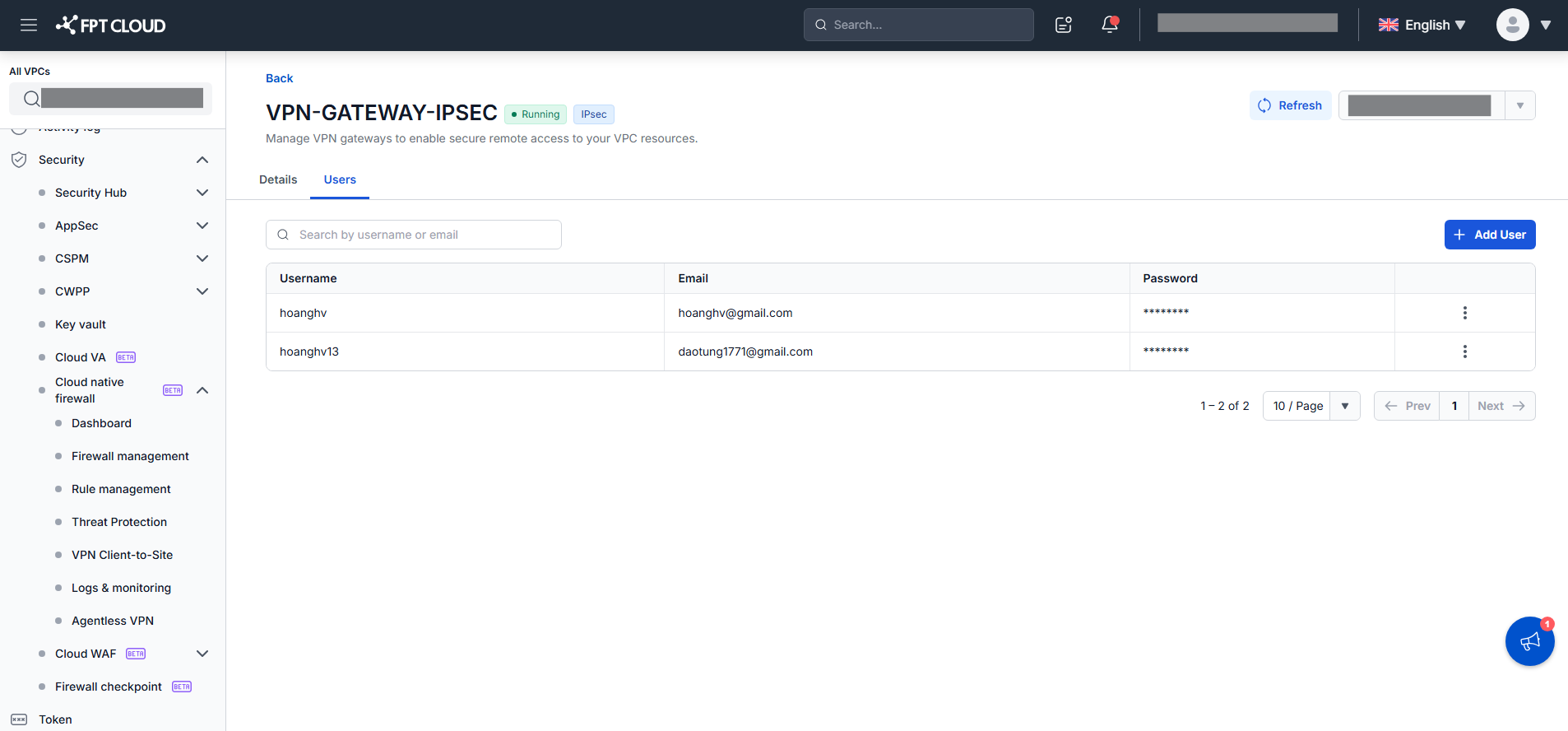
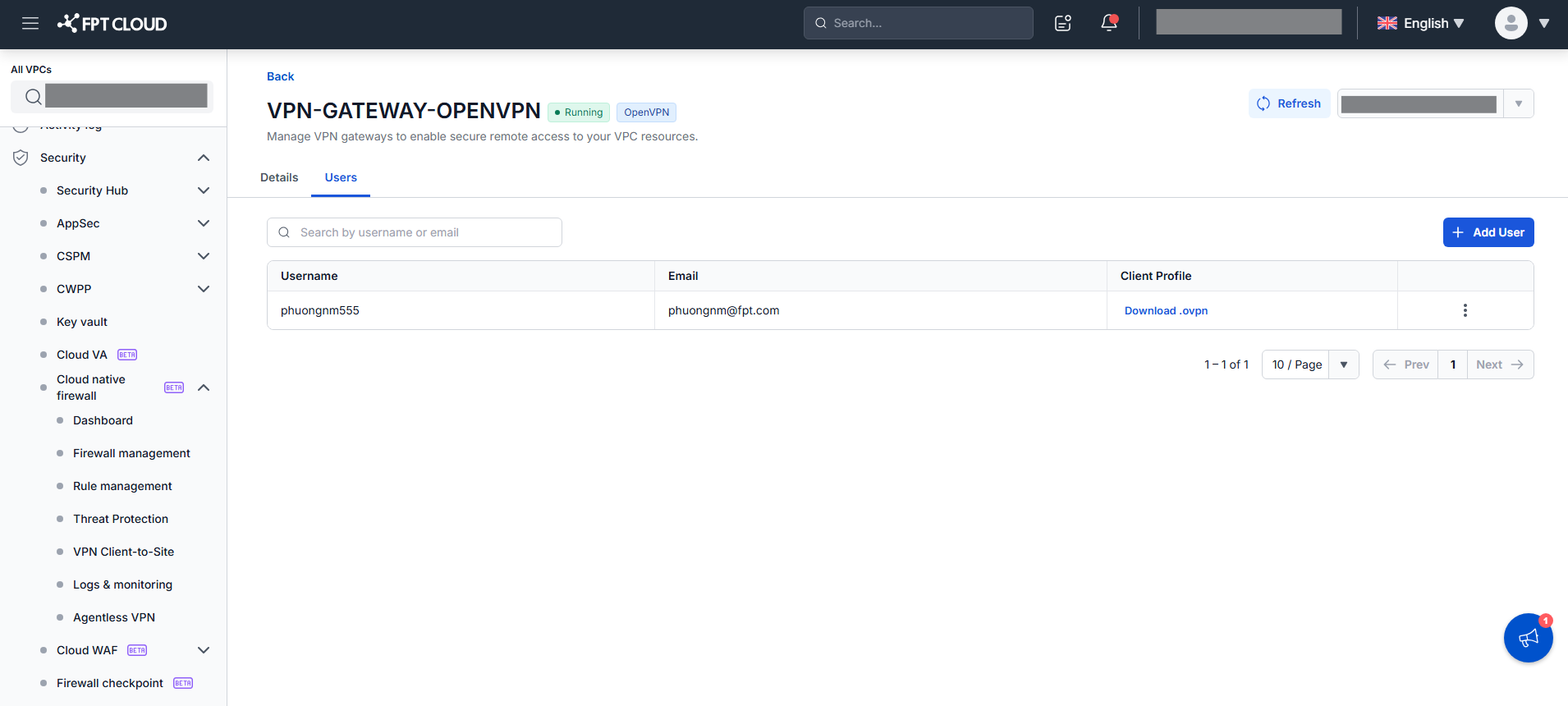
The Users tab on the Gateway Detail screen manages the users allowed to connect to the gateway. Users are managed independently (add, remove, reset, regenerate) without reprovisioning the gateway, so it stays Running. The user table differs by VPN Type.
View the user table
-
On the Gateway Detail screen, select the Users tab.
-
Review the user table for the gateway's VPN Type.
VPN Type Columns IPsec Username, Email, Password (masked ********), Row actions (⋮).OpenVPN Username, Email, Client Profile (Download .ovpn button), Row actions (⋮). The tab also has a Search box (by Username or Email), an Add User button, and pagination.
Add a user
-
Click Add User to open the dialog.
-
Enter the user details.
Field Description Username Required. Lowercase only, length 3–32. IPsec allows a-z,0-9, hyphen-(no dot). OpenVPN allowsa-z,0-9, dot., hyphen-. Uppercase,_,@, and spaces are not allowed. Unique within the gateway.Email Required. Valid email format. Duplicate emails are allowed. 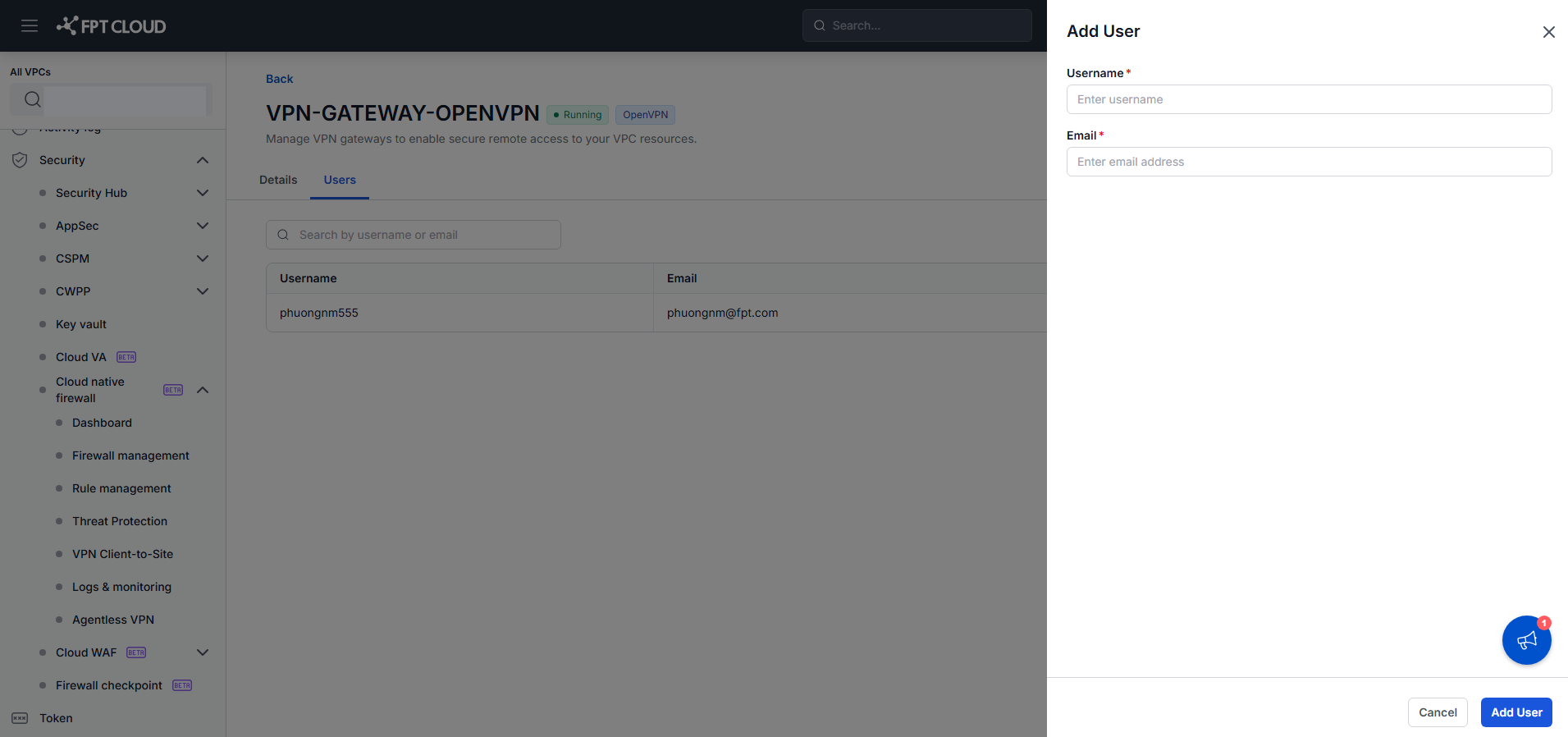
-
Click Add User to submit. On success it shows "User added successfully.", the user appears in the table, and the credential is issued immediately:
- IPsec — the IPsec User Passwords dialog shows the password in plaintext once ("Save it now. It is shown only once."). Click Copy password, then close the dialog; the password is then masked
********and cannot be viewed again. - OpenVPN — the new user has a Download .ovpn button in the Client Profile column.
- IPsec — the IPsec User Passwords dialog shows the password in plaintext once ("Save it now. It is shown only once."). Click Copy password, then close the dialog; the password is then masked
Row actions
Open the ⋮ menu on a user row:
- IPsec — Reset Password issues a new password (shown once, as on Add). The user must update their VPN client.
- OpenVPN — Regenerate issues a new certificate and
.ovpnfile; the old certificate is revoked. On success it shows "Client profile regenerated successfully." and the Download .ovpn button updates to the new profile (no automatic download). The user must re-import the new profile. - Delete removes the user from the gateway. Confirm in the dialog; the user disappears from the table with "User deleted successfully." and their current session is disconnected.
User changes (Add / Reset / Regenerate / Delete) update the credential immediately in the UI, but the backend needs a few minutes to apply them (a new user can connect, or a session is disconnected). Adding a duplicate Username shows "A user with this username already exists." (case-insensitive). Each gateway allows up to 100 users; at the limit, Add User is disabled (tooltip "Maximum of 100 users per VPN gateway reached."). User actions are disabled while the gateway is Creating, Updating, Deleting, or on Create failed. While the Firewall is being updated, actions are blocked with "Firewall is being updated. Please wait."