View details and reconfigure a gateway
The Gateway Detail screen has two tabs: Details (view Network Configuration and reconfigure) and Users (manage VPN users, see Manage VPN users). The Details tab is selected by default.
View the details
-
In the VPN Gateway list, click the Gateway Name to open.
-
Review the header: gateway name, operation icon (if processing or failed), Status badge (Running / Not Running), VPN Type badge (OpenVPN / IPsec), the read-only Firewall context, and a Refresh button.
-
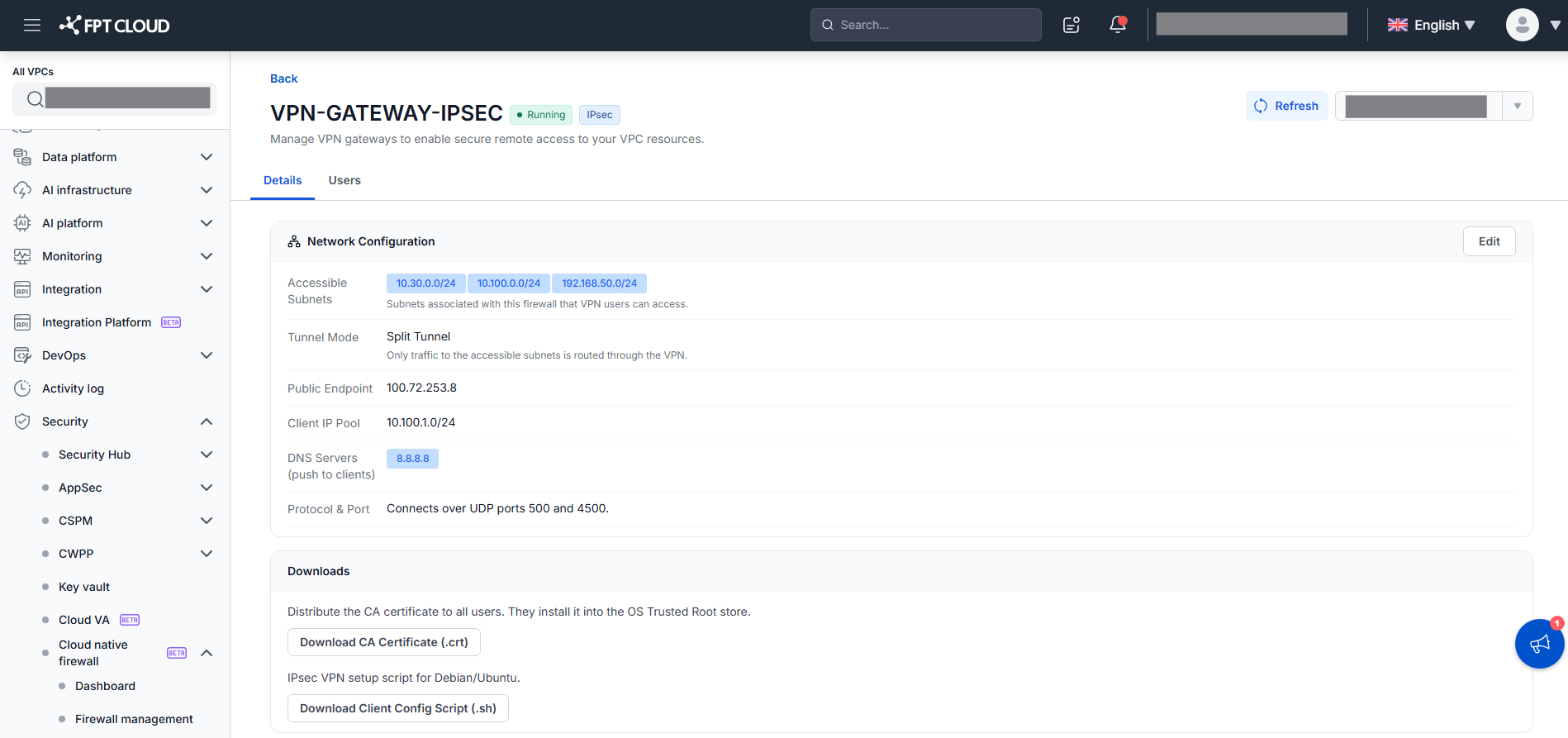
Review the Network Configuration section on the Details tab (read-only):
- Accessible Subnets — reachable subnets (CIDR).
- Tunnel Mode —
Split Tunnel(only traffic to Accessible Subnets) orFull Tunnel(all traffic, including internet). Applies to both IPsec and OpenVPN. - Public Endpoint — public IP the client connects to.
- Client IP Pool — virtual IP range assigned to clients.
- DNS Servers (push to clients) — DNS servers pushed to clients.
- Protocol & Port (help text) — OpenVPN: "Connects over UDP on port [port]." (actual port assigned by the backend, default 1194); IPsec: "Connects over UDP ports 500 and 4500."
-
For VPN Type IPsec, review the Downloads section with two links:
- Download CA Certificate (.crt) — download and distribute the CA certificate so users can install it into their OS Trusted Root store.
- Download Client Config Script (.sh) — download the client configuration script (
vpn_client_to_site.sh) with connection parameters embedded, for Debian/Ubuntu. The user runssudo ./vpn_client_to_site.shand enters the username/password from the Users tab.
OpenVPN has no Downloads section; it uses a per-user
.ovpnfile on the Users tab.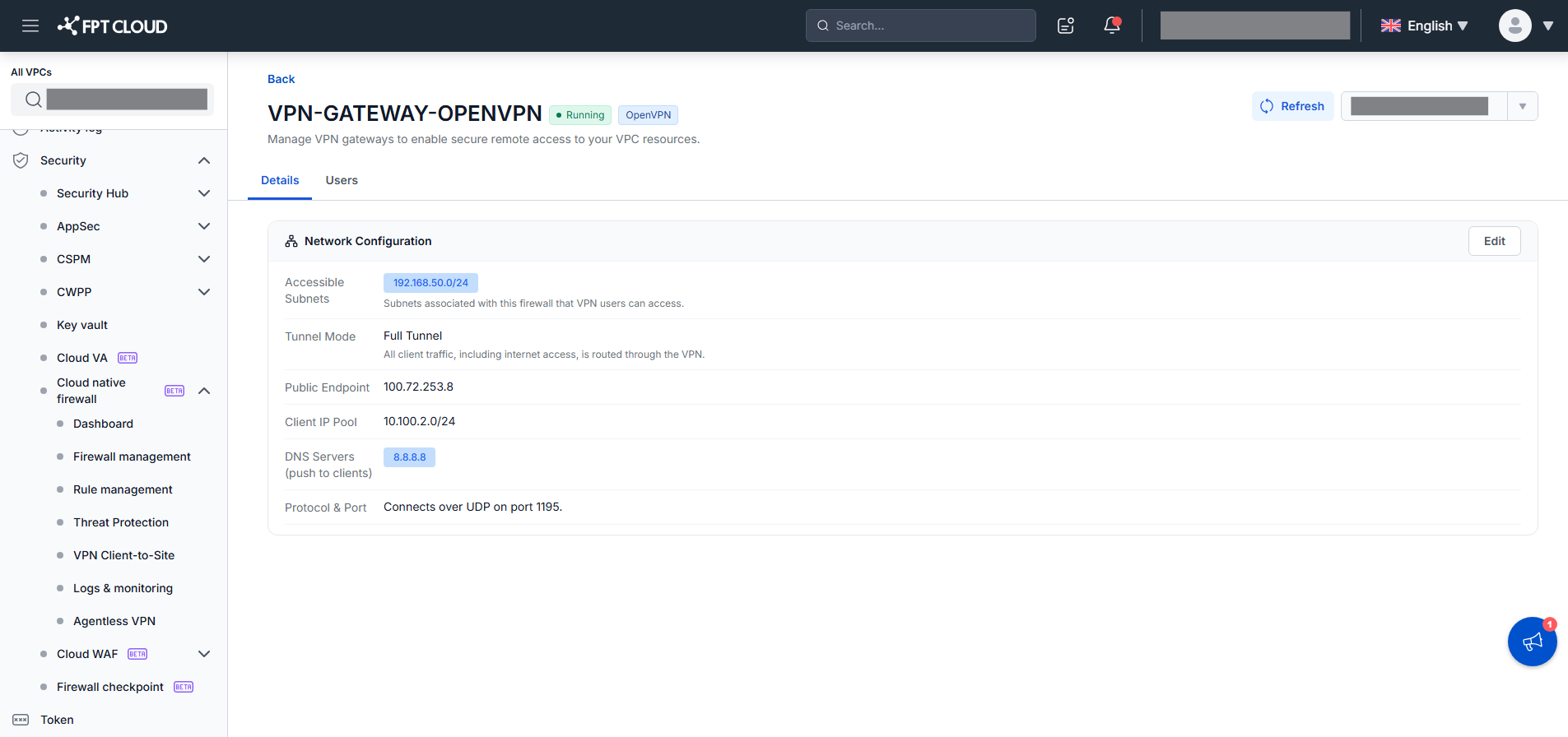
Reconfigure the gateway
-
On the Details tab, click Edit. The Accessible Subnets, Tunnel Mode, and DNS Servers fields become editable in place; Public Endpoint and Client IP Pool stay read-only.
-
Change Accessible Subnets (check or uncheck subnets, with Search and Select All), Tunnel Mode (
Split Tunnel/Full Tunnel, current value pre-selected), and DNS Servers (add or remove chips, up to 2, no duplicates). -
Click Save Changes.
The system validates. On success it shows "Updating gateway. This may take a few minutes.", the gateway enters Updating (the badge stays Running with an
Updating...icon), and the backend reprovisions. On success, Status returns toRunningwith the new config applied. On failure, the gateway shows Update failed, keeps the previous config, and stays Running; edit again to retry.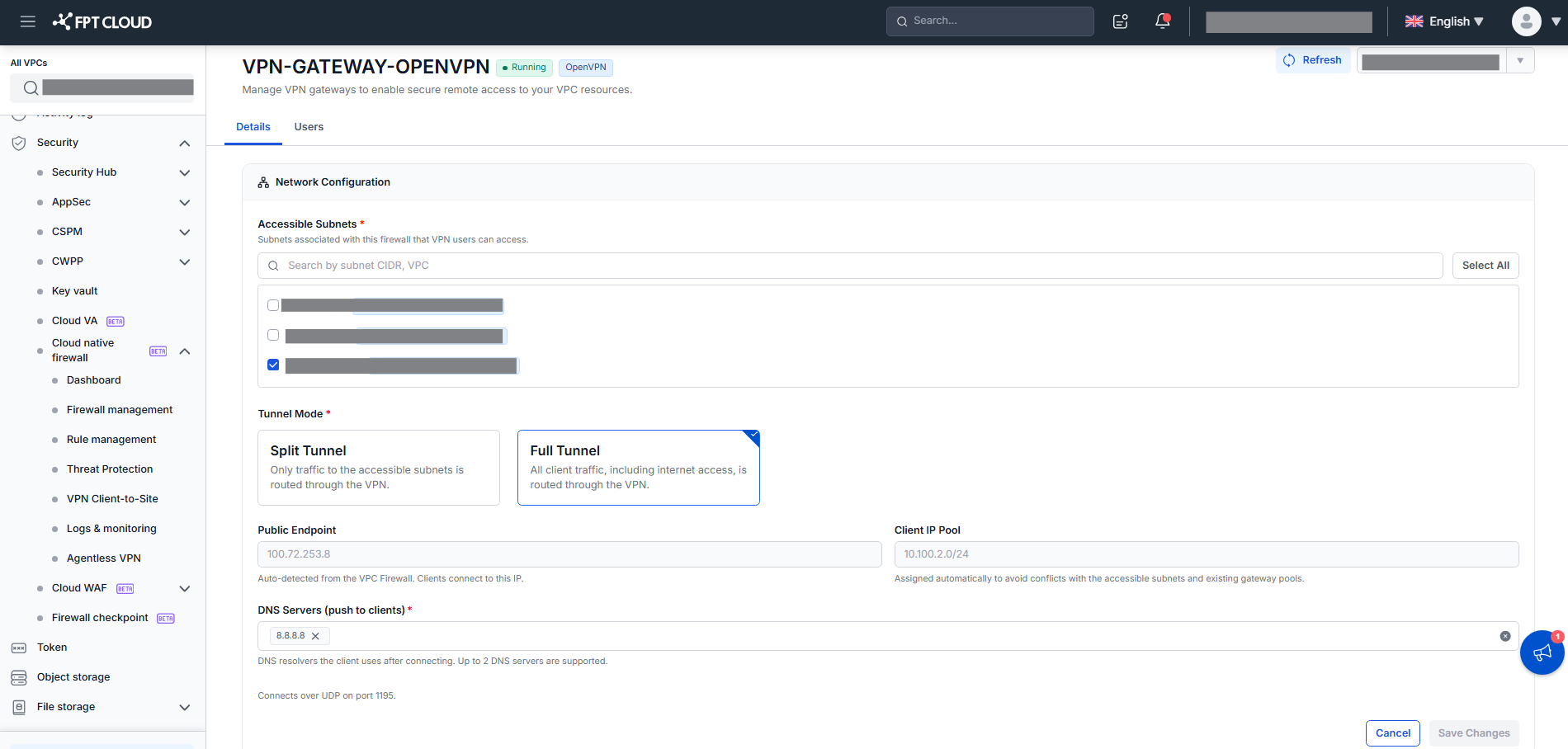
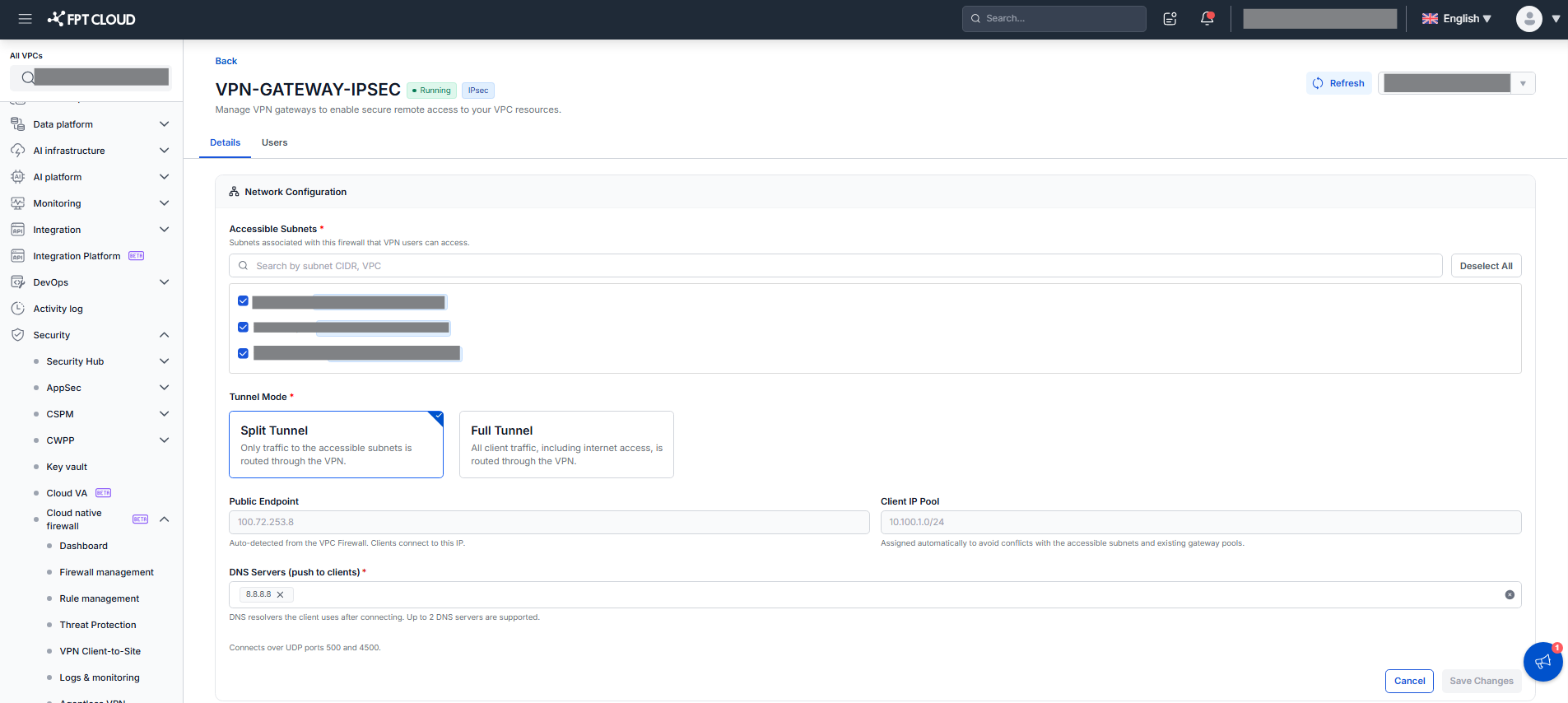
Only Accessible Subnets, Tunnel Mode, and DNS Servers can be edited; VPN Type, Public Endpoint, and Client IP Pool cannot change. Save Changes enables only when there is a real change. Edit is available only when the gateway is Active, Update failed, or Delete failed; it is disabled while Creating, Updating, Deleting, or on Create failed. Click Cancel to discard your changes and return to view mode.