View VPN gateways
VPN Client-to-Site lets you create and manage VPN Gateways directly on the FPT Cloud Native Firewall portal, giving remote users secure access to internal VPC resources without running your own VPN server.
Each VPN Gateway:
- Attaches to an existing Firewall and uses the Firewall's associated subnets as its access scope (Accessible Subnets).
- Supports two VPN Types: IPsec (username/password authentication) or OpenVPN (per-user certificate,
.ovpnfile). - Assigns a dedicated Client IP Pool (a virtual IP range) to remote clients.
- Manages its own VPN user list — add or remove users and issue per-user credentials in the UI.
Every VPN screen operates on the selected Firewall (Firewall selector). Your Firewall selection is preserved across screens within the session.
Before you begin
- The tenant has at least one Firewall, and that Firewall has at least one associated subnet. A VPN Gateway can only reach associated subnets. See Associate subnet.
- The selected Firewall has not reached the limit of 20 VPN Gateways.
Typical flow: create a VPN Gateway, add users and distribute their credentials, distribute the CA Certificate (IPsec only), then manage or reconfigure the gateway as needed.
View the gateway list
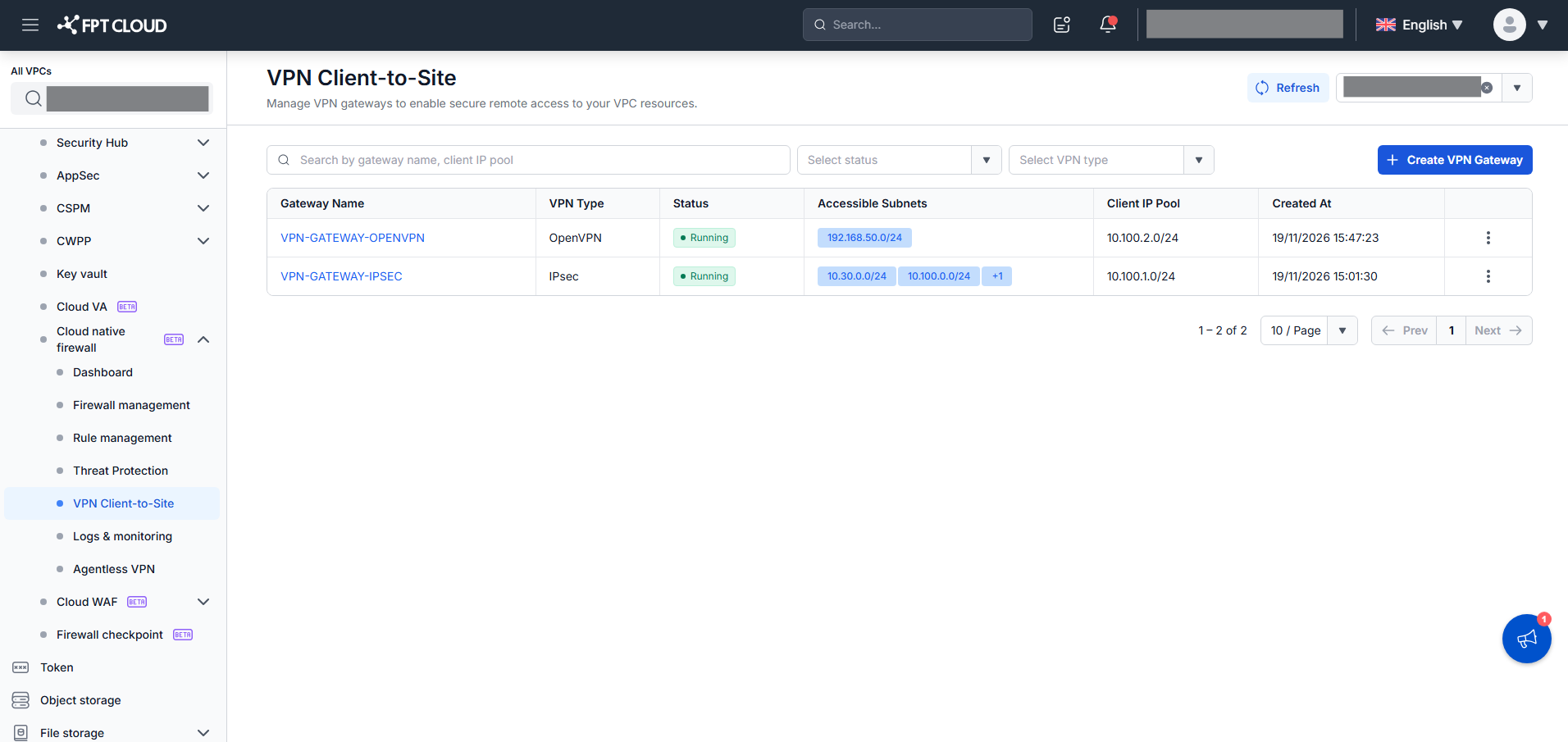
The VPN Client-to-Site screen lists all VPN Gateways of the selected Firewall, where you track status, search, filter, and delete gateways.
-
On the Cloud Native Firewall menu, select VPN Client-to-Site (Security > FPT Cloud Native Firewall > VPN Client-to-Site).
-
Select the Firewall to manage from the dropdown (first time defaults to the first Firewall alphabetically).
-
Review the VPN Gateway list columns.
Column Description Gateway Name Gateway name (click to view detail). Shows an operation icon while processing or on error: spinner ( Creating.../Updating.../Deleting...) or a failed icon (hover for the reason).VPN Type OpenVPNorIPsec.Status Running(green, active) orNot Running(gray, inactive).Accessible Subnets Subnets the client can reach (CIDR, shown as tags). Multiple subnets show +N; hover to see the full list.Client IP Pool Virtual IP range assigned to VPN clients (CIDR). Created At Gateway creation time (dd/MM/yyyy HH:mm:ss). Row actions (⋮) Actions available for the gateway's current state. The list sorts by Created At: Newest First by default.
-
Work with the list:
- Search by Gateway Name or Client IP Pool.
- Filter by Status (Running / Not Running) and VPN Type (OpenVPN / IPsec). Search and filters combine with AND logic.
- Create VPN Gateway — see Create a VPN gateway.
- View detail — click a Gateway Name.
- Delete or Retry — open the ⋮ menu.
- Refresh reloads the list with the latest data, keeping your current filters and search and returning to page 1.
- Paginate at 10 / 25 / 50 / 100 items per page (default 10).
Status and operation icon are two independent indicators. The Status badge shows whether the gateway is active (Running / Not Running); the operation icon next to the name shows an async action in progress or just failed. The Create VPN Gateway button is disabled when the tenant has no Firewall (tooltip "No firewall available") or when the selected Firewall already has 20 gateways (tooltip "Maximum of 20 VPN gateways per firewall reached."). When there are no gateways, or search and filters return nothing, the list shows "No records found."