Domain details
Domain Details is where FSP Admins view protection status, check origin health, update TLS certificates, and access security policy configuration for a specific domain. The page has two tabs: Overview (origin + certificate) and Security Policies (rule configuration).
Open domain details
- From the Domains list, click the domain name (blue link). Domain Details opens with the Overview tab active by default.
Only clicking the domain name navigates to details — clicking other areas of the row has no effect.
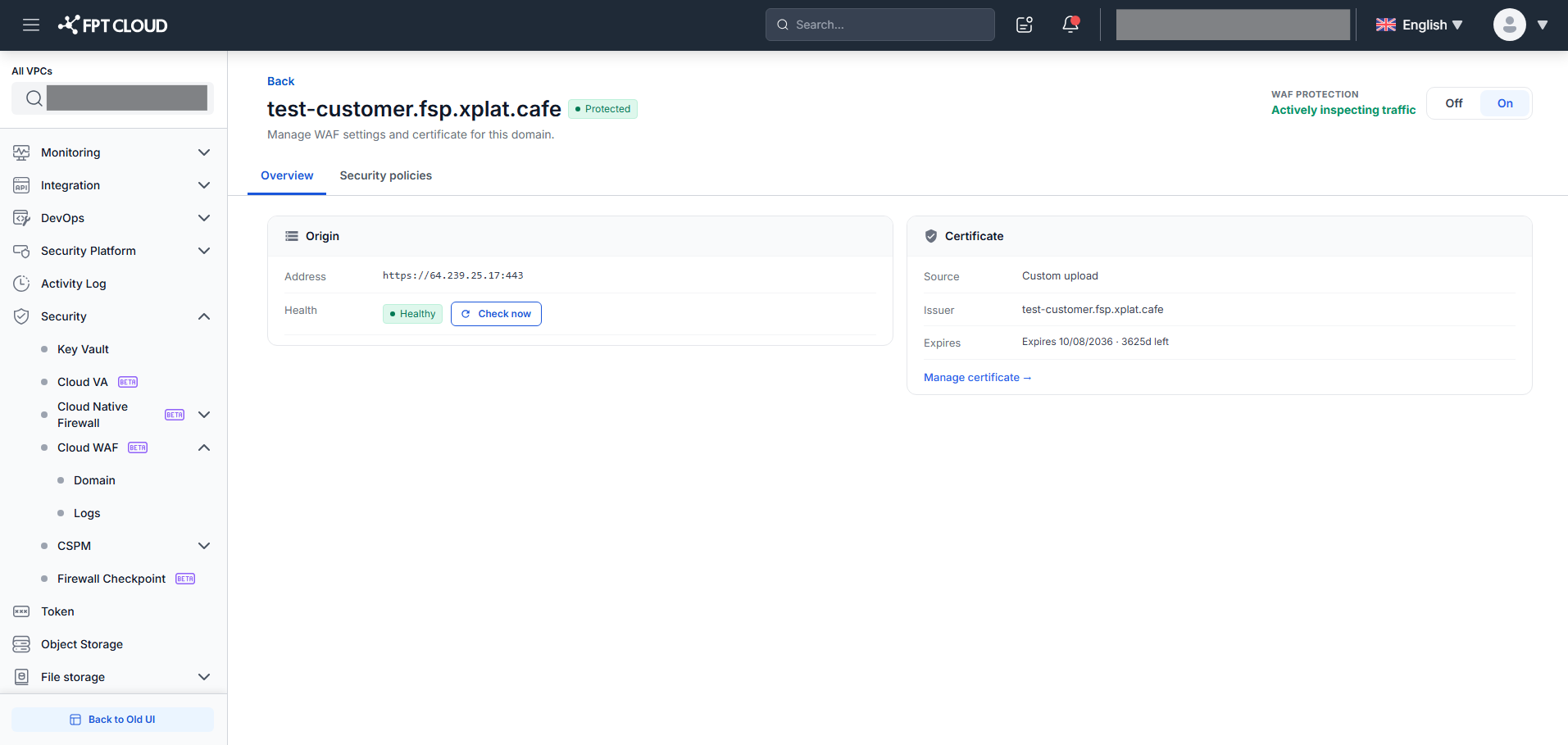
The header shows:
- Domain name (heading) + Status badge (Protected/Unprotected) — consistent with the Domain List
- WAF PROTECTION — current state and toggle to turn WAF on/off for this domain
Turn WAF protection on or off
Turn WAF off (On → Off):
- Slide the WAF protection toggle to Off → the "Turn Off WAF Protection?" dialog appears.
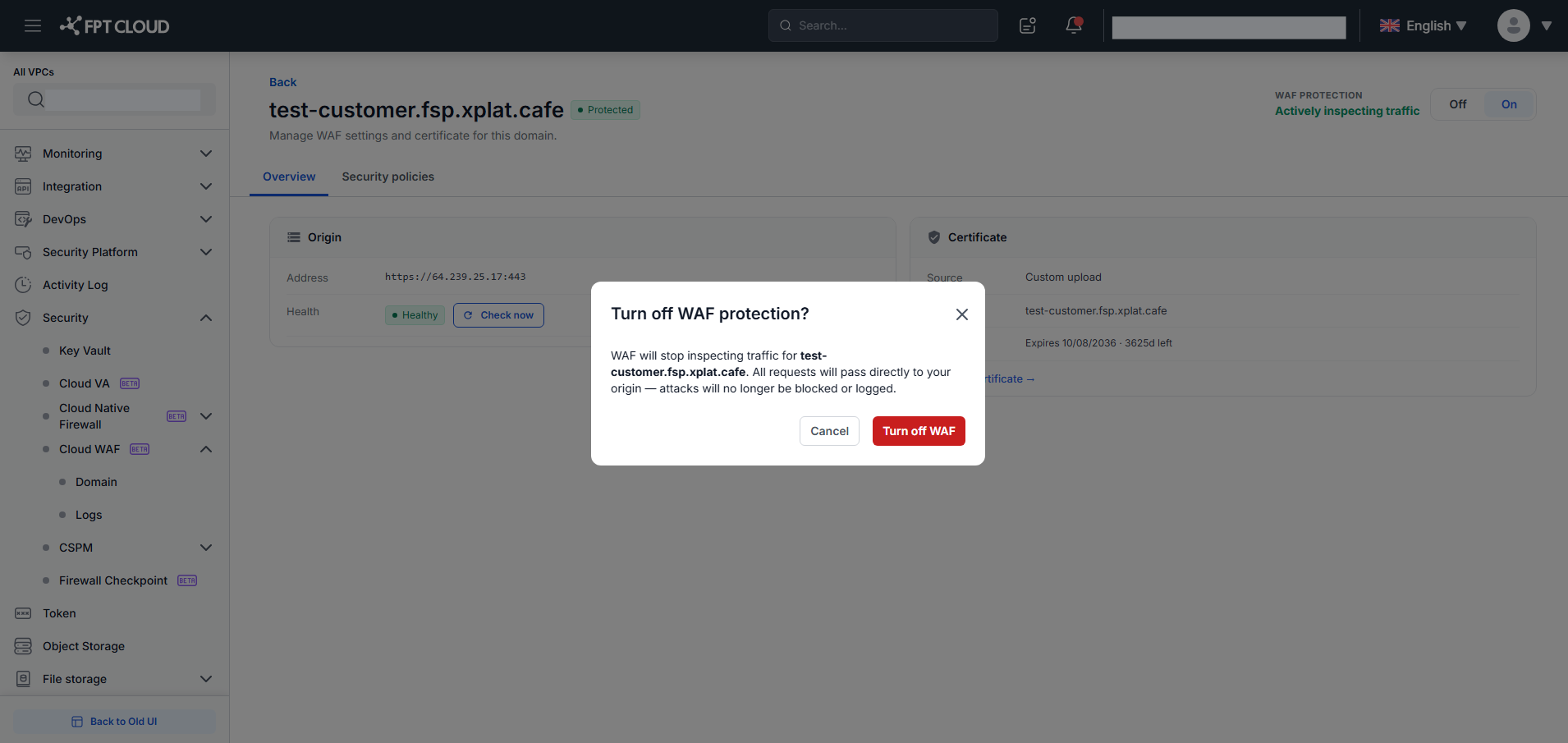
- Read the warning: "WAF will stop inspecting traffic for {domain}. All requests will go directly to origin — attacks will no longer be blocked or logged."
- Click "Turn Off WAF" to confirm. WAF turns off.
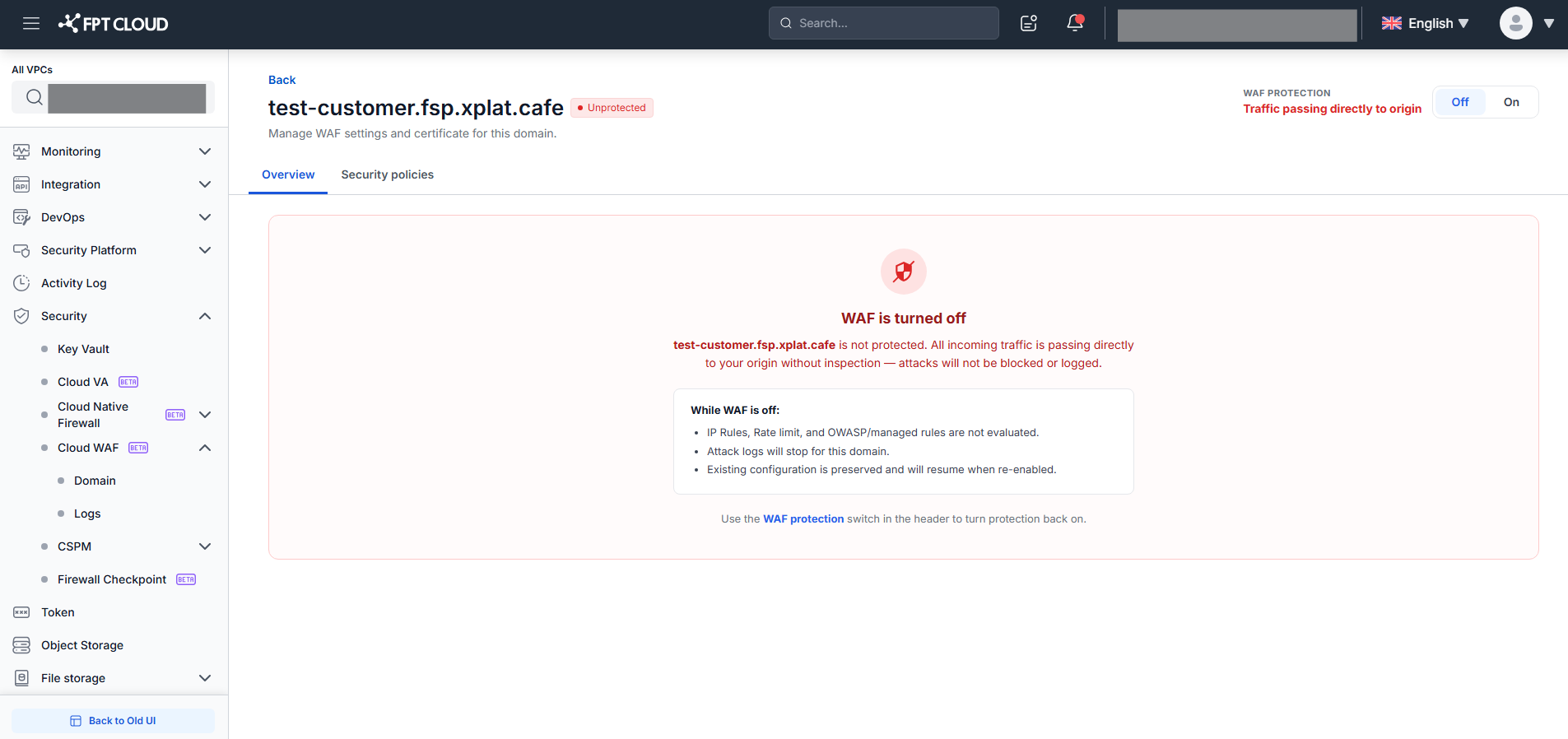
After turning off:
- Header badge changes to
Unprotected - Status text shows "Traffic passing directly to origin"
- Both Overview and Security Policies tabs are replaced with a "WAF is turned off" warning panel
- Current policy configuration is preserved and restored when WAF is re-enabled
Click "Cancel" or × to close without changing state.
Turn WAF on (Off → On):
- When WAF is Off, slide the toggle to On → the "Turn On WAF Protection?" dialog appears.
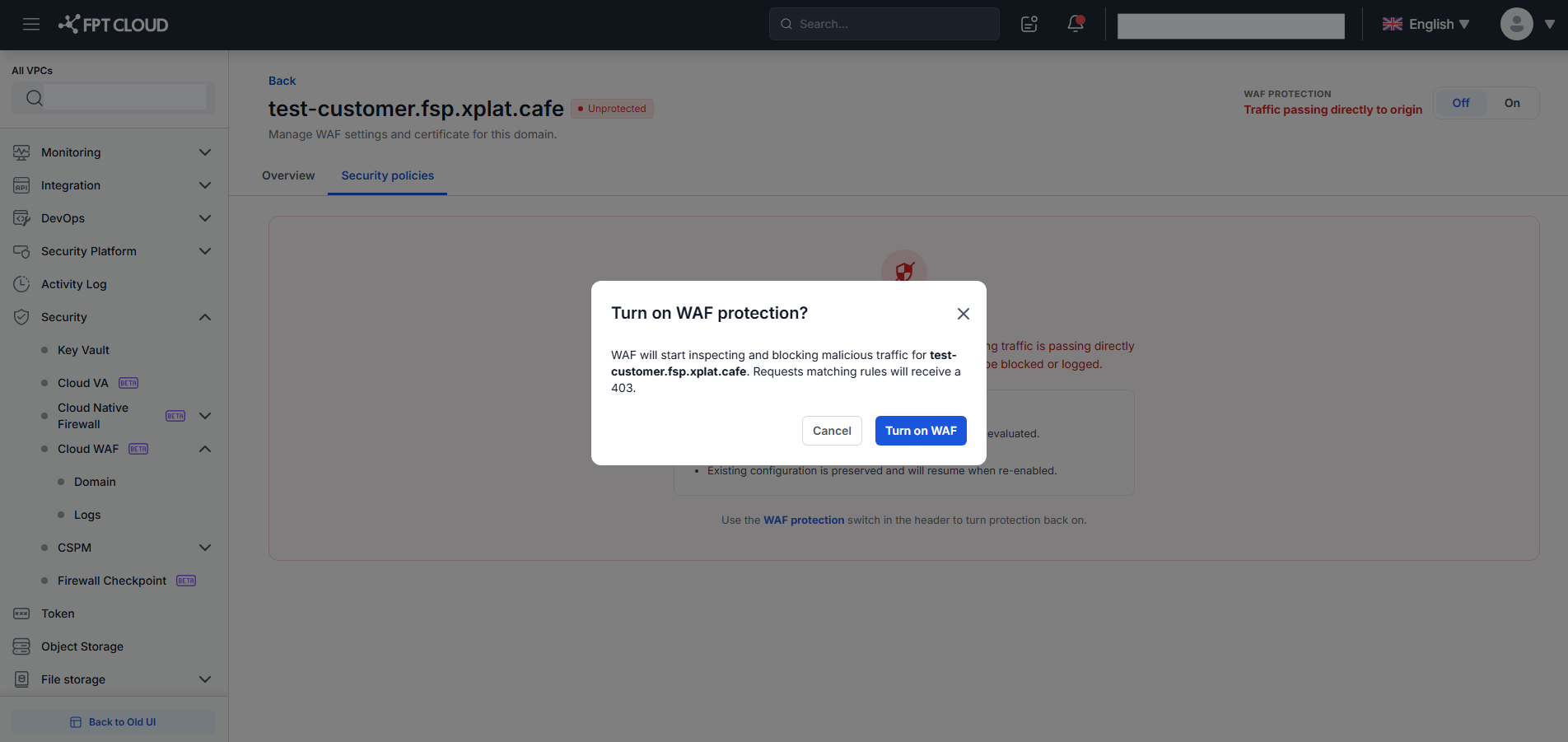
- Click "Turn On WAF" → WAF re-activates; Overview tab restores; badge returns to
Protected(if certificate is valid).
Check origin health
In the Overview tab, the Origin card shows:
- Address — origin server address (e.g.,
https://origin-shop.abc.com:443) - Health — latest health check result:
Healthy(responding normally) /Unhealthy(not responding)
To check origin health immediately:
- Click "Check Now" — the button is disabled during the check.
- The Health field updates with the result and a toast "Origin health checked" appears.
If the origin shows Unhealthy, verify: (1) WAF egress IPs are whitelisted on the origin firewall, (2) the origin server is running and accessible, (3) the protocol and port are configured correctly.
Manage TLS certificate
In the Overview tab, the Certificate card shows:
- Source — certificate source (e.g., "Custom upload")
- Issuer — the Certificate Authority (e.g., "DigiCert Inc")
- Expires — expiry date and days remaining (amber if ≤ 30 days; red ✗ if expired)
To update the certificate (e.g., renewal, change CA):
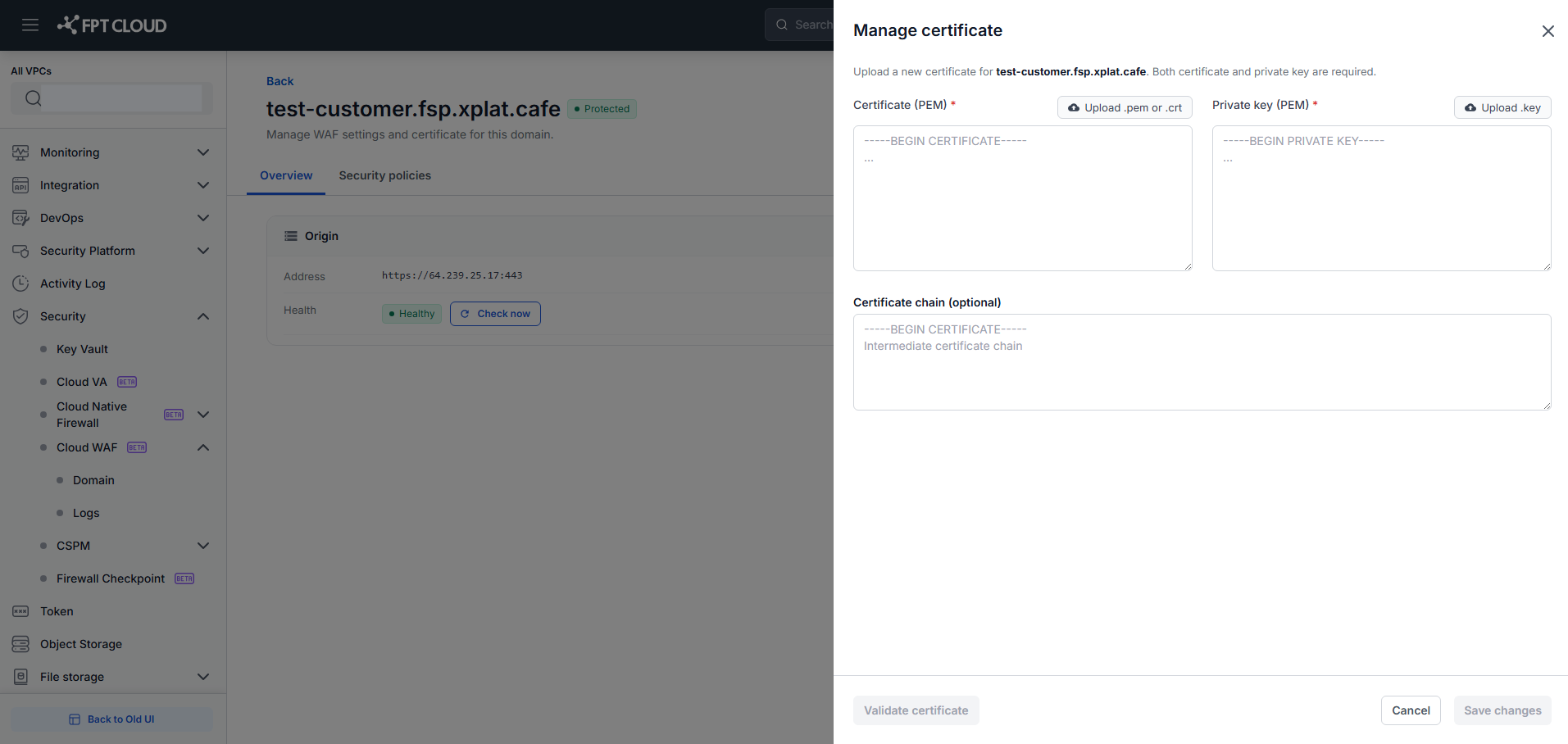
- Click "Manage Certificate →" → the Manage Certificate popup opens.
-
Enter the new Certificate (PEM) and Private Key (PEM). The input method is the same as Step 2 in Add Domain: paste text or upload file; mutual exclusion per field; "Remove File" to reset.
-
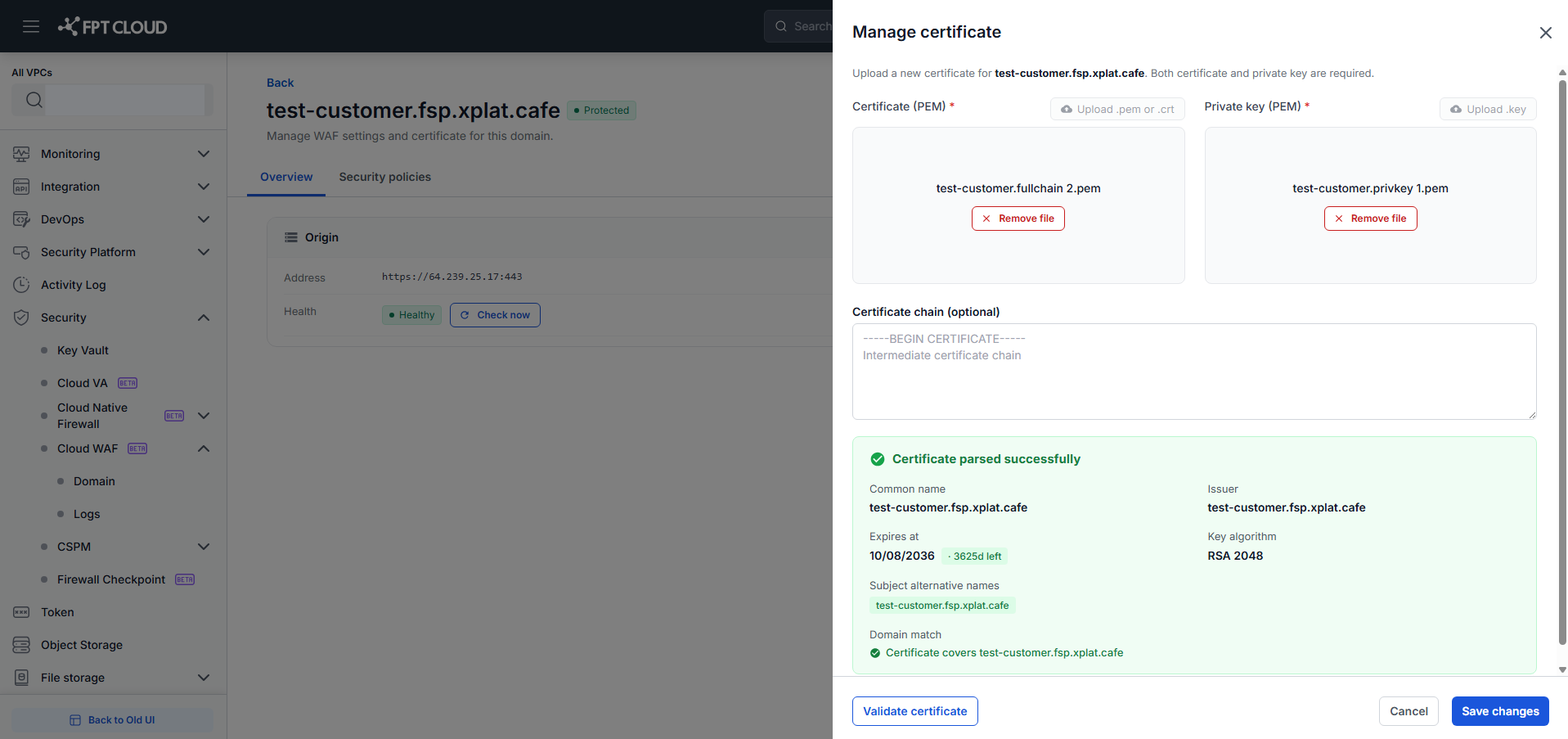
Click "Validate Certificate" → the system parses and shows the Metadata Panel.
-
If the new certificate is valid (not expired AND covers the domain) → "Save Changes" activates. Click "Save Changes" → toast "Certificate uploaded for {domain}" → the Certificate card updates → popup closes.
-
If the certificate is invalid (expired or doesn't cover the domain) → Metadata Panel shows the error (✗ Expires / ✗ Domain match); Save remains disabled.
-
Click "Cancel" or × to close without changing the current certificate.
What's next
- Security Policies — configure IP Rules, Rate Limiting, and WAF/OWASP rules for this domain.
- WAF Logs — monitor traffic logs across all domains.