K8s Asset Inventory
K8s Asset Inventory shows all Kubernetes clusters in your tenant, lets you manage the runtime agent on each cluster, and gives you a full view of workload resources running inside each cluster.
Access via Inventory → K8s Assets tab.
Who can do this
Only Tenant Admin accounts can install and uninstall the runtime agent.
View K8s clusters
-
In the sidebar, select Inventory.
-
Click the K8s Assets tab.
The cluster list appears with a fixed Network Requirement Banner at the top.
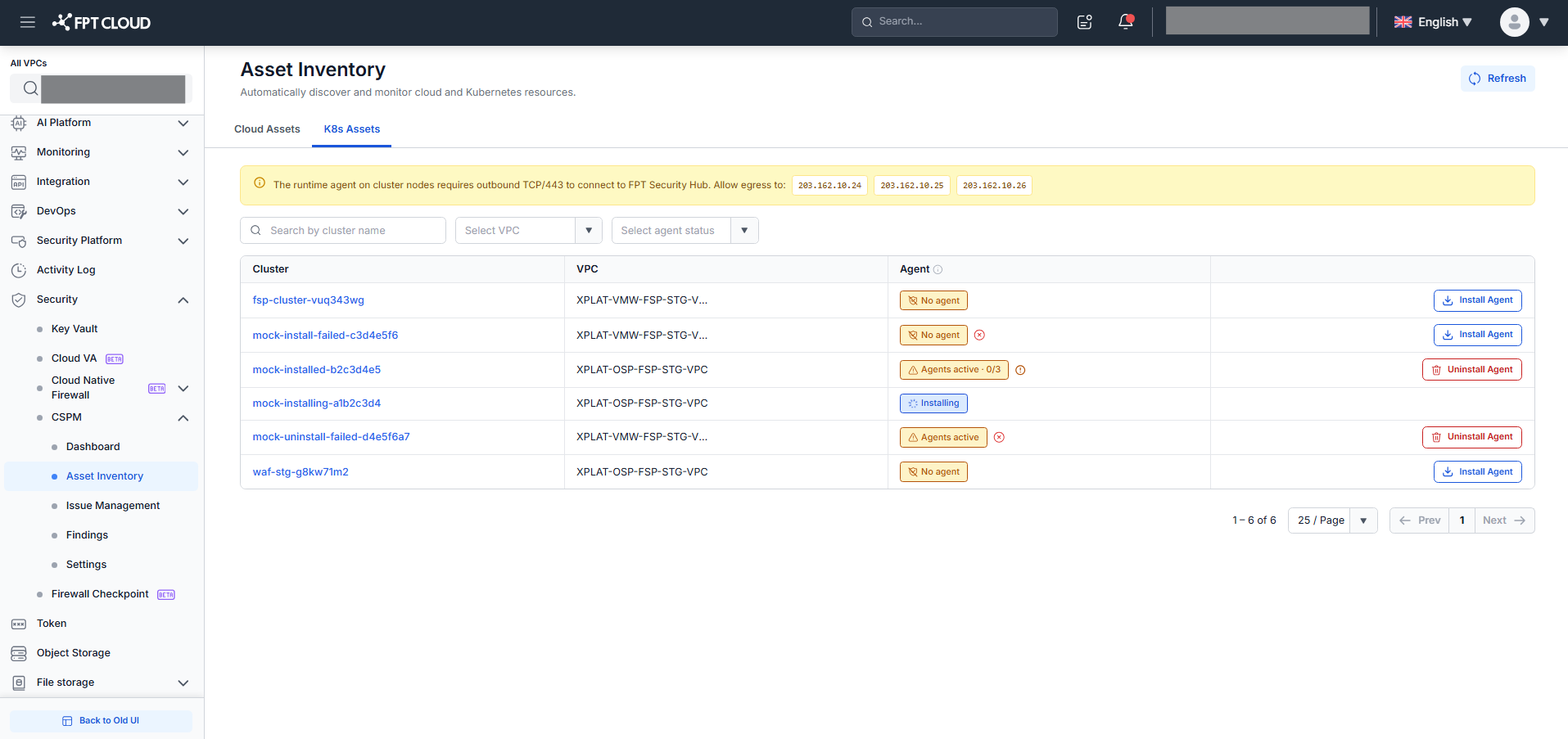
The Network Requirement Banner shows the outbound network rules required for the runtime agent to connect to Security Hub — protocol, port, and IP endpoints. Configure these firewall/egress rules on cluster nodes before installing the agent.
- Review the Agent column to see each cluster's runtime agent status.
| Agent status | Badge | Meaning |
|---|---|---|
| Agents active (full) | Green · ShieldCheck · Agents active · X/X | Agent is running on all nodes |
| Agents active (partial) | Amber · AlertTriangle · Agents active · X/Y | Agent is running but some nodes are down |
| No agent | Yellow · ShieldOff · No agent | Agent not installed; cluster is unprotected |
| Installing | Blue · Spinner | Installation in progress |
| Uninstalling | Orange · Spinner | Uninstall in progress |
Agents active (partial): hover the warning icon to see how many nodes are down. If the agent does not recover on its own, contact FPT Support.
- Use the filter bar to narrow the list (optional).
| Filter | Description |
|---|---|
| Search by cluster name | Real-time filter — no Enter required |
| Select VPC | Filter clusters by VPC |
| Select agent status | Filter by: Agents active / Installing / Uninstalling / No agent |
All filters combine with AND logic. Click × on any filter to remove it.
Install the runtime agent
Perform this when the cluster is in No agent status and you want to start collecting runtime data.
- In the cluster row, click Install Agent (visible in the Actions column when status is No agent).
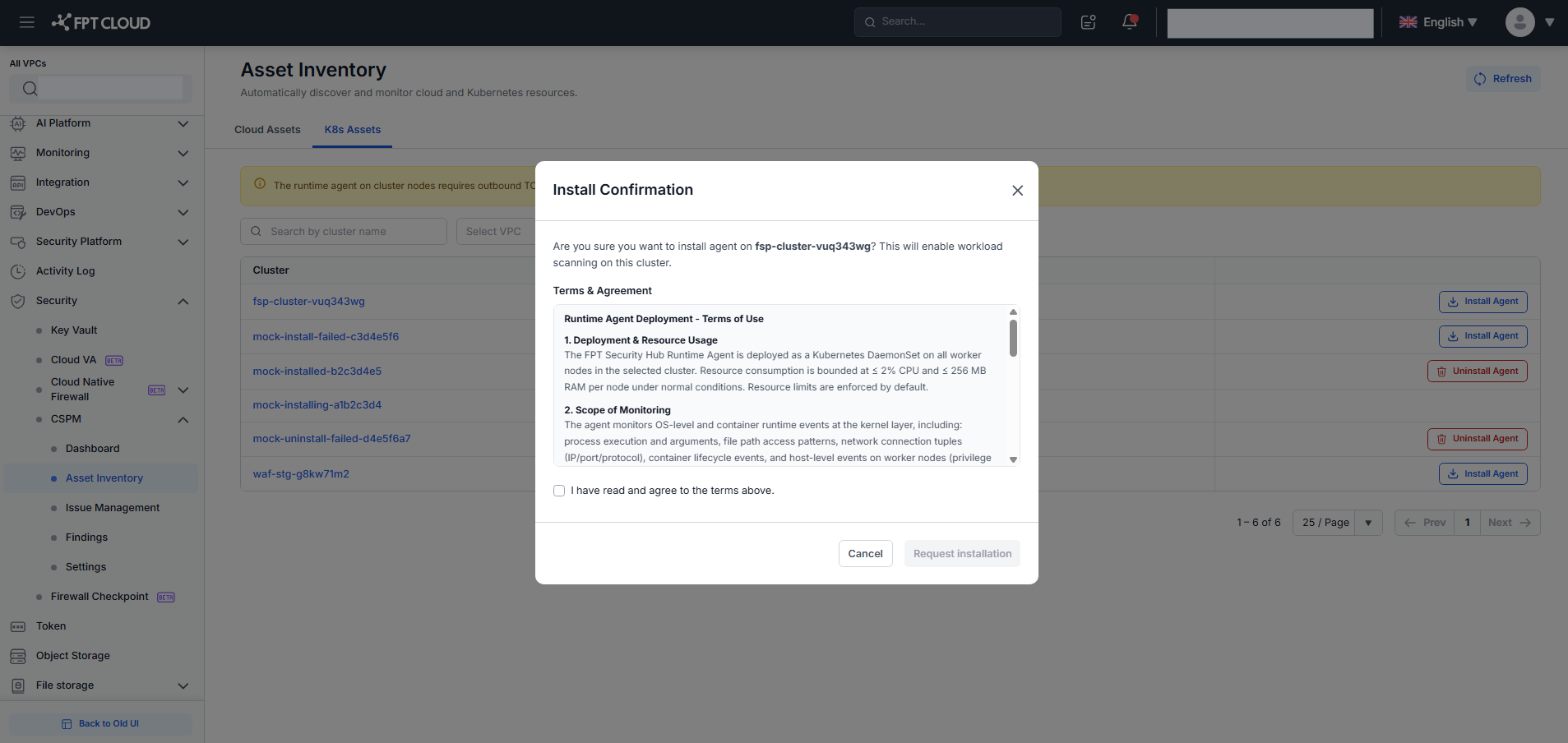
- The Install Confirmation modal opens.
-
Read the description and scroll through the Terms & Agreement section in the modal.
-
Check the checkbox: "I have read and agree to the terms above."
The Request installation button becomes enabled.
-
Click Request installation.
The modal closes. The agent status changes to Installing (blue spinner badge). No other actions are available during installation.
When installation succeeds, the badge automatically changes to Agents active. If installation fails, the badge reverts to No agent with a red error icon — you can retry immediately.
Uninstall the runtime agent
Perform this when the cluster is in Agents active status and you want to stop collecting runtime data.
- In the cluster row, click Uninstall Agent (visible in the Actions column when agent is active).
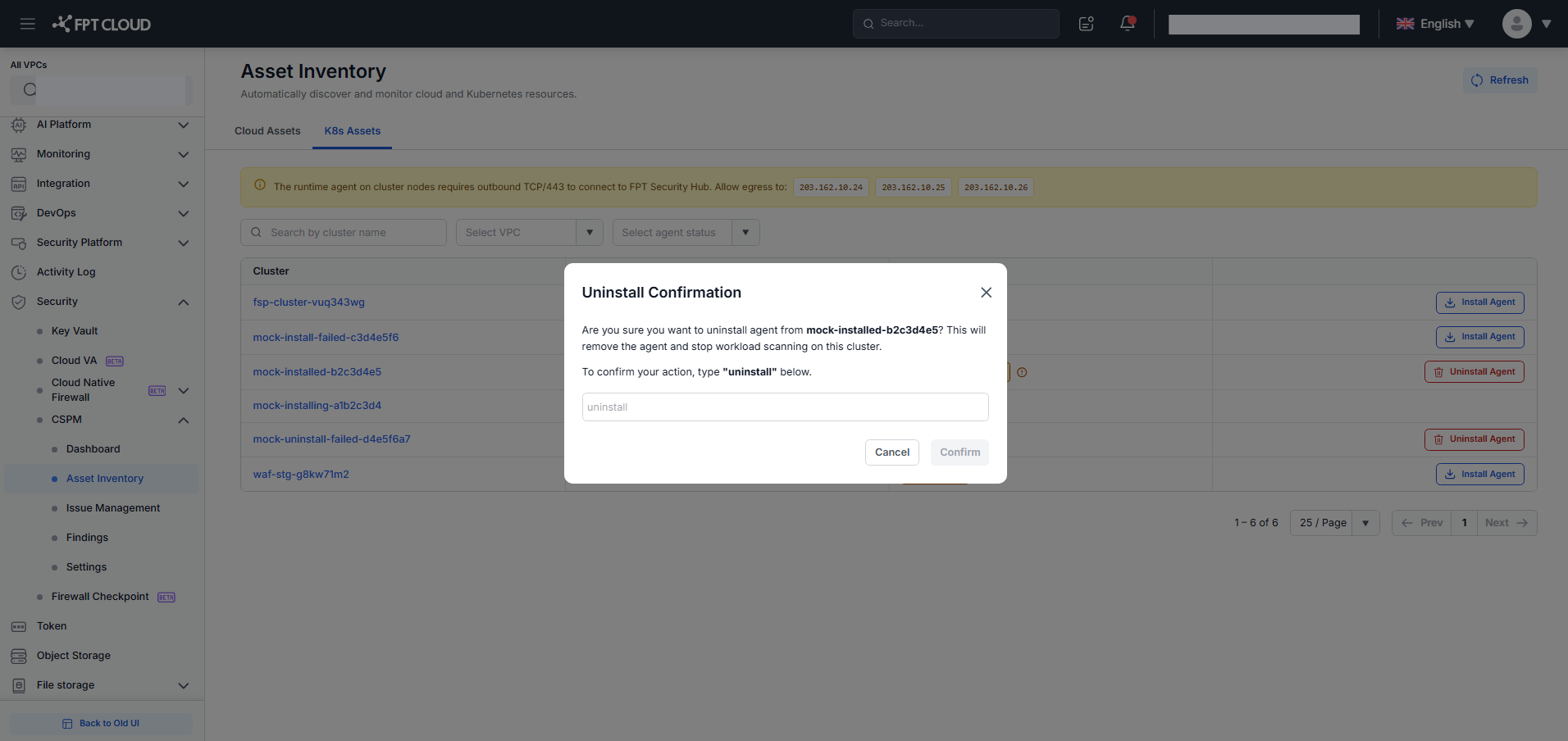
- The Uninstall Confirmation modal opens.
-
Read the warning. Type
uninstall(lowercase exactly) in the text input.The Confirm button becomes enabled.
-
Click Confirm.
The modal closes. The agent status changes to Uninstalling (orange spinner). When complete, the badge changes to No agent.
After uninstalling, the cluster no longer sends runtime findings to Security Hub. The workload inventory may still display data from existing KSPM scans.
View workload resources in a cluster
-
In the K8s Assets list, click the cluster name (hyperlink).
The K8s Asset Details screen opens showing all workload resources in that cluster.
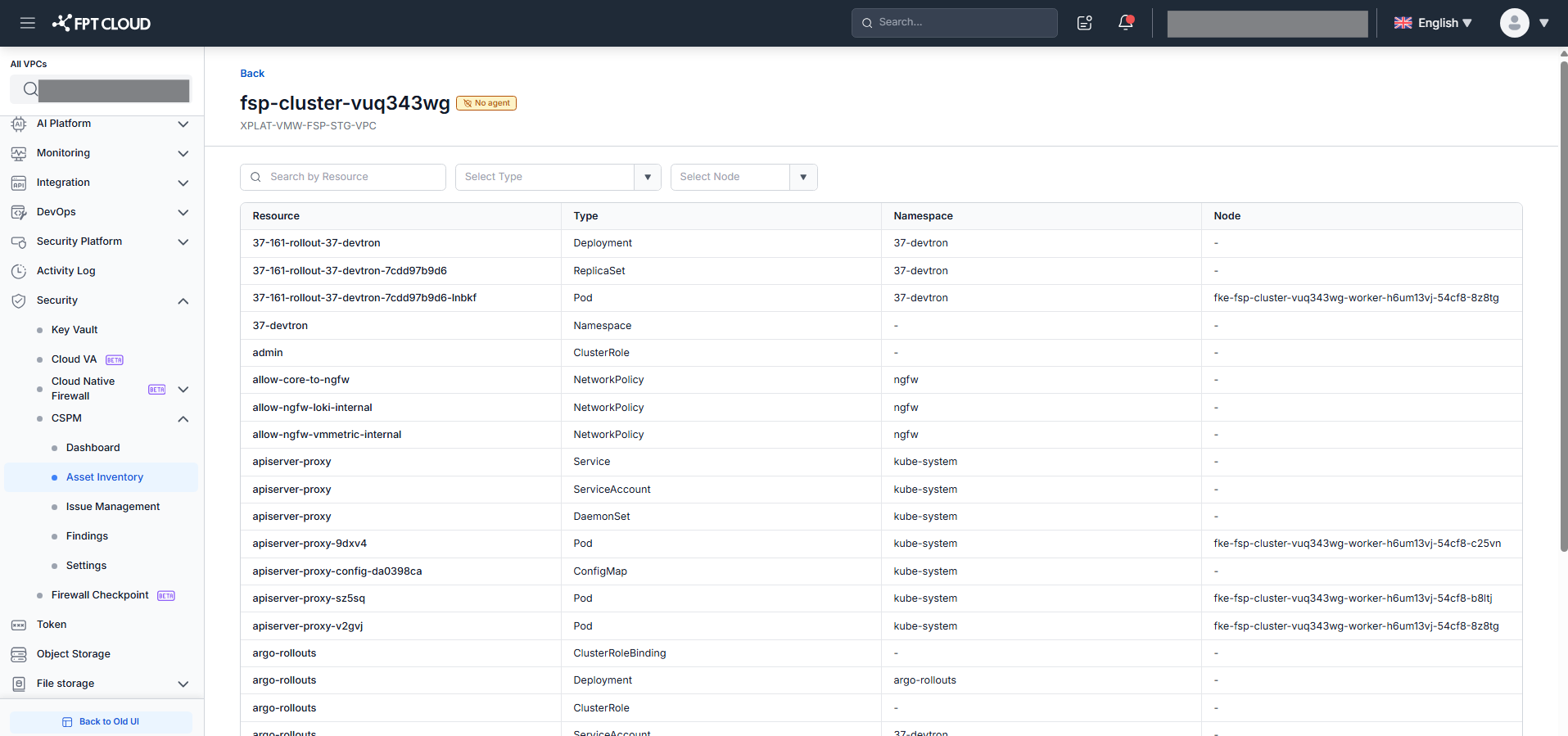
- Review the resource table.
| Column | Description |
|---|---|
| Resource | Resource name |
| Type | Resource type (Pod, Node, Deployment, Service, ConfigMap, etc.) |
| Namespace | Namespace. Displays "—" for cluster-scoped resources. |
| Node | Node running the resource. Displays "—" if not available. |
- Filter or search the resource list (optional).
| Filter | Description |
|---|---|
| Search by Resource | Real-time search by resource name |
| Select Type | Filter by resource type: Node, Pod, Deployment, StatefulSet, DaemonSet, ConfigMap, Secret, Service, Ingress, and others |
| Select Node | Filter by a specific node in the cluster |
The N resources counter in the header updates in real time as you filter.
The resource list comes from KSPM data — it is independent of the agent state. Resources still appear even if the agent is Installing, Uninstalling, or not installed. A newly connected cluster with no KSPM scan yet shows "No records found".
- Click Back to return to the K8s Asset List. Your filters and search in the list are preserved.
What's next
- Monitor Runtime Findings — view security signals detected by the runtime agent after installation.