Notification Hub
Configure scheduled email alerts for your Security Hub account.
note
Org Admin role required.
Step 1. Go to Security → Security Hub → Settings → Notifications.
Step 2. Enter email addresses in Email Input — separate multiple with a comma, semicolon, or space. Click Add.
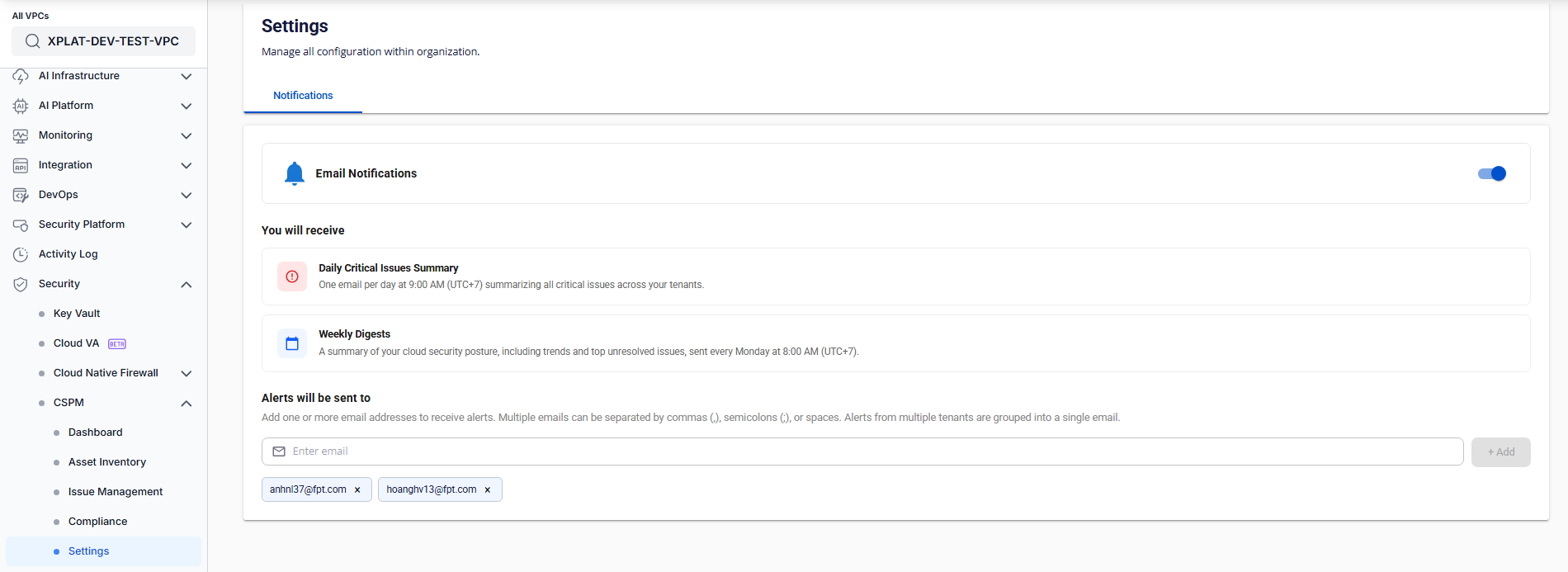
Step 3. Flip Email Notifications to ON.
Settings save automatically. Two notifications are active:
- Daily Critical Issues Summary — 9:00 AM UTC+7, only when new critical issues exist in the past 24 hours
- Weekly Digest — 8:00 AM UTC+7 every Monday
To remove a recipient, click × on the tag. Removing the last recipient turns notifications off.
Common errors
| Situation | Message |
|---|---|
| No recipients added | Toggle is disabled — cannot turn on |
| Email already in list | Inline error (C10) |
| Email over 254 characters | Inline error (C02) |
| Two identical emails entered at once | "Duplicate email detected." |
| System error | "System is busy. Please try again later." |
| Insufficient permissions | "You do not have sufficient permissions to view this page!" |