Configure email notifications
Notification Hub sends Security Hub alerts to your inbox so your team monitors risks without logging in every day. Two scheduled alerts are available: a Daily Critical Issues Summary and a Weekly Digest.
Who can do this
Notification Hub is available to Org Admin accounts only.
What you need
- An FPT Cloud account with the Org Admin role
- At least one email address to receive alerts
Add recipients and turn on alerts
Step 1. Go to Security → Security Hub → Settings → Notifications.
The Email Notifications screen appears.
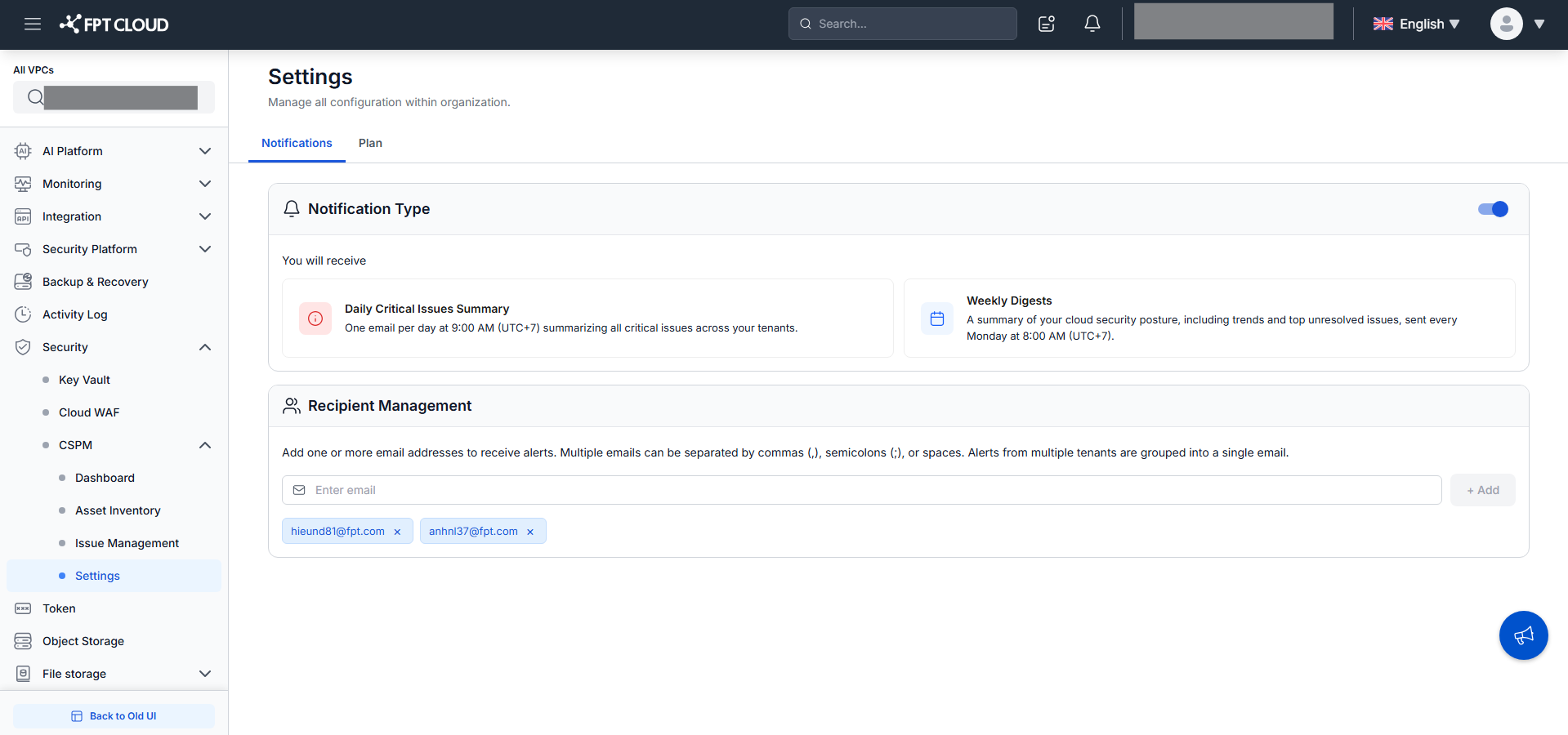
Step 2. Enter one or more email addresses in Email Input.
Separate multiple addresses with a comma, semicolon, or space.
Step 3. Click Add to confirm.
Each accepted address appears as a removable tag below the field.
Maximum 10 recipients per organization. Duplicate addresses and addresses over 254 characters are rejected inline.
Step 4. Flip Email Notifications to ON.
Settings save automatically — no separate Save action is needed. The toggle is only active after at least one recipient is added.
Your recipients will now receive:
| Notification | Schedule | Condition |
|---|---|---|
| Daily Critical Issues Summary | 9:00 AM UTC+7 daily | New critical issues in the past 24 hours |
| Weekly Digest | 8:00 AM UTC+7 every Monday | Always sent |
If a recipient belongs to multiple tenants, one combined email covers all tenants.
Remove a recipient
Click × on the recipient's tag. Removing the last recipient automatically turns off Email Notifications.
Turn off notifications
Flip Email Notifications to OFF. Alerts stop immediately. Your recipient list is kept if you re-enable later.