Activate and deactivate Security Hub
Security Hub must be activated before it starts collecting security data for your organization. This guide walks through activating the service for the first time, deactivating it when needed, and reactivating after a deactivation.
Who can do this
Only Tenant Admin accounts can activate and deactivate Security Hub.
Activate Security Hub
Step 1: Access Security Hub
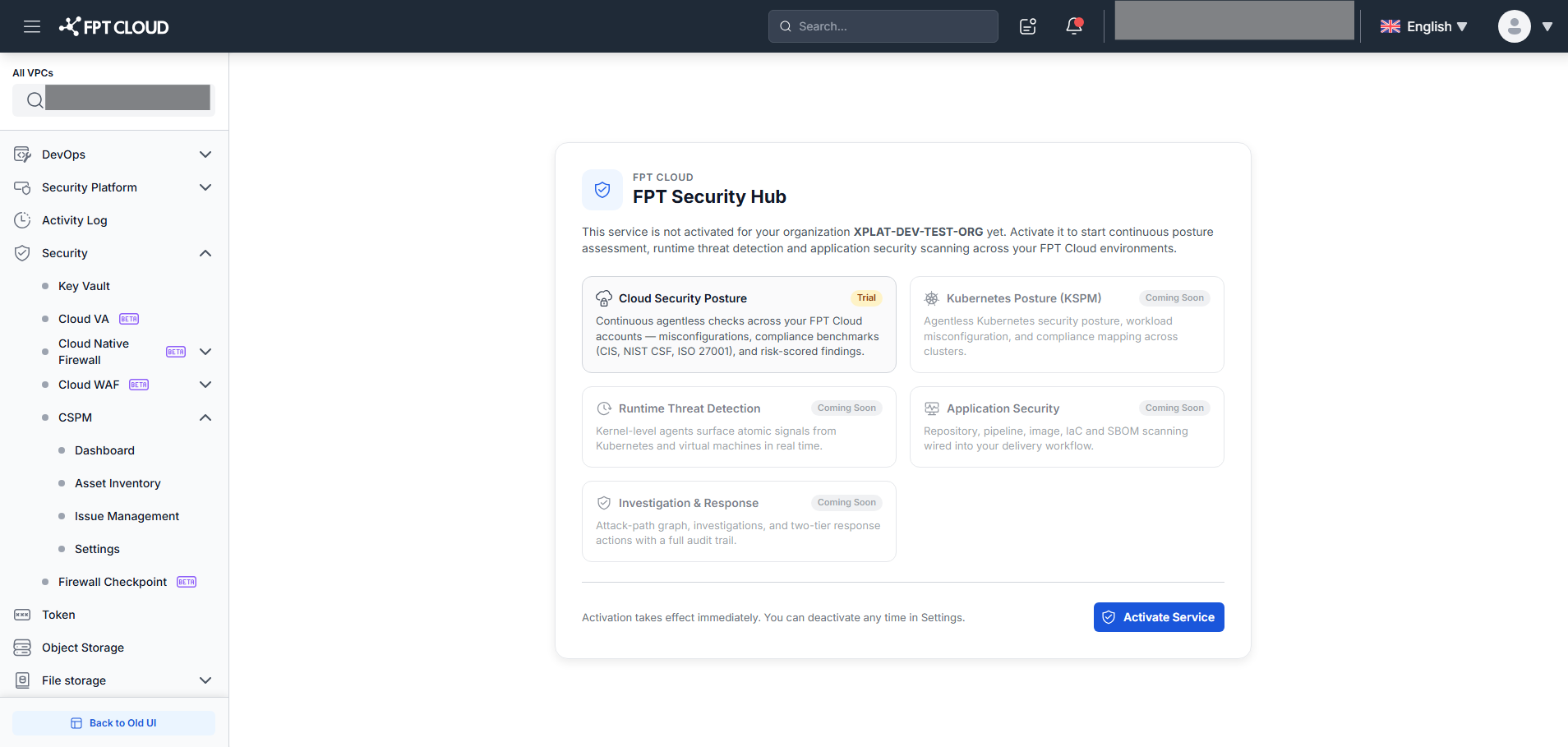
Log in and select any tab on the menu (Overview, Threats, Issues, etc.). If the service has not been activated, the Service Activation screen appears automatically in place of the tab content.
Step 2: Review the service overview
The Service Activation screen shows the capabilities of Security Hub:
- Cloud Security Posture (available — Trial) — Continuously checks FPT Cloud accounts for misconfigurations, compliance benchmarks (CIS, NIST CSF, ISO 27001), and risk-scored findings.
- Kubernetes Posture (KSPM) (Coming Soon) — Agentless Kubernetes security posture and compliance mapping.
- Runtime Threat Detection (Coming Soon) — Real-time threat detection from Kubernetes and VMs via kernel-level agents.
- Application Security (Coming Soon) — Scans repositories, pipelines, images, IaC, and SBOM in the delivery workflow.
- Investigation & Response (Coming Soon) — Attack-path graph, incident investigation, and full audit trail.
Only Cloud Security Posture is available in the Trial phase. Other modules will be released in future versions.
Step 3: Open the Terms of Use
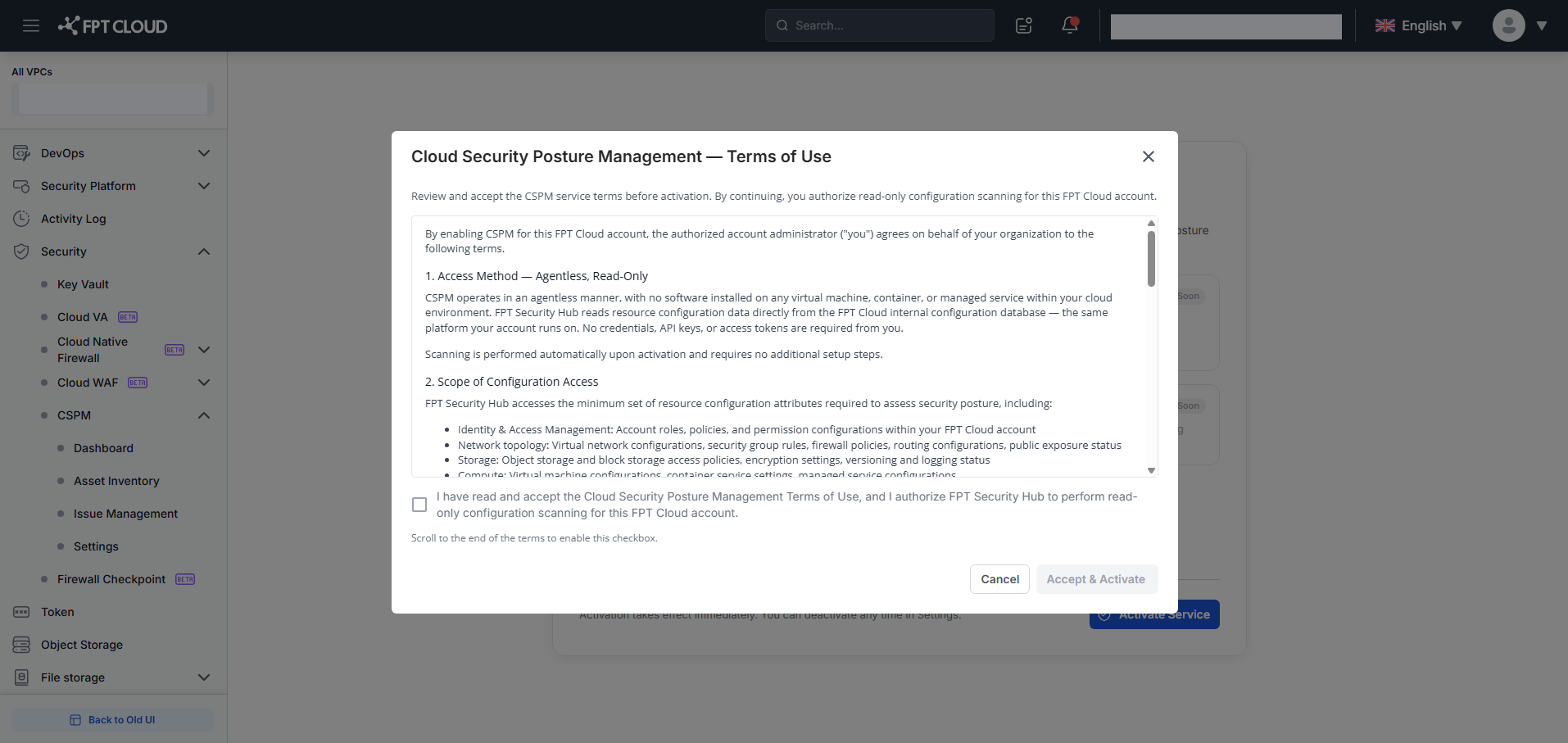
Click Activate Service. The Cloud Security Posture Management — Terms of Use dialog opens.
Step 4: Read the Terms of Use
Read the full terms in the dialog. The agreement checkbox becomes enabled only after you scroll to the end of the content.
You must read through the entire terms before you can agree — the checkbox cannot be checked until you scroll to the bottom.
Step 5: Accept and activate
Check the checkbox: "I have read and accept the Cloud Security Posture Management Terms of Use, and I authorize FPT Security Hub to perform read-only configuration scanning for this FPT Cloud account."
The Accept & Activate button becomes enabled. Click it to complete activation.
Step 6: Activation confirmed
Security Hub activates immediately and redirects you to the Dashboard. All tabs in the menu now display your organization's security data.
Deactivate Security Hub
Before you deactivate
Deactivating Security Hub:
- Stops all scanning, runtime detection, and automated enforcement immediately
- Hides security data; the workspace returns to the Service Activation screen
- Does not delete collected telemetry and configuration metadata — data is retained for 30 days
- Requires you to accept the Terms of Use again if you reactivate
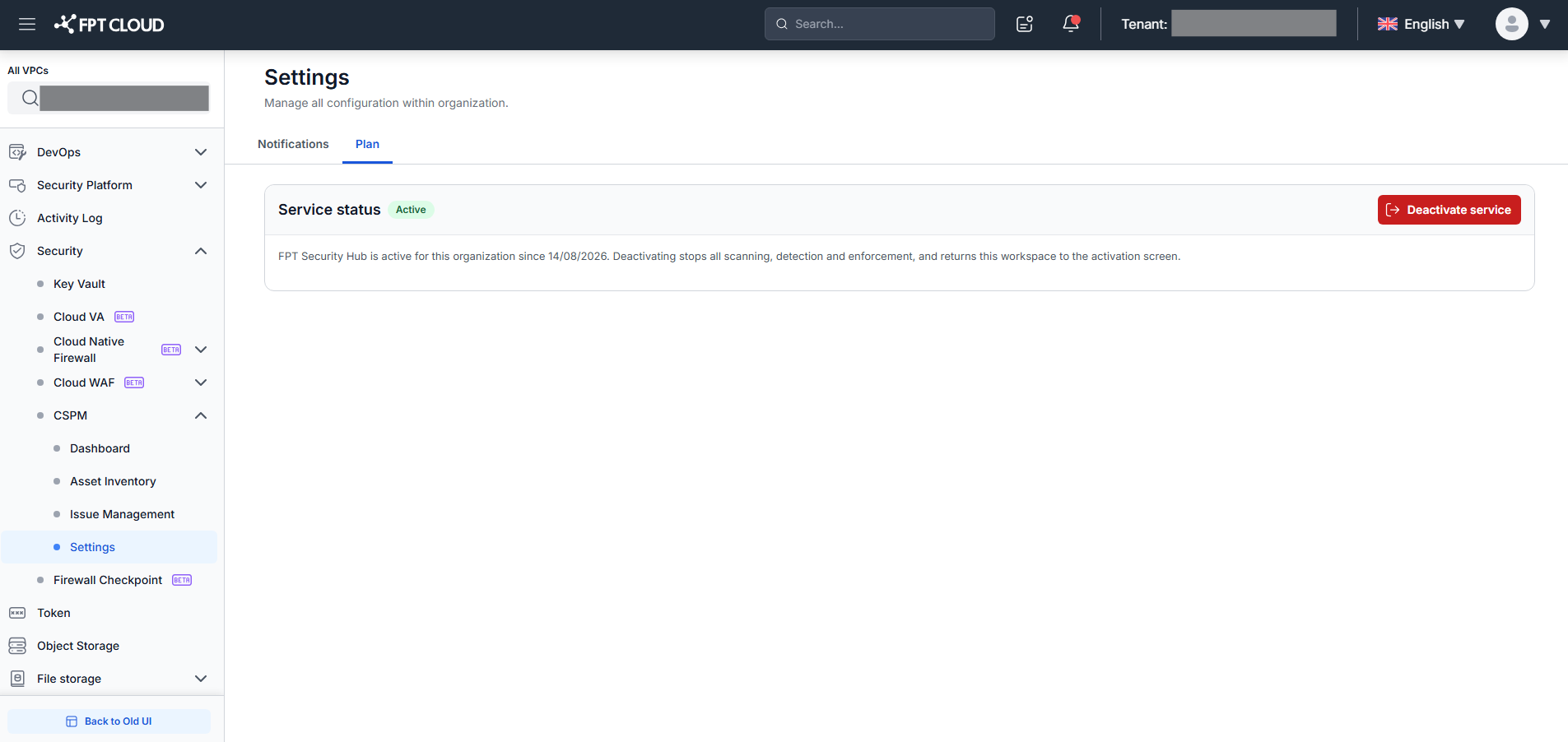
Step 1: Go to Settings → Plan tab
Go to Settings → Plan in the left menu.
Step 2: View service status
The Service status section shows:
- Active badge (green)
- Activation date
- A description of the consequences if you deactivate
Step 3: Click Deactivate service
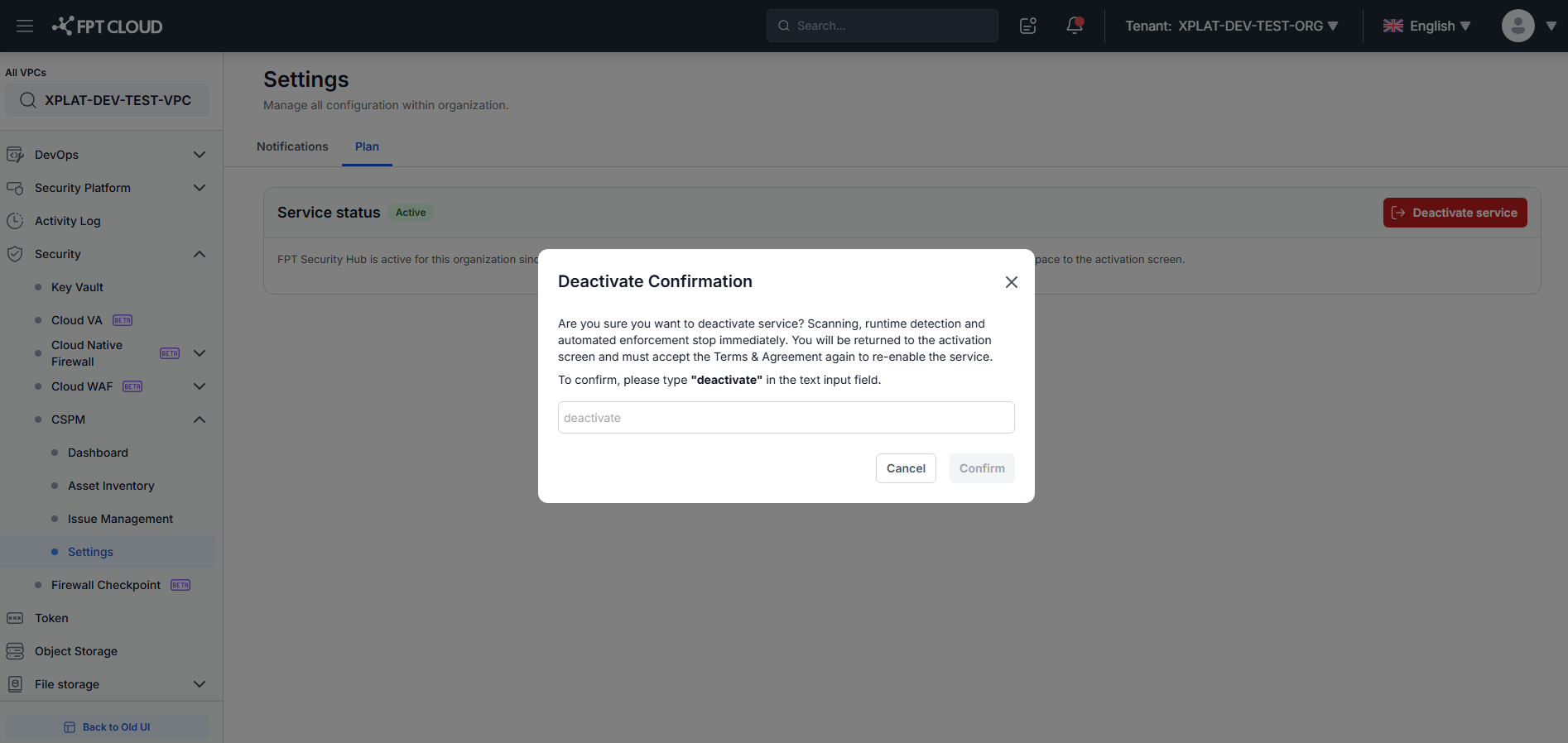
The Deactivate Confirmation dialog appears with a detailed warning about the consequences.
Step 4: Confirm deactivation
Click Deactivate (red button) to confirm. The service stops immediately and the system returns to the Service Activation screen.
Click Cancel to close the dialog and keep the service active.
Reactivate Security Hub
After a deactivation, to use Security Hub again:
- Select any tab in the menu — the Service Activation screen appears.
- Follow the activation steps from Activate Security Hub, including reading and accepting the Terms of Use again.
Frequently asked questions
Is my data deleted when I deactivate? No. Telemetry and configuration metadata are retained for 30 days after deactivation. To delete data immediately, contact support@fptcloud.com.
Can I deactivate and reactivate right away? Yes. After deactivating, you can reactivate immediately by accepting the Terms of Use again.
Who has permission to activate and deactivate? Only Tenant Admin accounts can activate and deactivate Security Hub.
What do the "Coming Soon" modules mean? These are modules launching in future releases. Currently, only Cloud Security Posture is available (Trial). When new modules are released, they appear automatically in the interface.
I don't see the activation screen even though the service isn't activated. If your account does not have the Tenant Admin role, the system shows a permission error instead of the Service Activation screen. Contact your organization's Tenant Admin to grant you the role or activate the service.
Are there billing implications when I deactivate? Contact FPT Smart Cloud sales for the billing policy when deactivating.