Guide: Managing Tokens
This guide describes how to view, create, and delete API authentication tokens in FPT Cloud.
Viewing the Token List
-
From the left navigation bar, select Token.
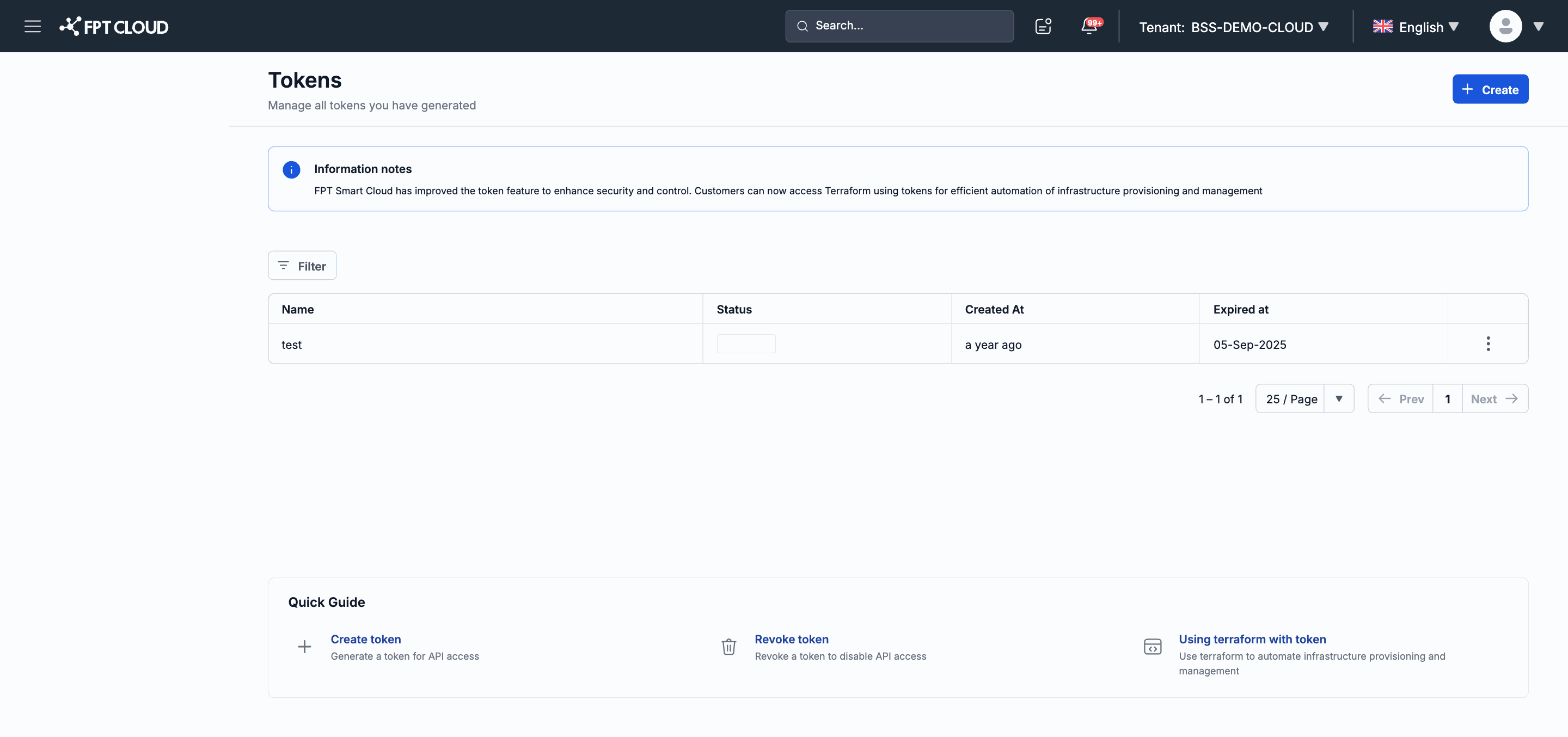
The token list page appears.
-
The table includes the following columns:
| Column | Description |
|---|---|
| Name | The identifying name of the token. |
| Status | The status: Active (in use) or Expired (past its expiration date). |
| Created At | When the token was created. |
| Expired at | When the token expires. |
Creating a New Token
-
On the Token page, click Create.
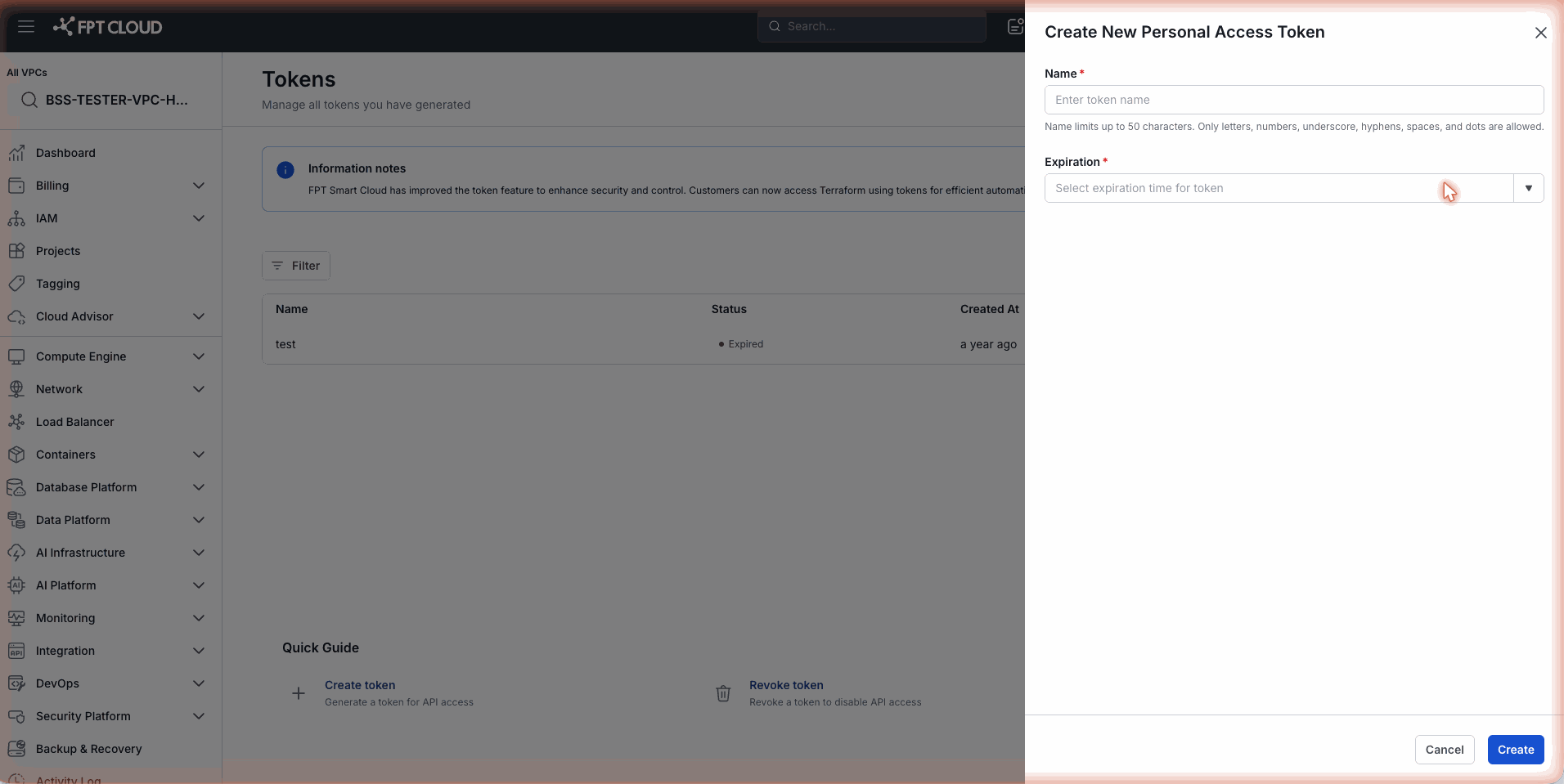
The token creation dialog appears.
-
Fill in the fields:
| Field | Required | Description |
|---|---|---|
| Name | Yes | An identifying name that makes clear what this token is used for (e.g., terraform-prod, ansible-deploy). |
| Expiration | Yes | The token's expiration date and time. Select from the available options. |
- Click Confirm to create the token.
Important: The full token value is displayed only once, immediately after creation. Copy and save it right away — you will not be able to view this value again after closing the dialog. If you lose the token, you will need to create a new one.
Using a Token
Once you have the token, include it in the HTTP header when calling the FPT Cloud API:
Authorization: Bearer <token_value>
Or configure it in the settings file for the relevant tool (Terraform provider, Ansible inventory, etc.).
Deleting a Token
- In the Token list, locate the token to delete.
- Click the delete icon or select Delete from the action menu.
- Confirm the action in the confirmation dialog.
Warning: Deleting a token immediately revokes API access for all tools using that token. Make sure to update the configuration of any affected tools before or immediately after deleting.