API key を作成・管理する
API Keys タブを開く
Dedicated Inference ページで API keys タブをクリックします。
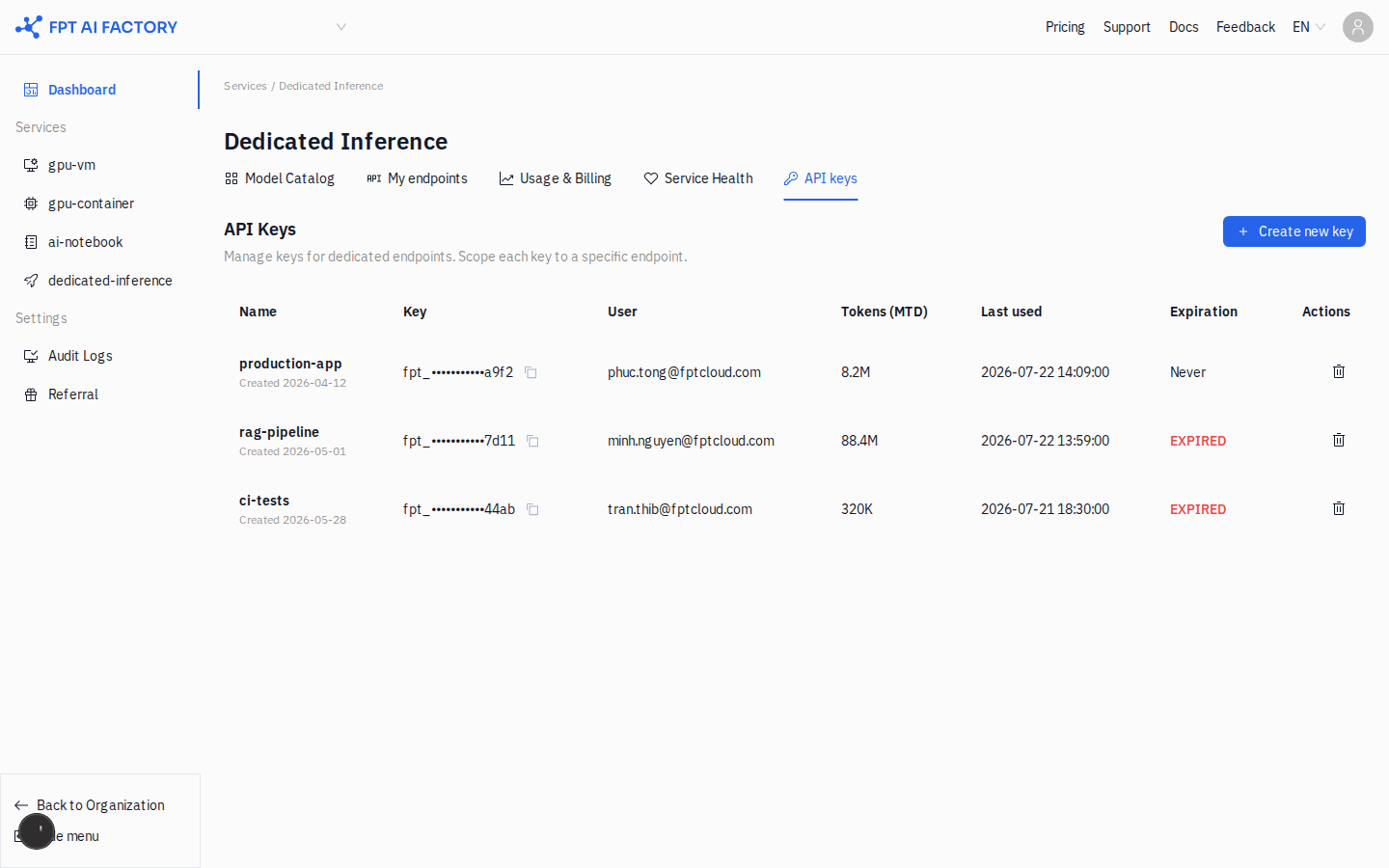
テーブルには workspace 内のすべての API key が表示されます。key ごとに次の情報を確認できます。
| 列 | 説明 |
|---|---|
| Name | 識別用の名前と作成日 |
| Key | マスクされた key の値(fpt_•••••••••••xxxx)。コピーアイコンをクリックすると key 全体をコピーします |
| User | key を作成したユーザー |
| Tokens (MTD) | 当月に消費した token 数 |
| Last used | この key で認証された直近の API 呼び出しの時刻 |
| Expiration | 有効期限、Never、または EXPIRED(赤字で表示) |
API key を作成する
-
右上の + Create new key をクリックします。
-
Create an API Key ダイアログで、key の Name をわかりやすく入力します(例:
production-app)。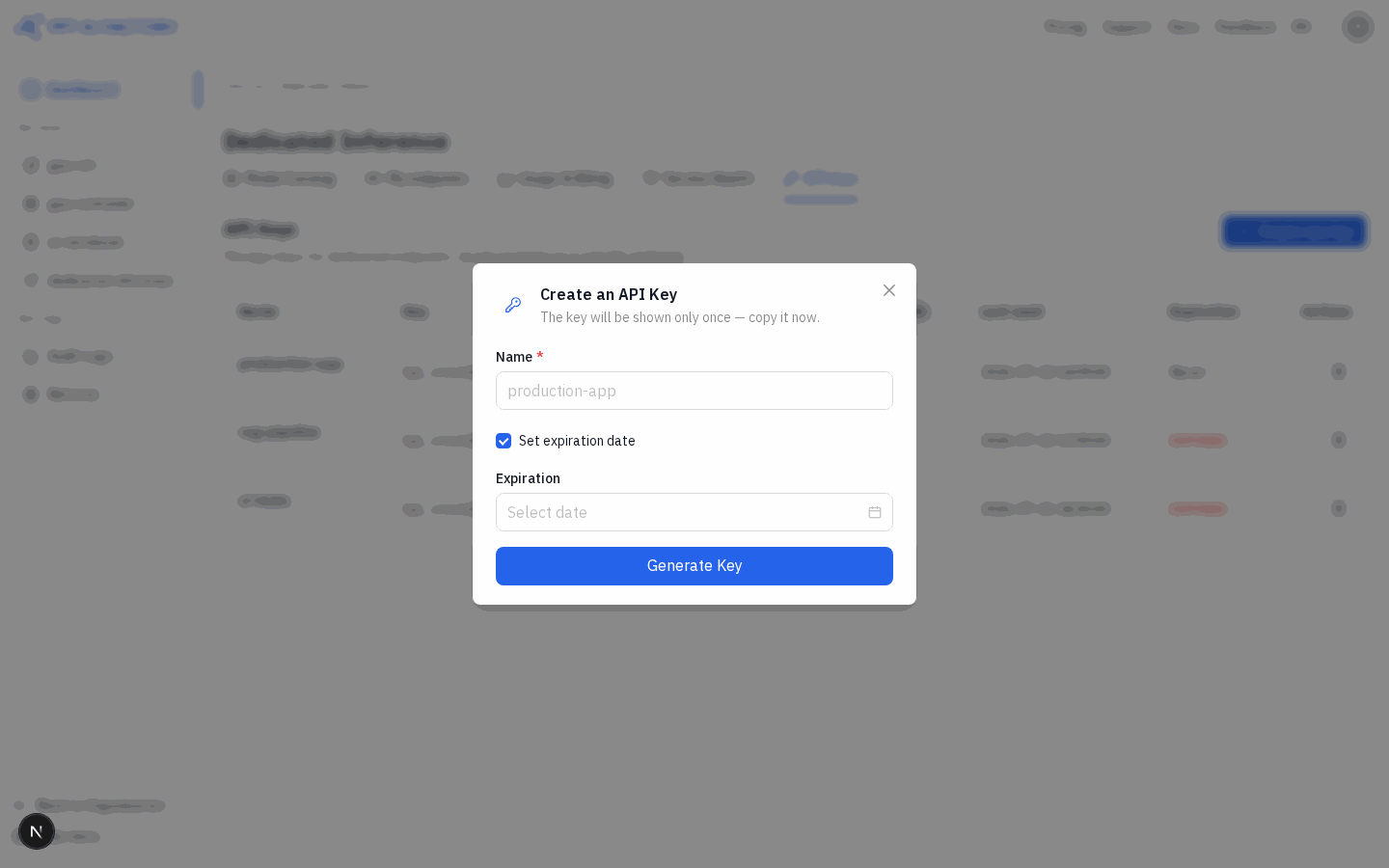
-
key を自動的に失効させる場合は Set expiration date をチェックしたまま、Expiration で日時を選択します。無期限の key を作成する場合は Set expiration date のチェックを外します。
-
Generate Key をクリックします。
警告
key は生成直後に一度だけ表示されます。ダイアログを閉じる前にコピーして安全な場所に保管してください。key の値を後から取得することはできません。
API 呼び出しで key を使う
専用 endpoint への各リクエストで、Authorization ヘッダーに Bearer token として key を渡します。
curl https://<your-endpoint-url>/v1/chat/completions \
  -H "Authorization: Bearer fpt_<your-key>" \
  -H "Content-Type: application/json" \
  -d '{
    "model": "<model-name>",
    "messages": [{"role": "user", "content": "Hello"}]
  }'
API key を削除する
削除したい key の Actions 列にあるゴミ箱アイコンをクリックします。削除は即座に反映され、取り消せません。その key を使用しているアプリケーションは 401 Unauthorized エラーを受け取ります。