Top Up
Top up your Organization Wallet to add credits for running GPU resources. Credits are deducted as Workspaces consume resources.
1. Go to Billing
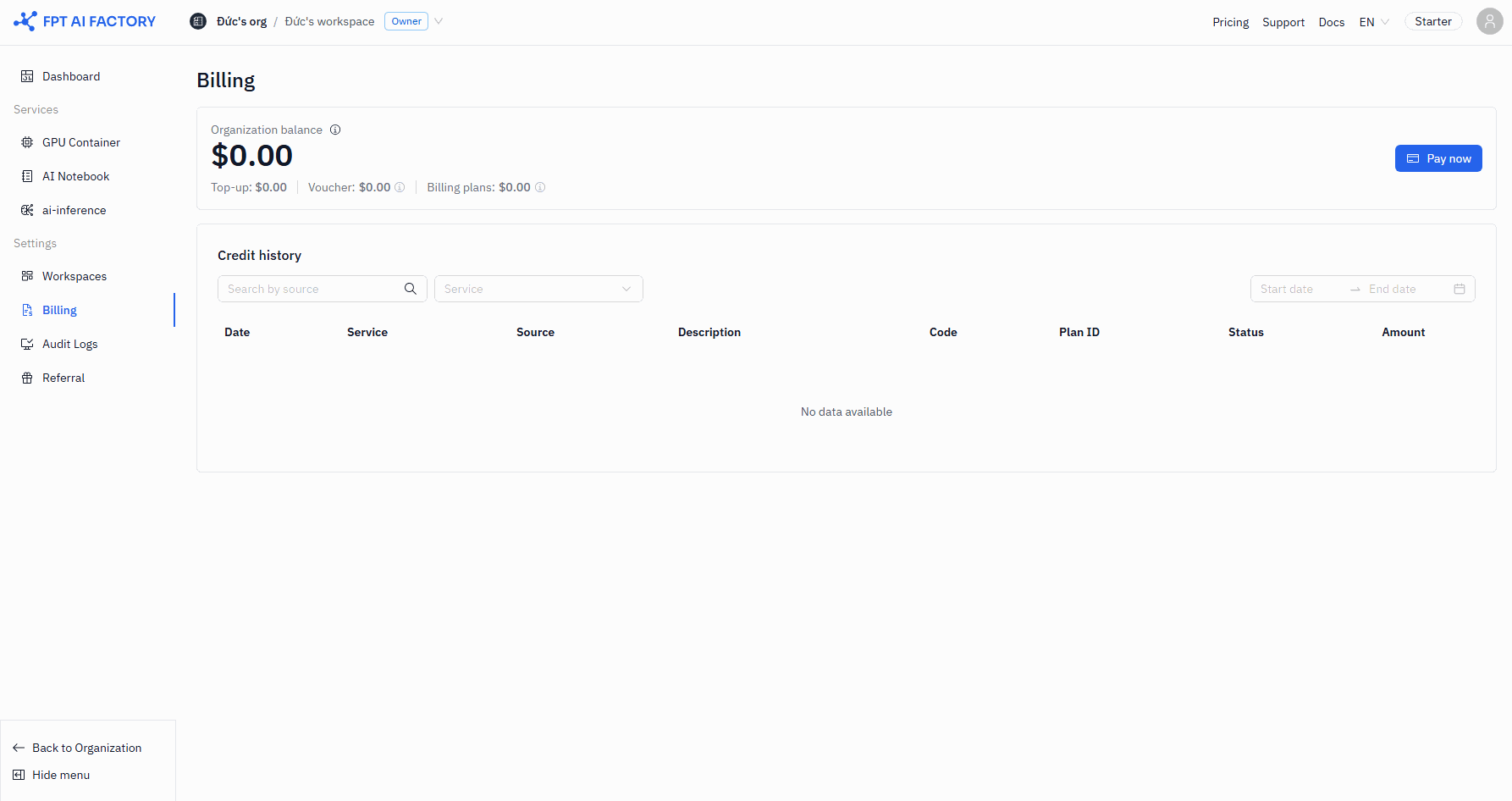
In the left sidebar, click Billing. The Billing overview page opens, showing your current Organization balance.
2. Click Pay now
Click the Pay now button in the Organization balance section. The Account information dialog opens.
3. Fill in account information
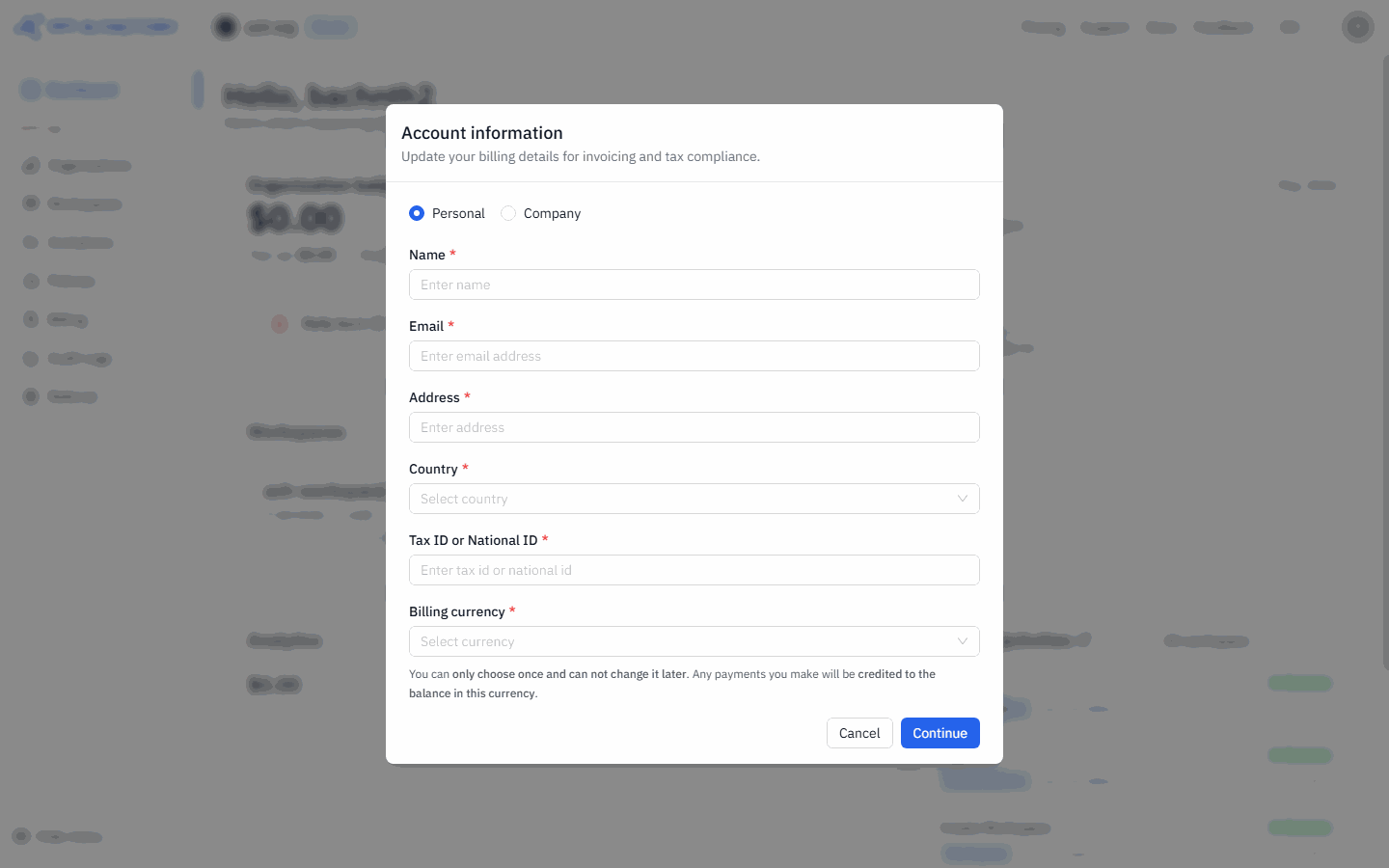
- Select your account type: Personal or Company.
- Fill in all required fields: Name, Email, Address, Country, and Tax ID or National ID.
- Under Billing currency, select the currency for this purchase.
The billing currency cannot be changed after your first purchase. If you select VND now, all future top-ups must also use VND.
- Click Continue.
4. Choose an amount
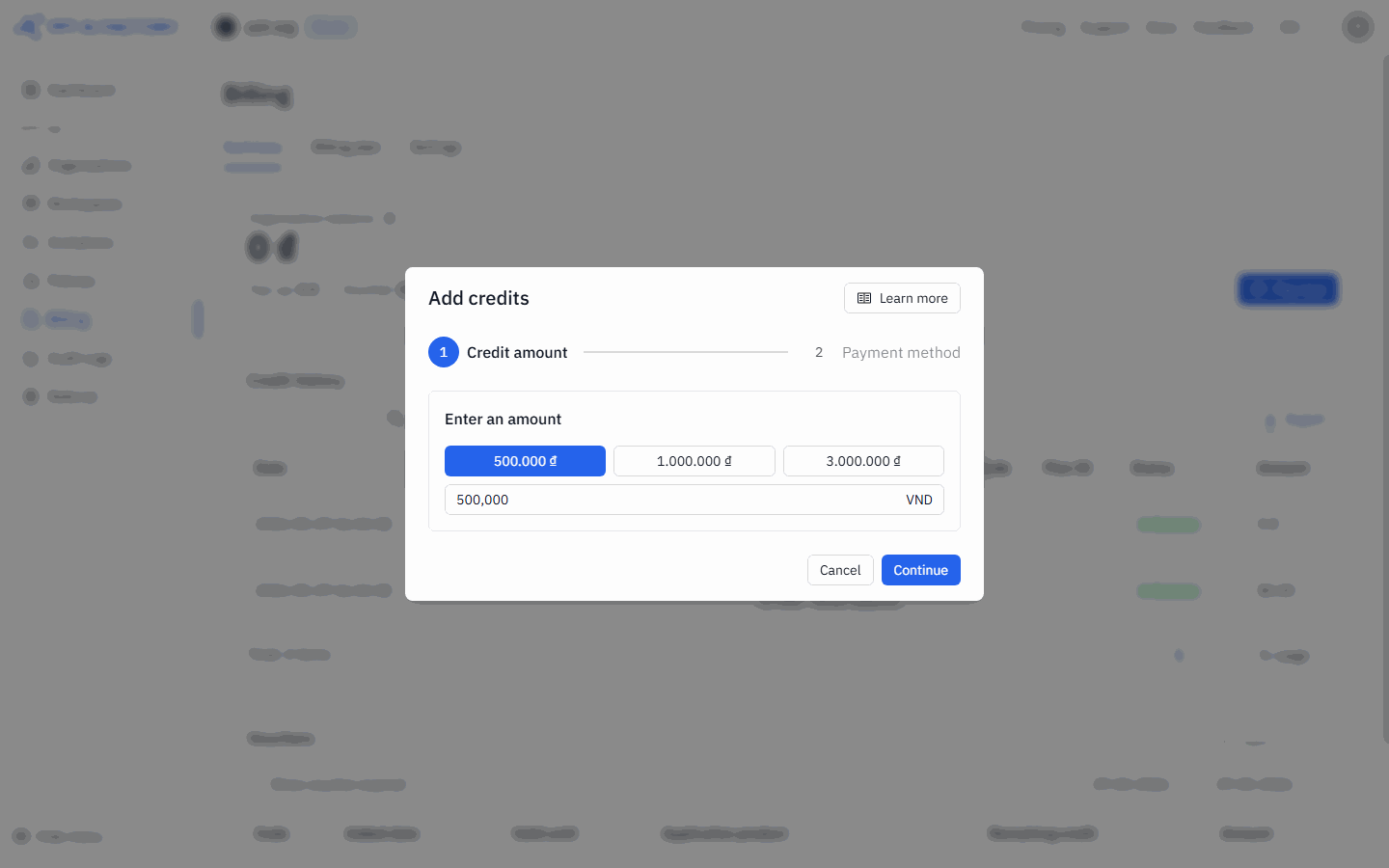
The Add credits dialog opens on Step 1 of 2.
- Select a preset amount or enter a custom amount. Preset values depend on your billing currency (e.g., 500,000 / 1,000,000 / 3,000,000 for VND; $25 / $50 / $100 for USD).
- Click Continue.
5. Select a payment method
The dialog moves to Step 2 of 2.
- Select a payment method:
- VNPAY — Visa, Mastercard, JCB, UnionPay; domestic ATM/bank accounts; VNPAY-QR; supports VAT and commercial invoices
- PayPal — PayPal balance or linked cards
- Stripe — international credit/debit cards
- Enter your payment details for the selected method.
- Click Continue to proceed to the payment gateway.
All top-up transactions are non-refundable once processed.
After the top-up
Your Wallet balance updates as soon as the payment is confirmed. The Top-up line in the Organization balance section reflects the new amount.
Set up a low balance alert
A low balance alert sends an email when your Organization Wallet drops below a threshold you set — so you can top up before GPU resources are interrupted.
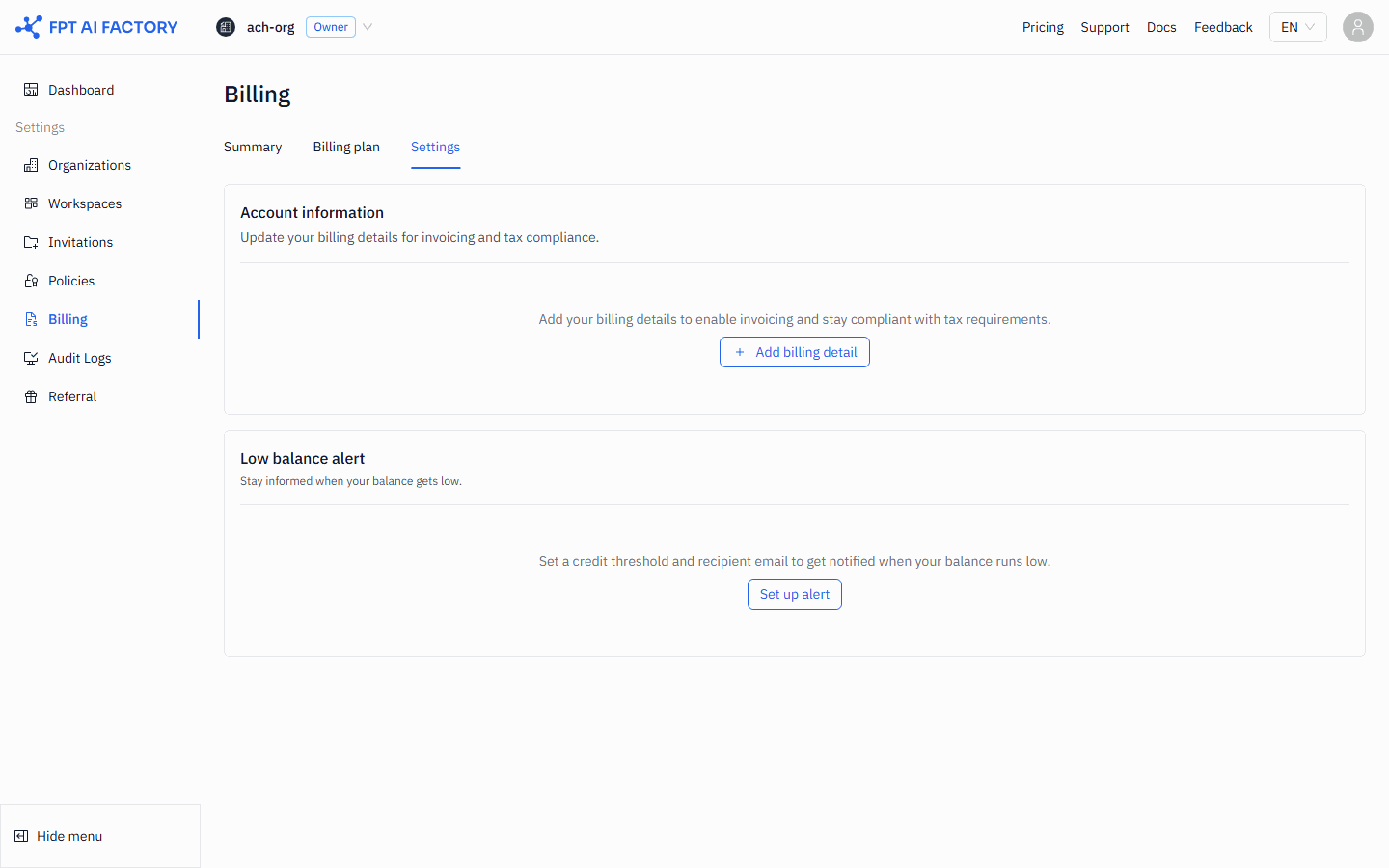
- In the left sidebar, click Billing, then click Billing settings.
- In the Low balance alert section, check Send me an email when my balance falls below the credit threshold.
- Enter a Credit threshold in USD — for example,
100to be notified when the balance drops below $100. - Enter one or more Recipient emails. Separate multiple addresses with commas.
- Click Save.
What's next
- Vouchers — if you have a Voucher code to redeem.
- Payment History — check past top-up transactions.
- Billing — how credits and Vouchers are consumed.