Backup Persistent Storage in Managed Kubernetes
Create a Backup Plan
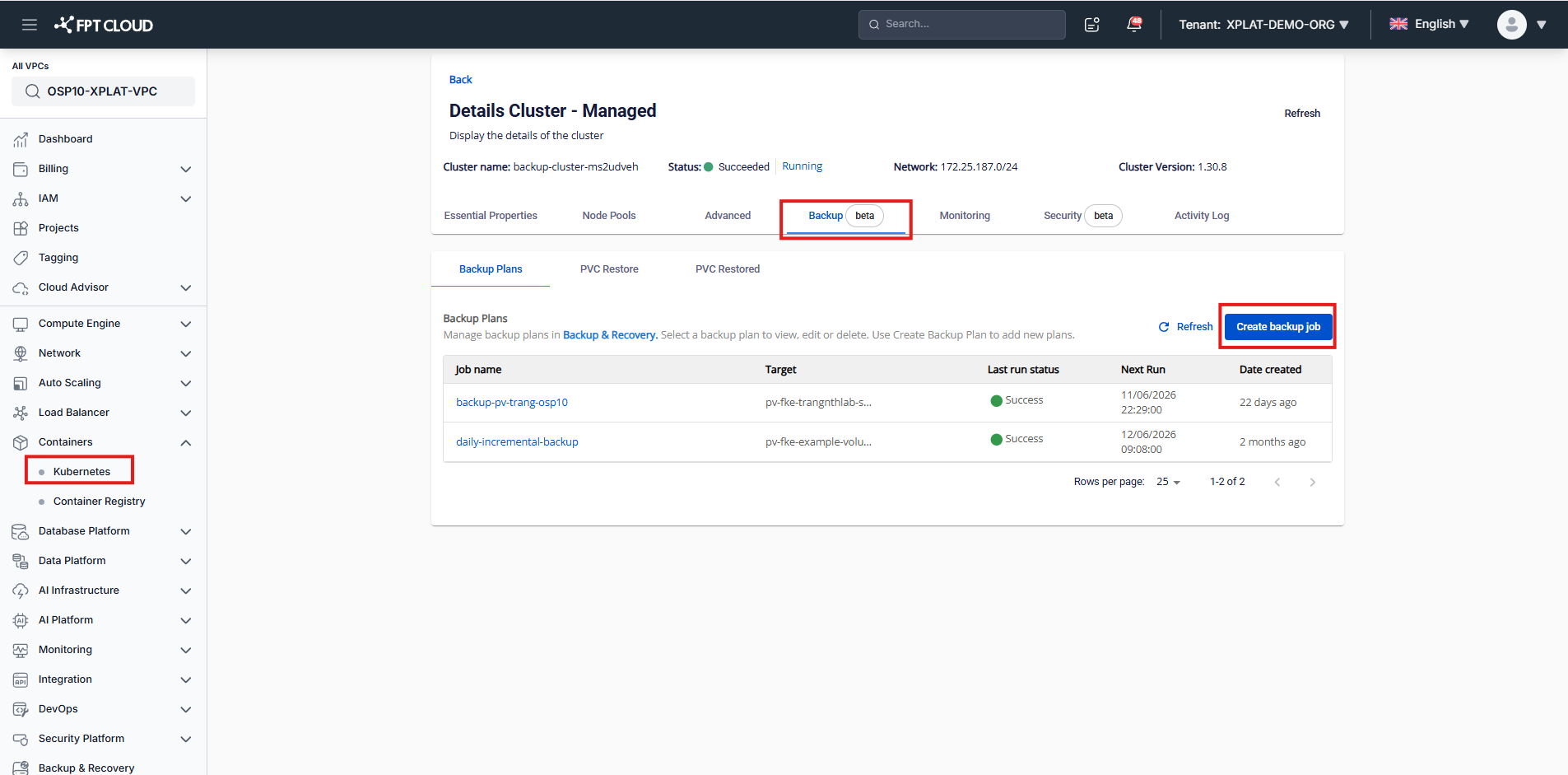
- In the navigation menu, select Containers >> Kubernetes
- Navigate to cluster details screen, choose tab [Backup]. Click "Create backup job"
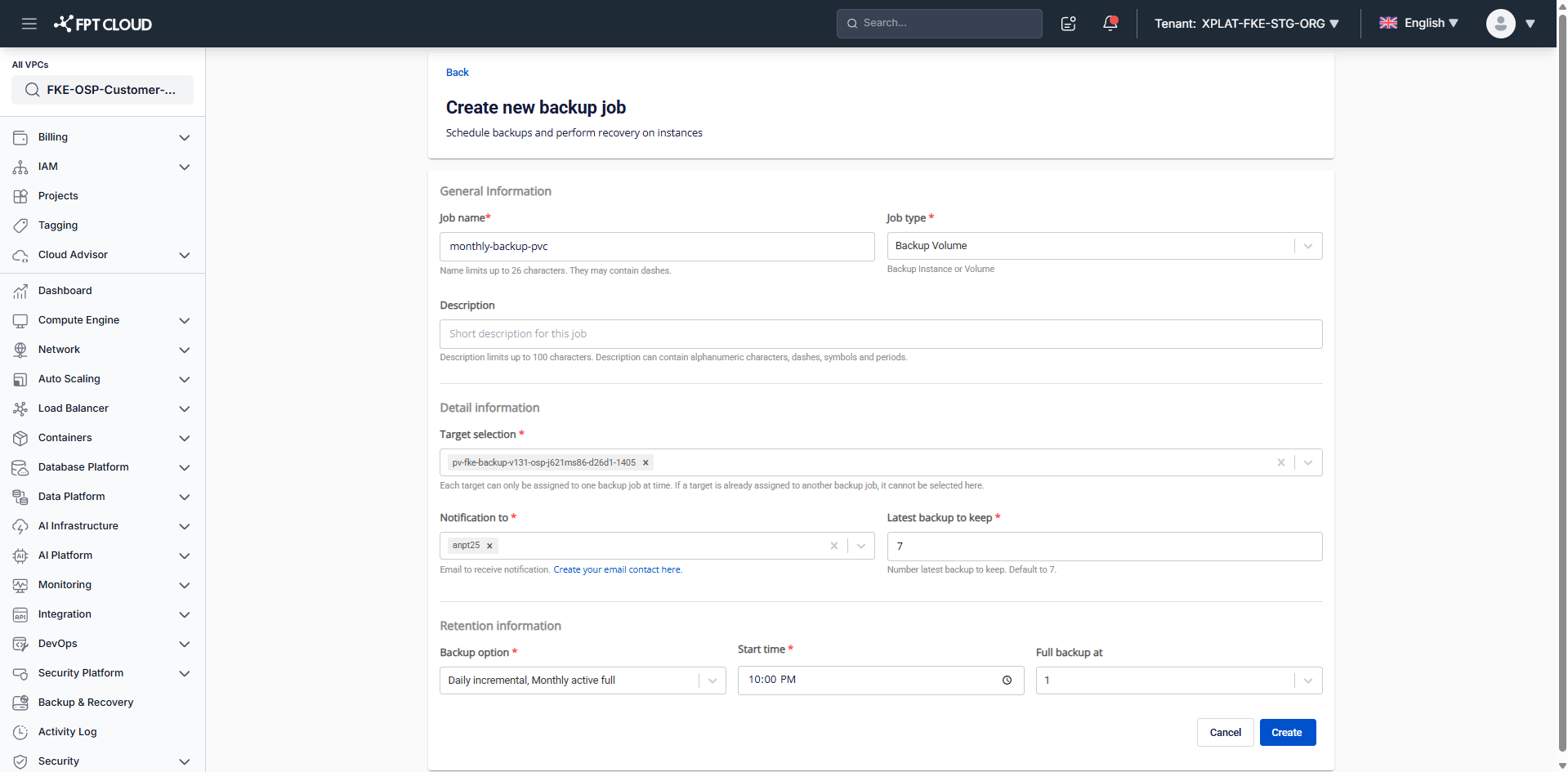
- In the Create backup job section, do the following: a. Enter the backup plan information, including name, optional description with job type Backup Volume. b. Choose target Persistent Volume for backup. c. Set backup schedule for daily, weekly, or monthly. If you don't want to create a backup plan with backup scheduling methods, you need to manually back up your workloads.
View a Backup Plan
- In the navigation menu, select Containers >> Kubernetes
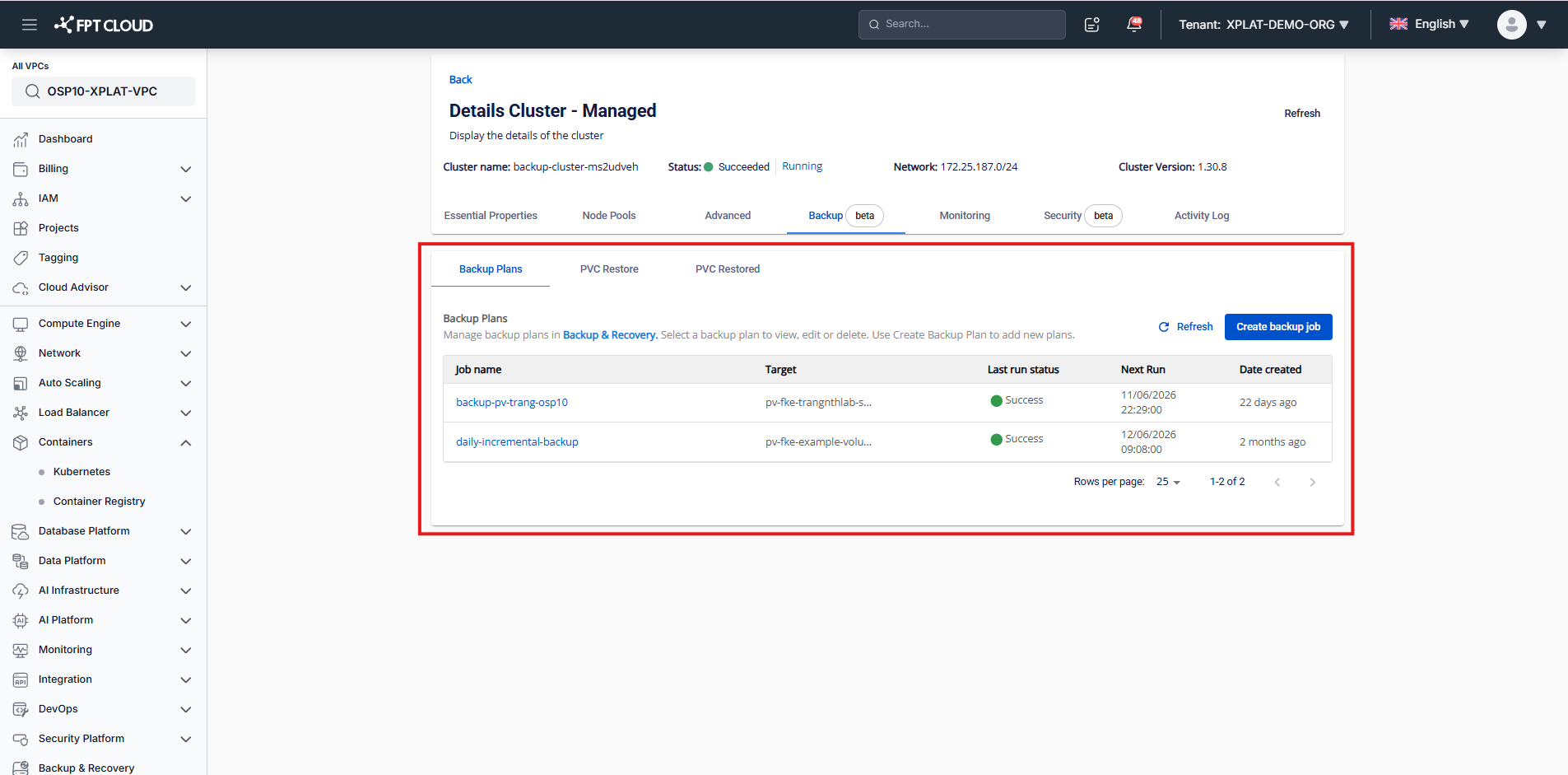
- Navigate to cluster details screen, choose tab [Backup].
- All backup plans created will be listed on this page.
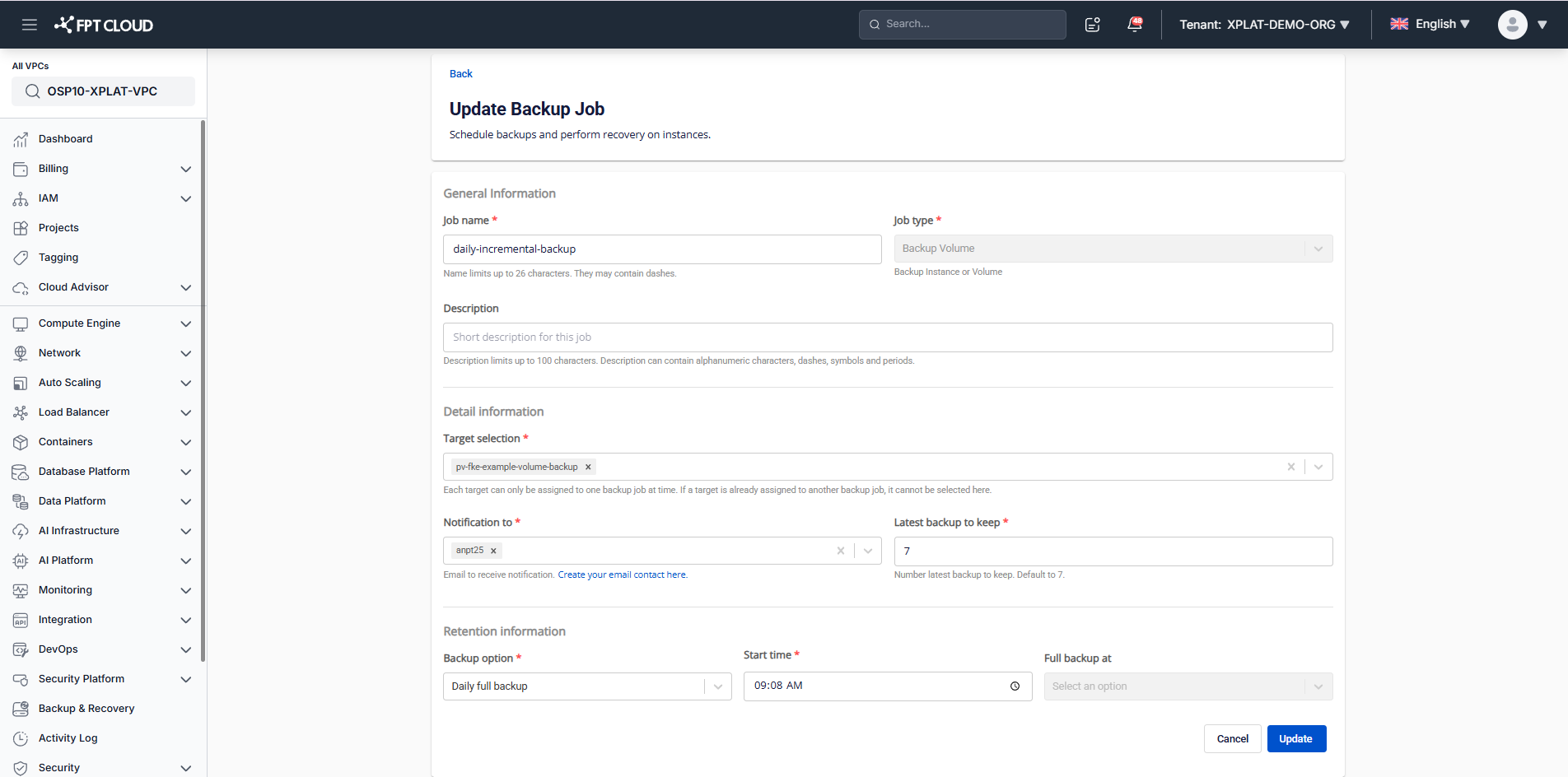
Update a Backup Plan
- In the navigation menu, select Containers >> Kubernetes
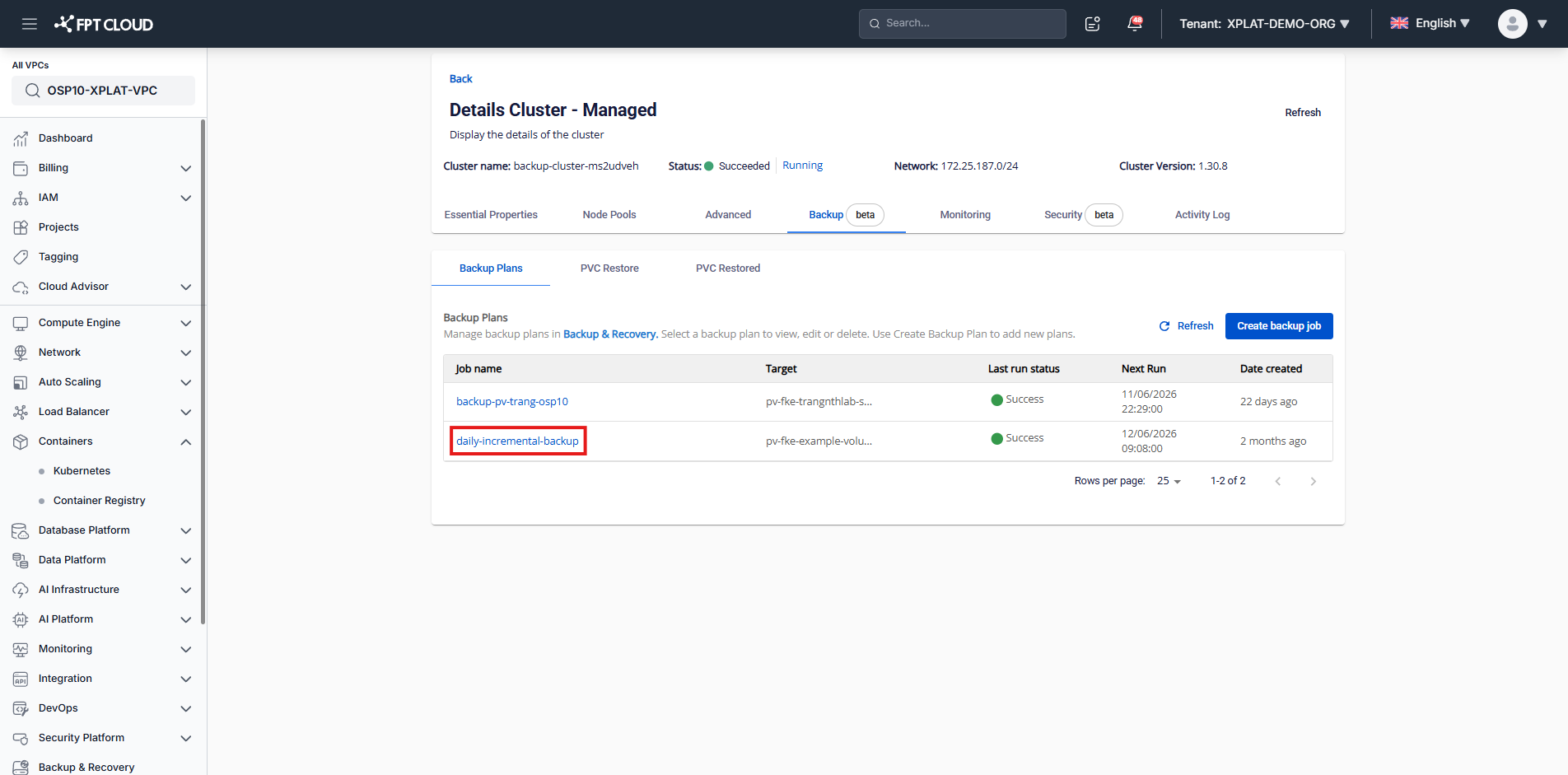
- Navigate to cluster details screen, choose tab [Backup].
- Click on job name to access Update backup job screen.
Enable/Disable/Delete a Backup Plan
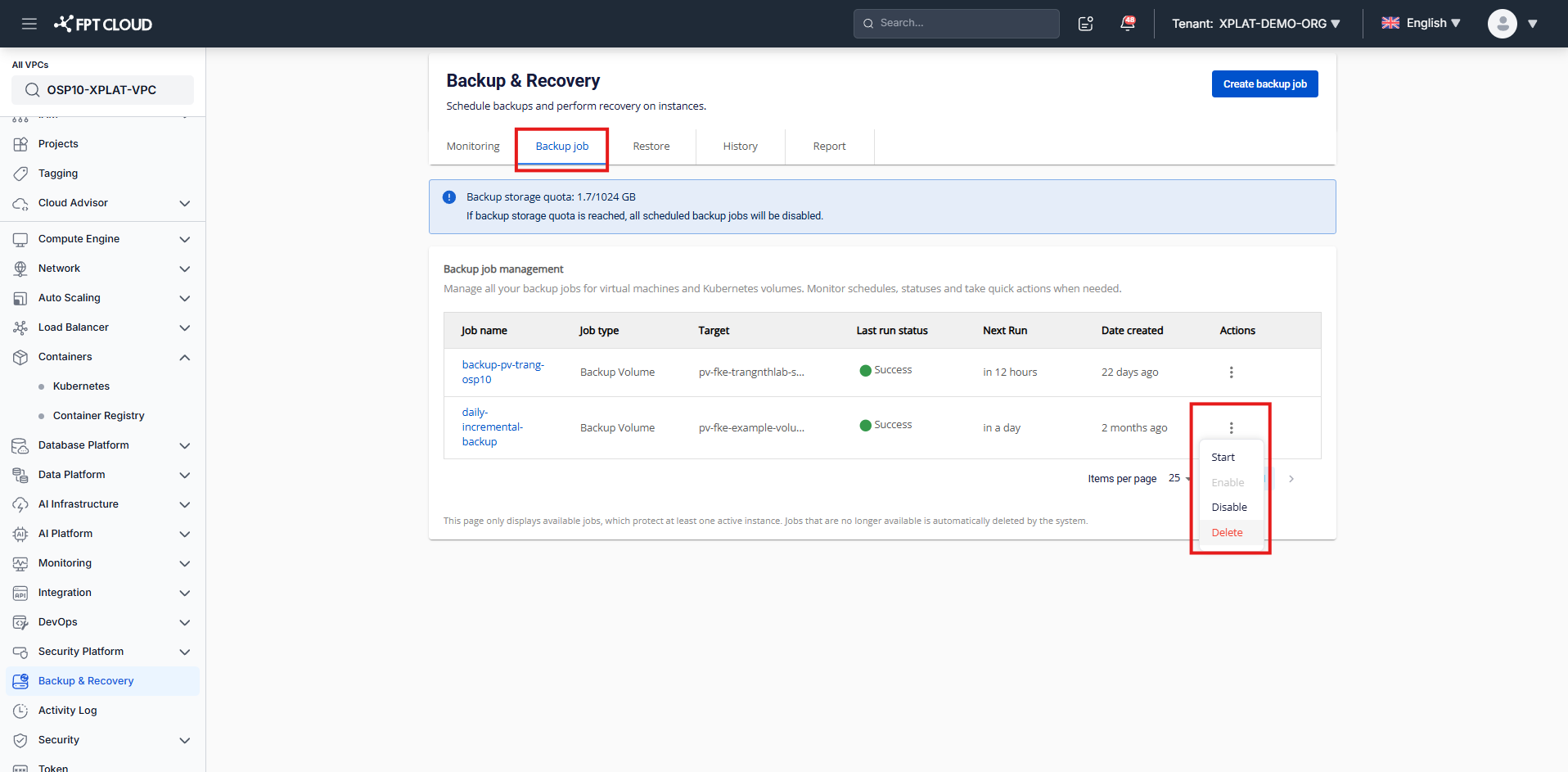
- In the navigation menu, select Backup & Recovery
- Navigate to tab [Backup job]
- Select a backup job, click the 3-dot icon to find the Enable, Disable, or Delete option.
Backup Report
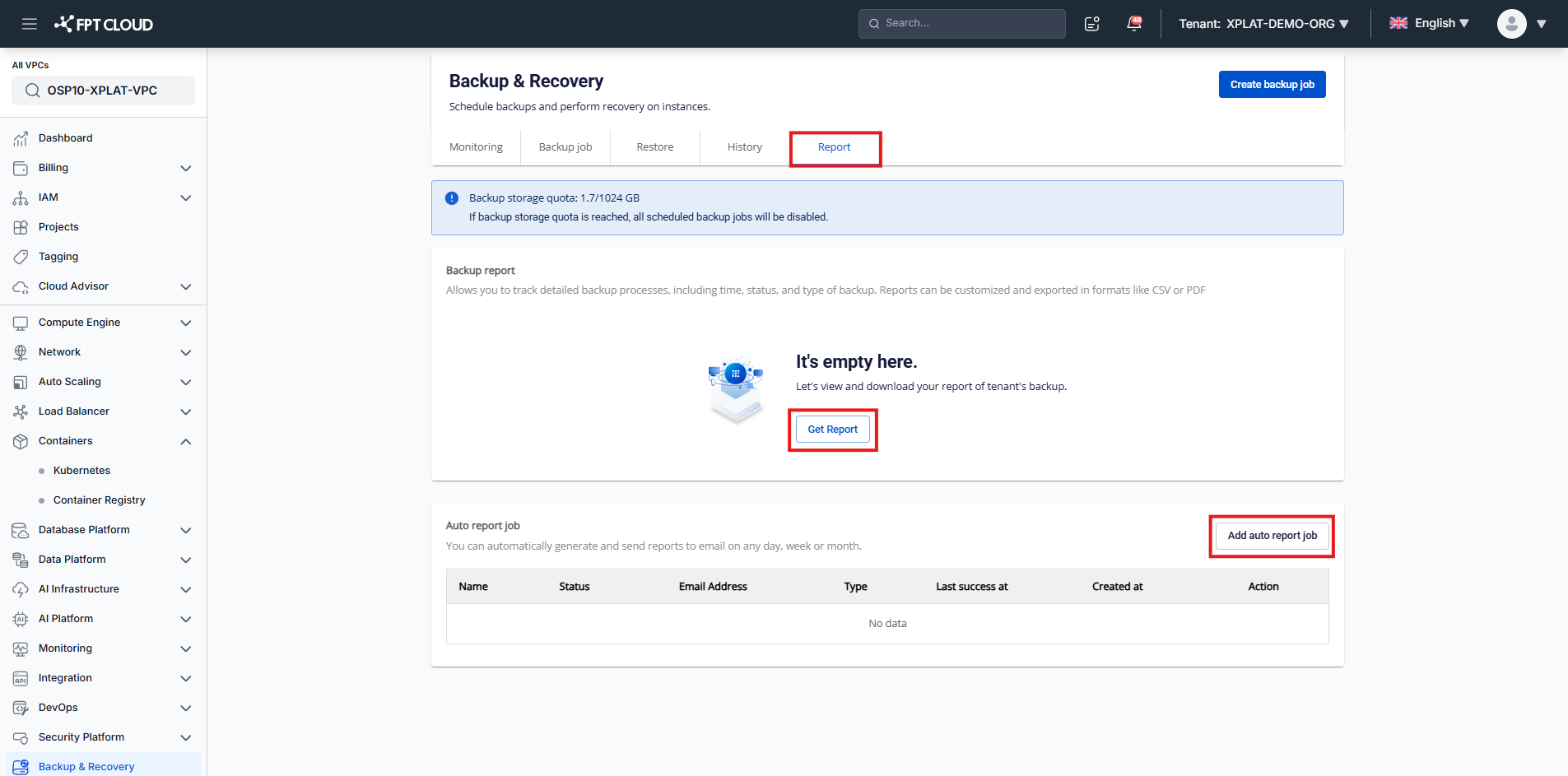
To ensure backup works correctly, reports are automatically generated and sent to a selected email daily, weekly, or monthly based on your requirements.
- In the navigation menu, select Backup & Recovery.
- Navigate to tab [Report]
- Click "Add auto report job". This feature allows you to receive reports via email daily, weekly, or monthly.
- In case you only need to create a report at a selected time, please click "Get report" and input all required information.
The report can be exported in xlsx format for better visualization.
Restore from Backup Persistent Storage in Managed Kubernetes
Create a Restore
- In the navigation menu, select Containers >> Kubernetes.
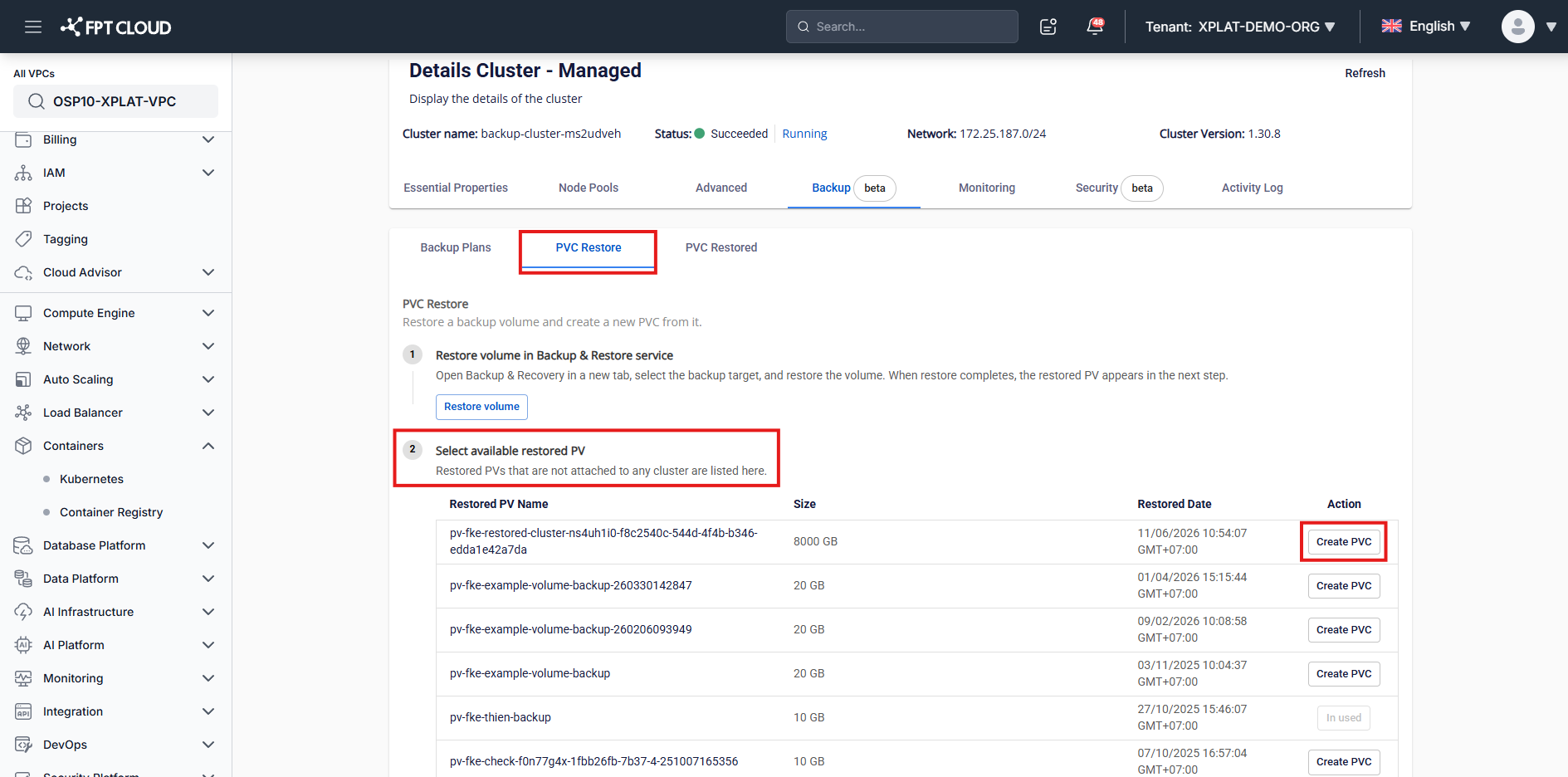
- Navigate to the cluster details screen, choose tab [Backup], then select sub-tab [PVC Restore].
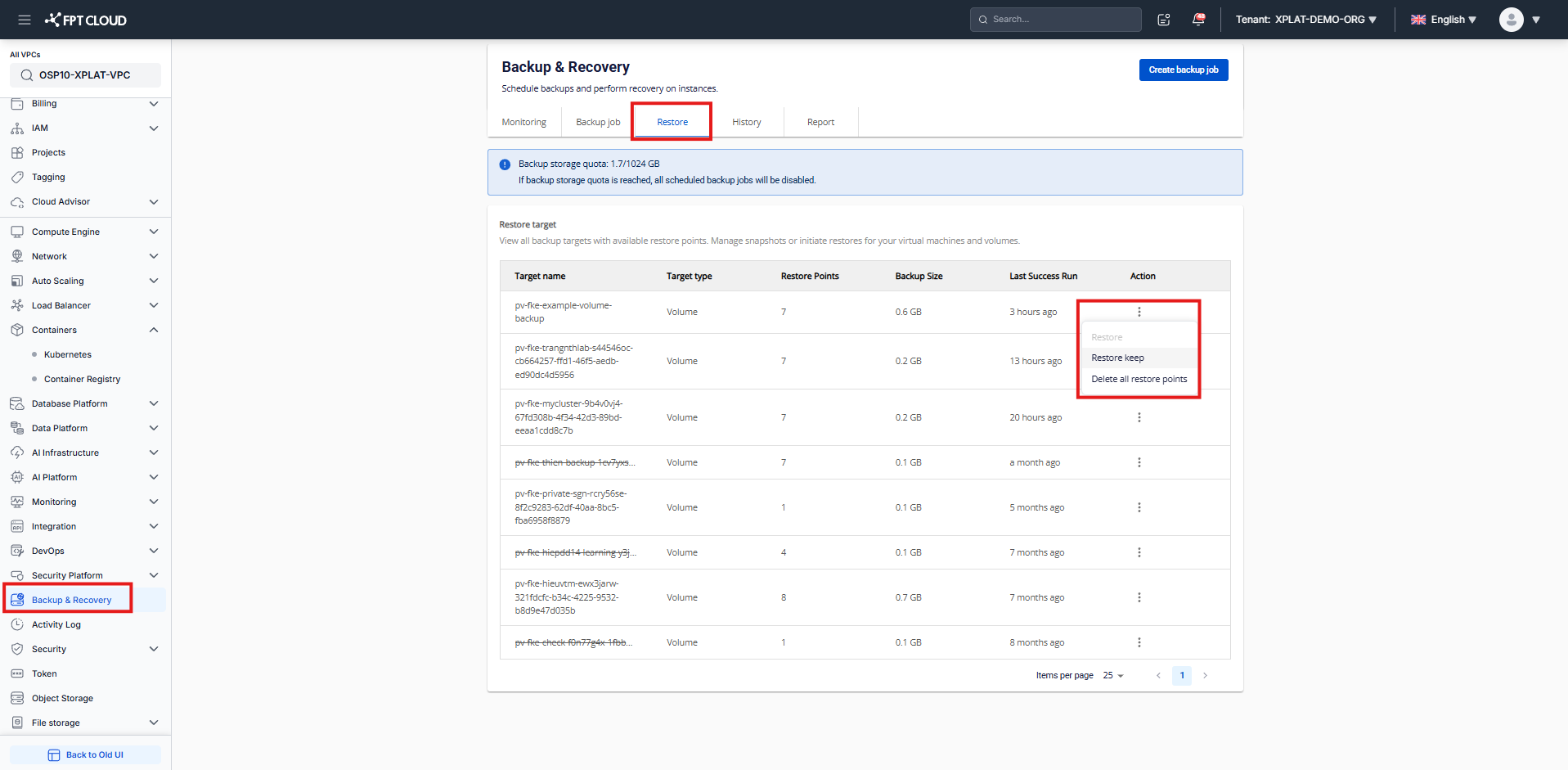
- Click [Restore volume]. You will be redirected to the Backup & Recovery service, Restore tab.
- In the Restore target list, click the three-dot icon on the volume you want to restore, then select [Restore keep]. This creates a new PV while keeping the original PV intact.
- Once the restore completes, go back to Containers >> Kubernetes >> Cluster Details >> Backup >> PVC Restore.
- The restored PV appears in the "Select available restored PV" list. Click [Create PVC] on the desired entry.
- In the dialog, fill in Target Namespace and New PVC Name. PVC size and access mode are auto-filled and cannot be modified.
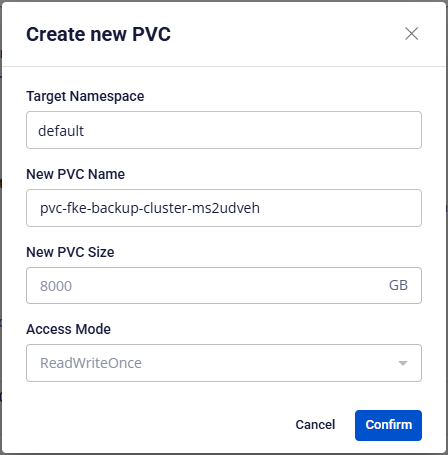
- Click [Confirm] to create the PVC.
注記
Each PV can only be bound to 1 PVC. Delete the existing PVC before reusing a PV.
View a Restore
- In the navigation menu, select Containers >> Kubernetes.
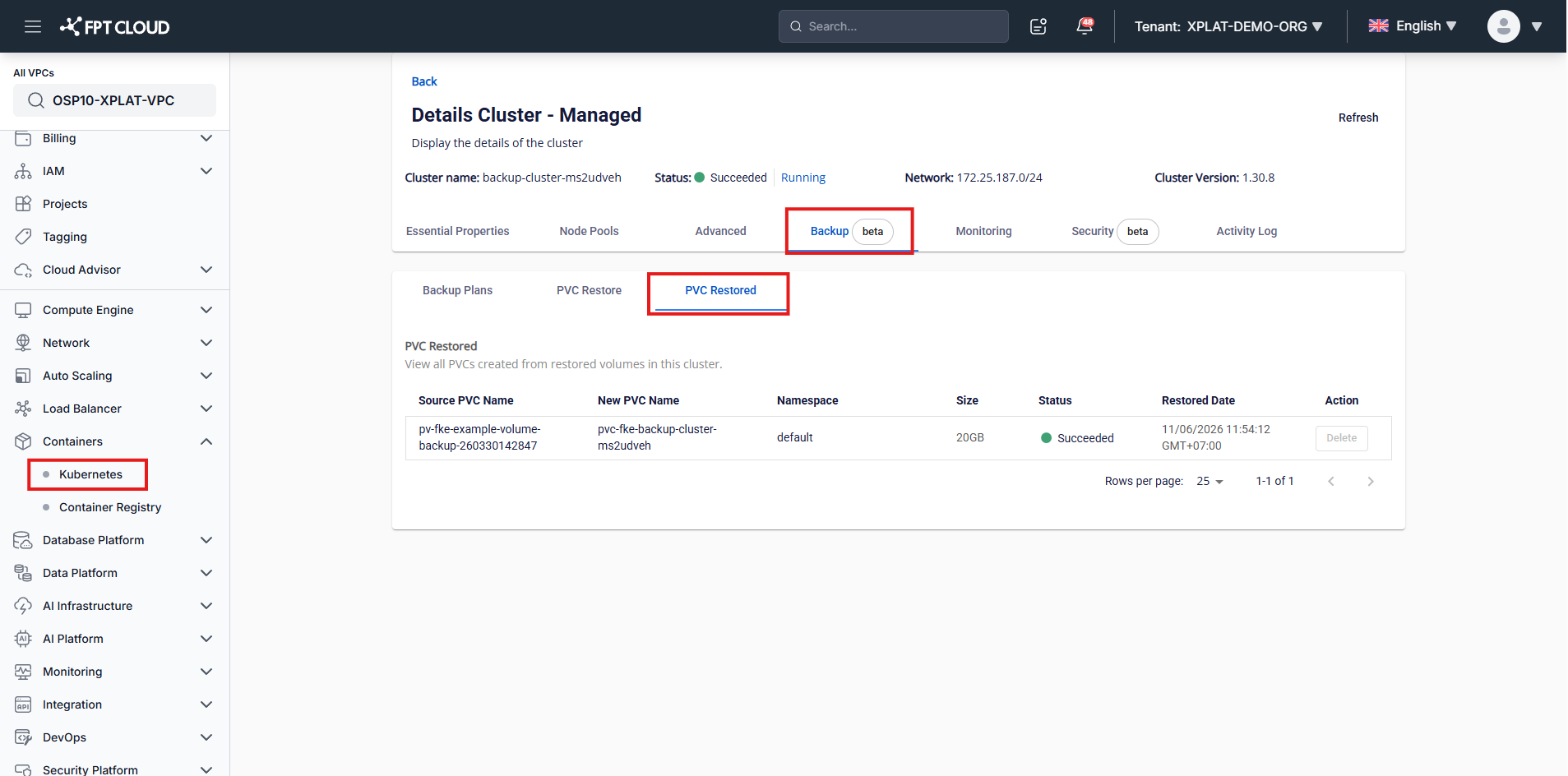
- Navigate to the cluster details screen, choose tab [Backup], then select sub-tab [PVC Restored].
- All PVCs created from restored volumes are listed here with their Source PVC Name, New PVC Name, Namespace, Size, Status, and Restored Date.
Delete a Restore
注記
A restore can only be deleted when the restoration has failed.
- In the navigation menu, select Containers >> Kubernetes.
- Navigate to the cluster details screen, choose tab [Backup], then select sub-tab [PVC Restored].
- Locate the restore entry you want to remove, then click [Delete] in the Action column.
- Confirm the deletion in the prompt. The entry will be removed from the list.