Update S3 Connection / Re-confirm Session
When a Lakehouse shows the Connection information required status, the system requires you to take an additional action to continue the setup process. There are 2 scenarios that trigger this status:
Scenario 1: Update S3 Connection
Occurs when the system cannot establish a connection to the S3 bucket using the originally configured credentials.
Step 1. In the menu bar, select Data Platform > select Lakehouse > select the Lakehouse with status Connection information required

Step 2. On the warning banner "Connection information required" (with the message "Please provide S3 connection details to continue lakehouse setup."), click Update S3 connection > the S3 connection update form appears
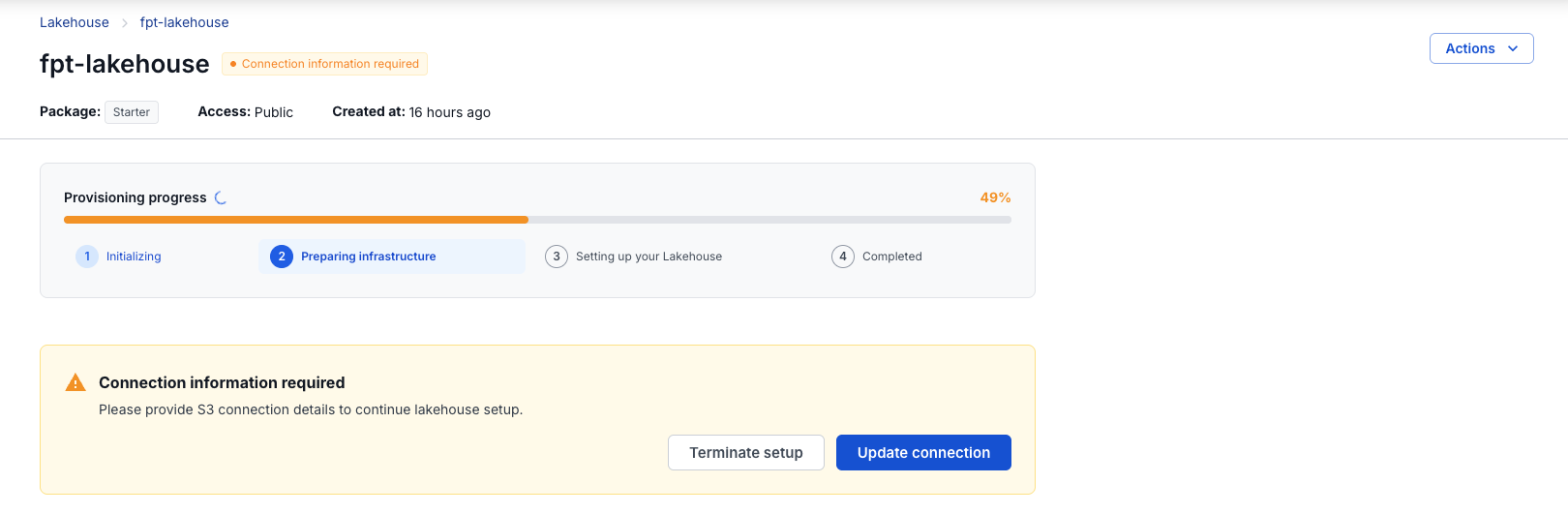
Step 3. Review and update the following fields:
| Field | Notes |
|---|---|
| Endpoint | Pre-filled with the current value — edit if the endpoint address is no longer correct |
| Bucket name | Pre-filled with the current value — edit if the bucket name is no longer correct |
| Access key | Pre-filled with the current value — edit if the access key is no longer valid |
| Secret key | Always blank for security reasons — you must enter a new value every time you update; the system does not store the old value |
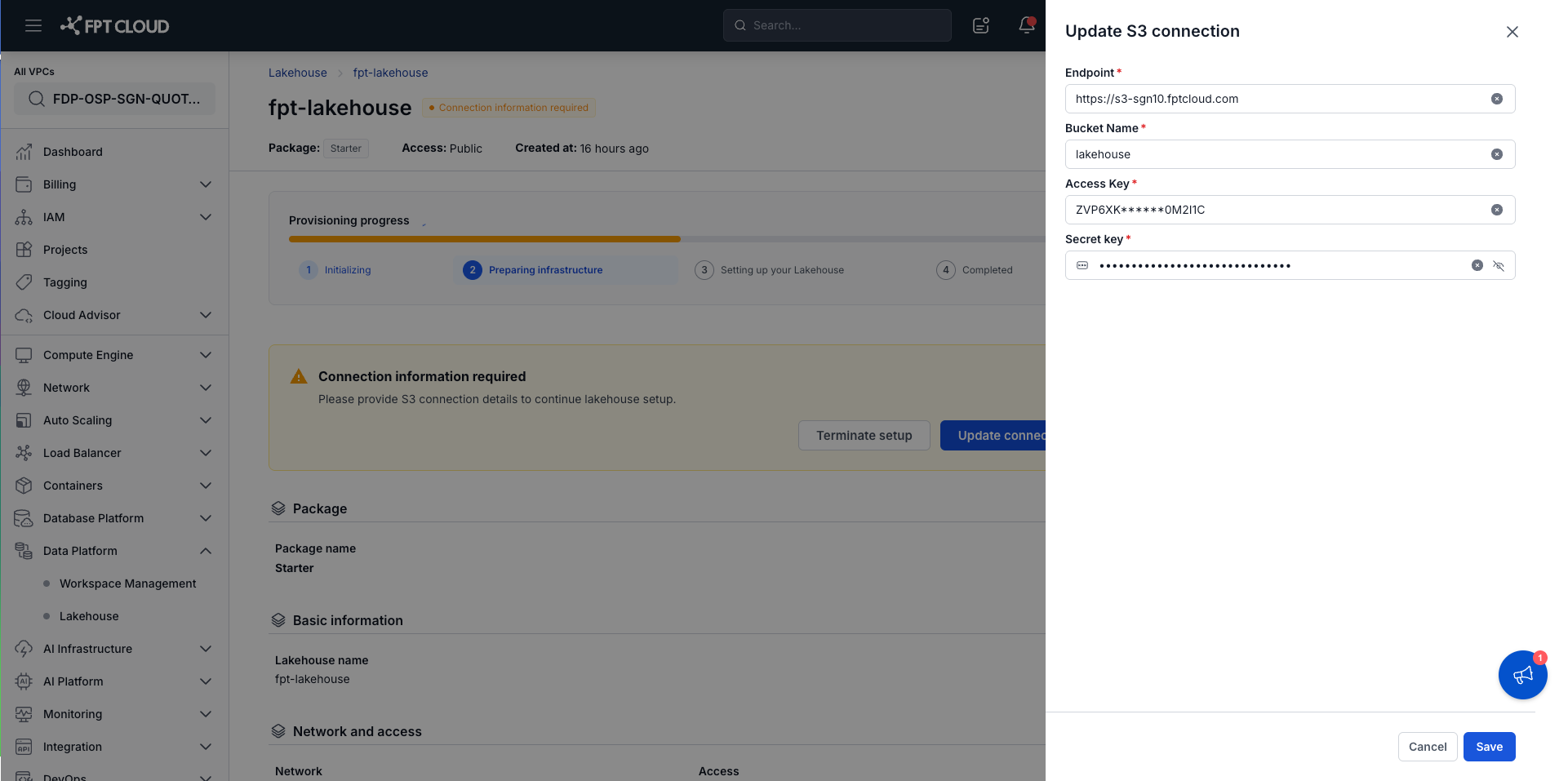
Step 4. Click Update S3 connection to confirm
Result: The system retests the S3 connection with the new credentials. If the connection succeeds, the Lakehouse resumes the setup process from exactly where it paused — no need to start over.
Scenario 2: Re-confirm Session
Occurs when the system needs you to refresh your session for security before continuing the setup.
Step 1. In the menu bar, select Data Platform > select Lakehouse > select the Lakehouse with status Connection information required
Step 2. On the "Action required" banner (with the message "To keep this setup secure, please refresh your session and retry. We'll continue from the current progress without changing your configuration."), click Confirm
Step 3. The system refreshes the session and resumes the setup from exactly where it paused — all configuration is preserved; no information needs to be re-entered.
In both scenarios, if you no longer want to continue setup, you can click Terminate setup to stop — see Terminate Lakehouse Setup.