Project Management
1. Walkthrough: Project Management
Access the Project list
Goal: The user wants to view the Projects in the current Organization.
Step 1: Open DevOps Pipeline
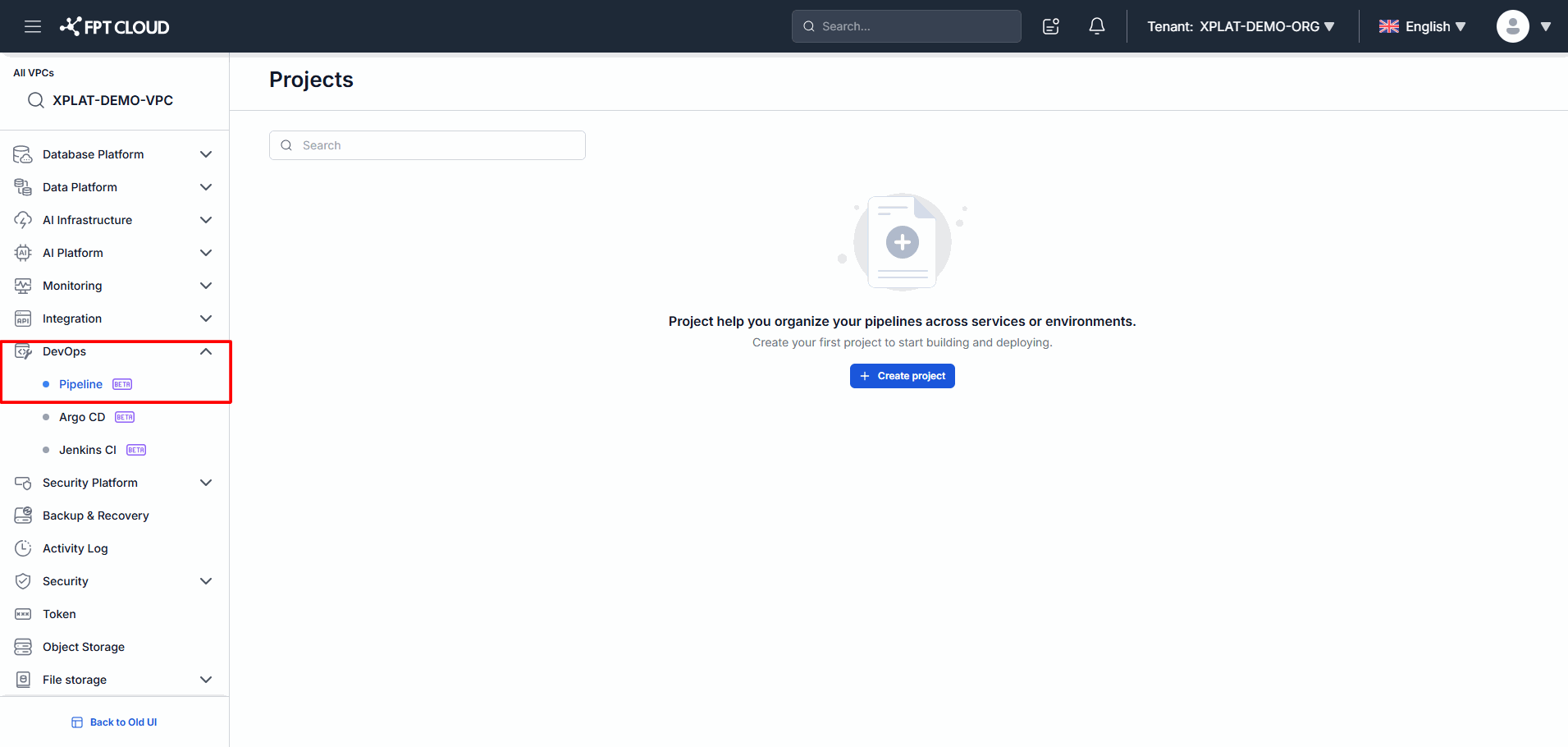
Instructions:
- Log in to the system.
- Select Pipeline from the navigation bar.
✅ Result
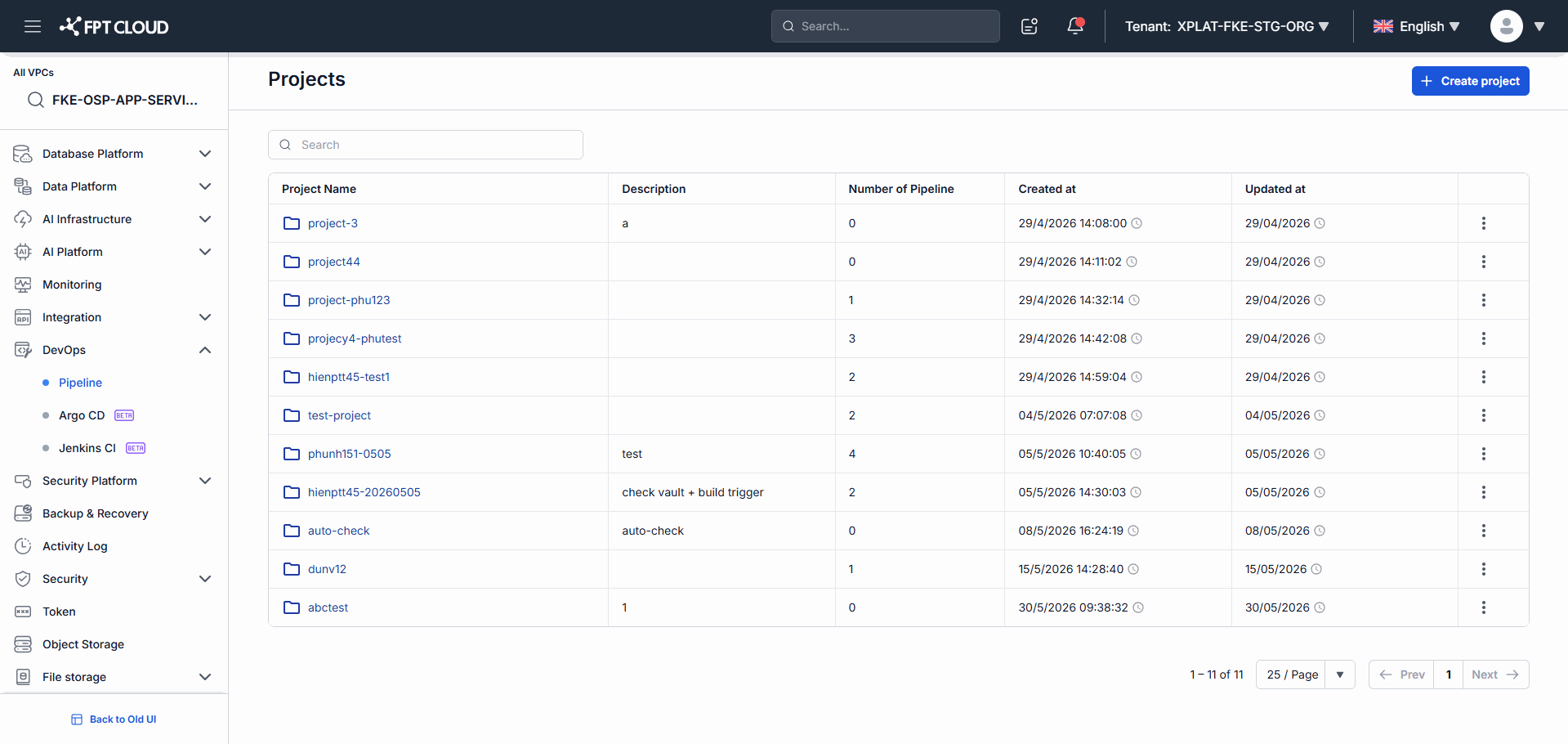
- The system displays the Projects screen.
- The Projects you have access to appear in the list.
Create a new Project
Goal: The user wants to create a Project to manage Pipelines.
Step 1: Open the create Project screen
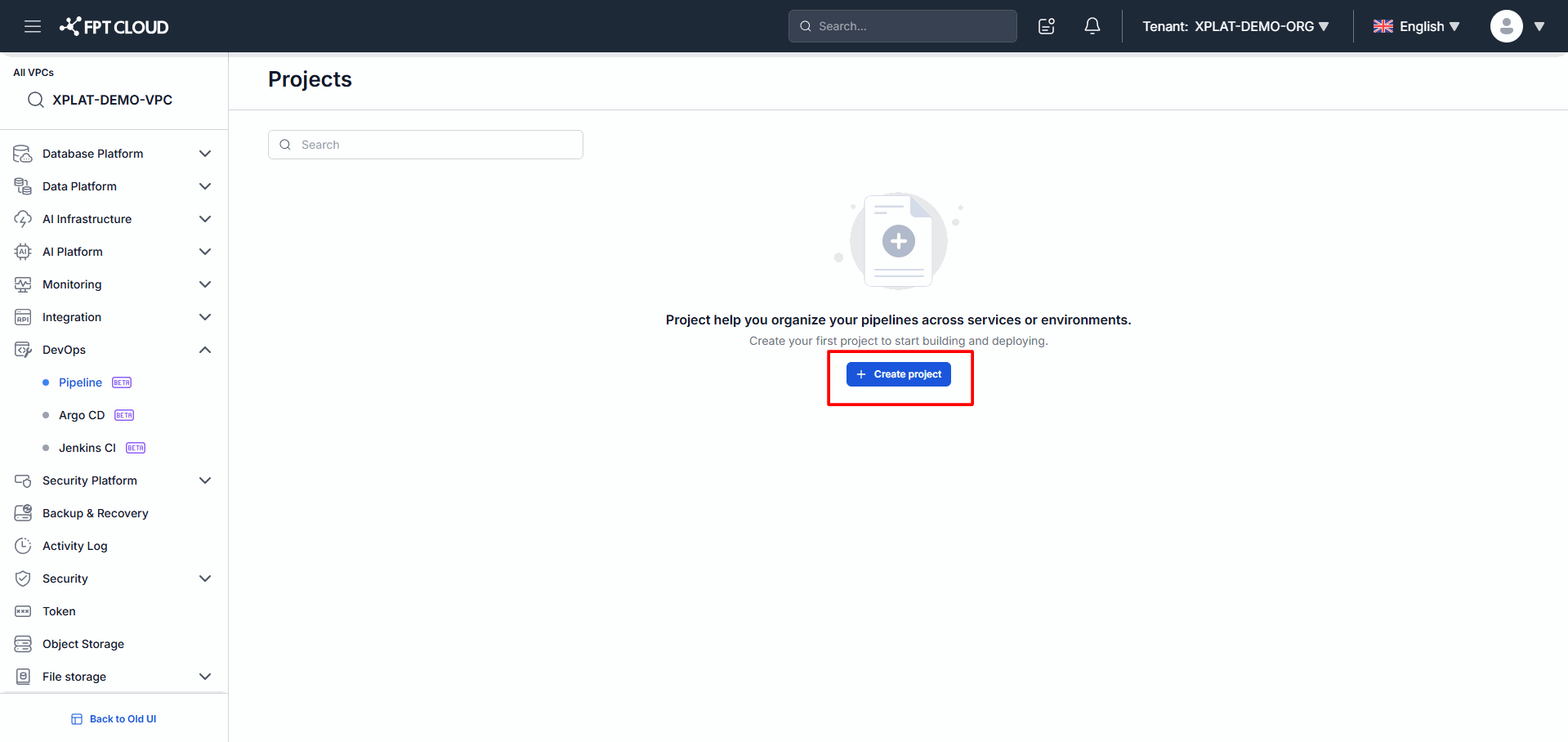
Instructions:
- On the Projects screen,
- Click Create project.
Step 2: Enter the Project details
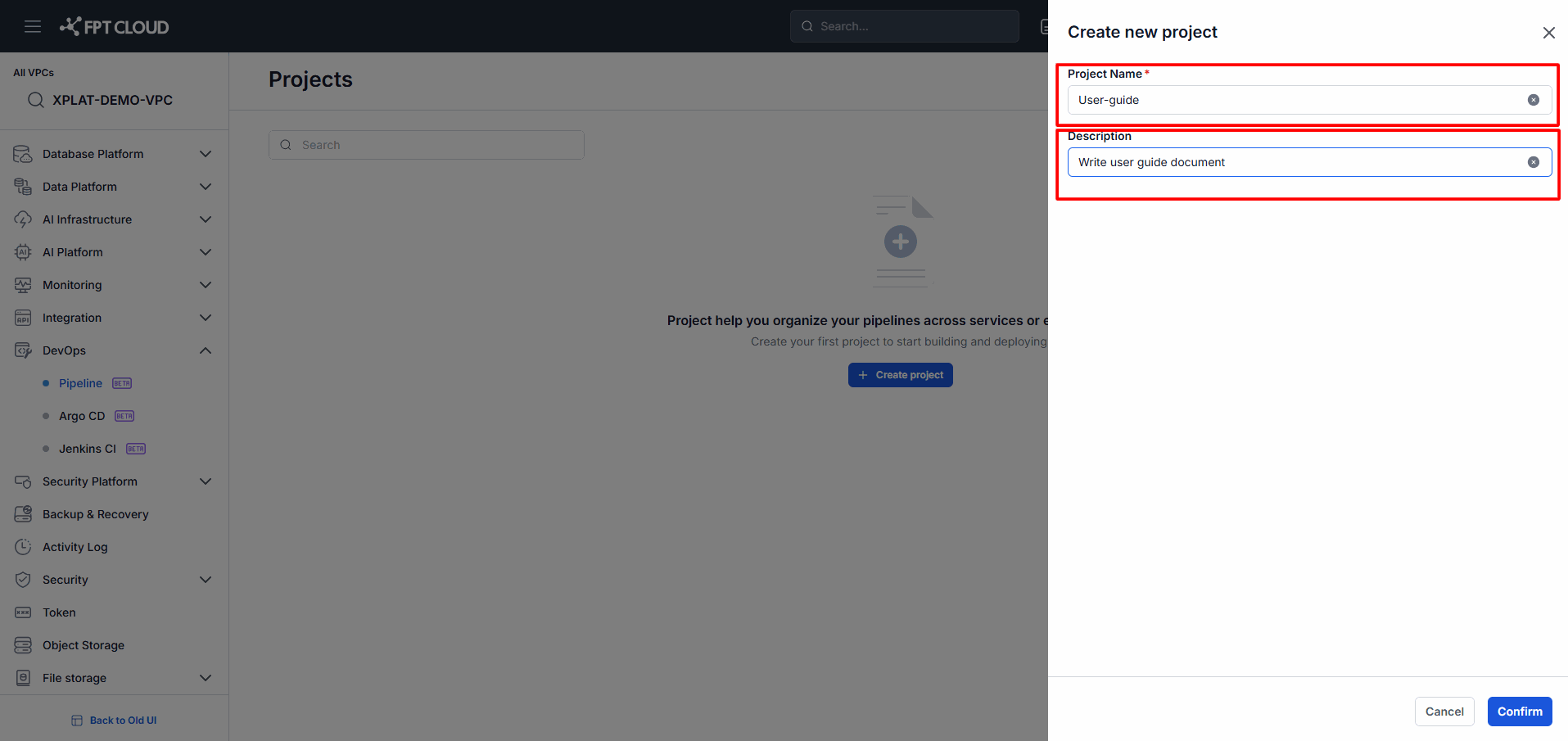
Instructions:
- Enter the Project Name.
- Enter a Description (optional).
- Review the details before creating the Project.
Step 3: Confirm Project creation
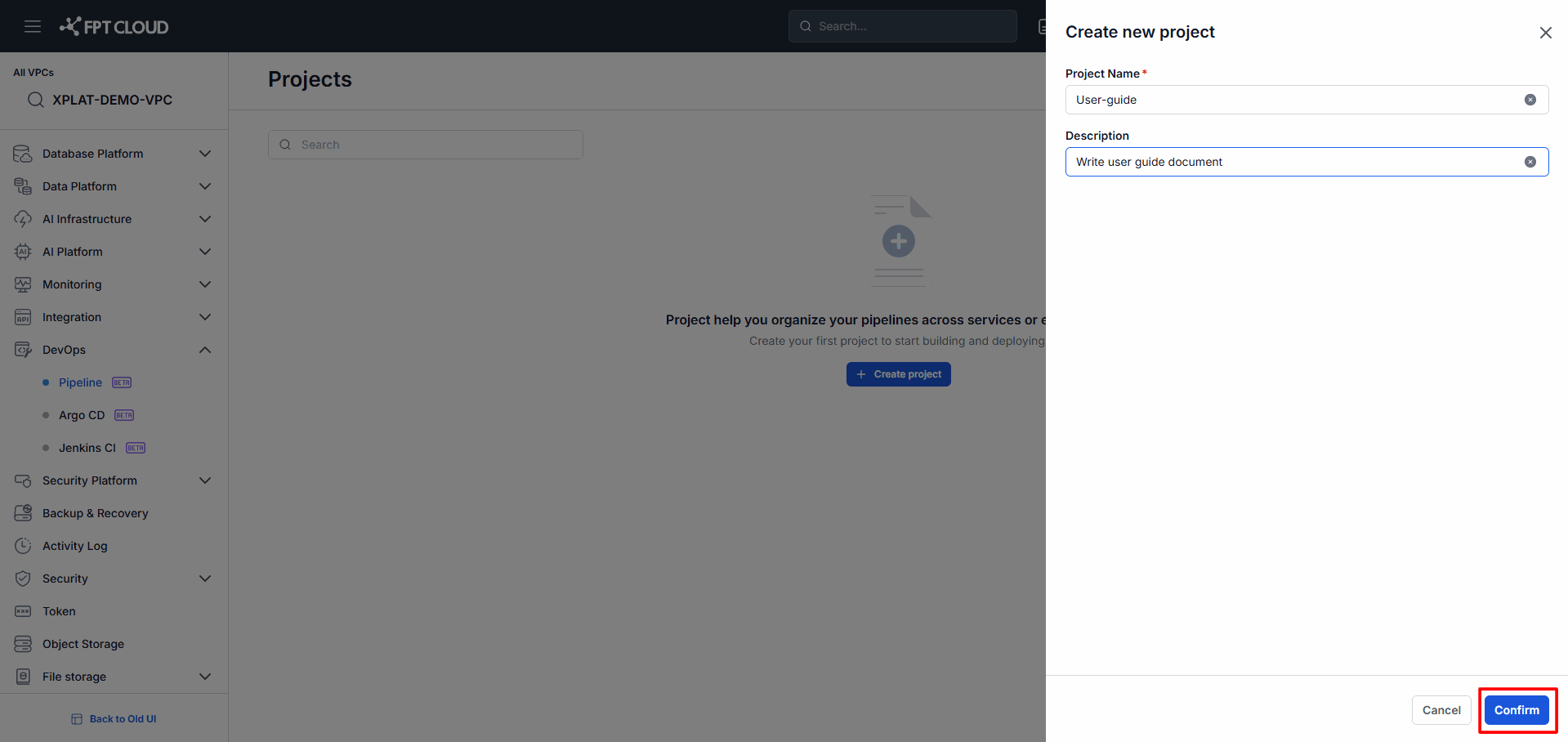
Instructions:
- Click Confirm.
✅ Result
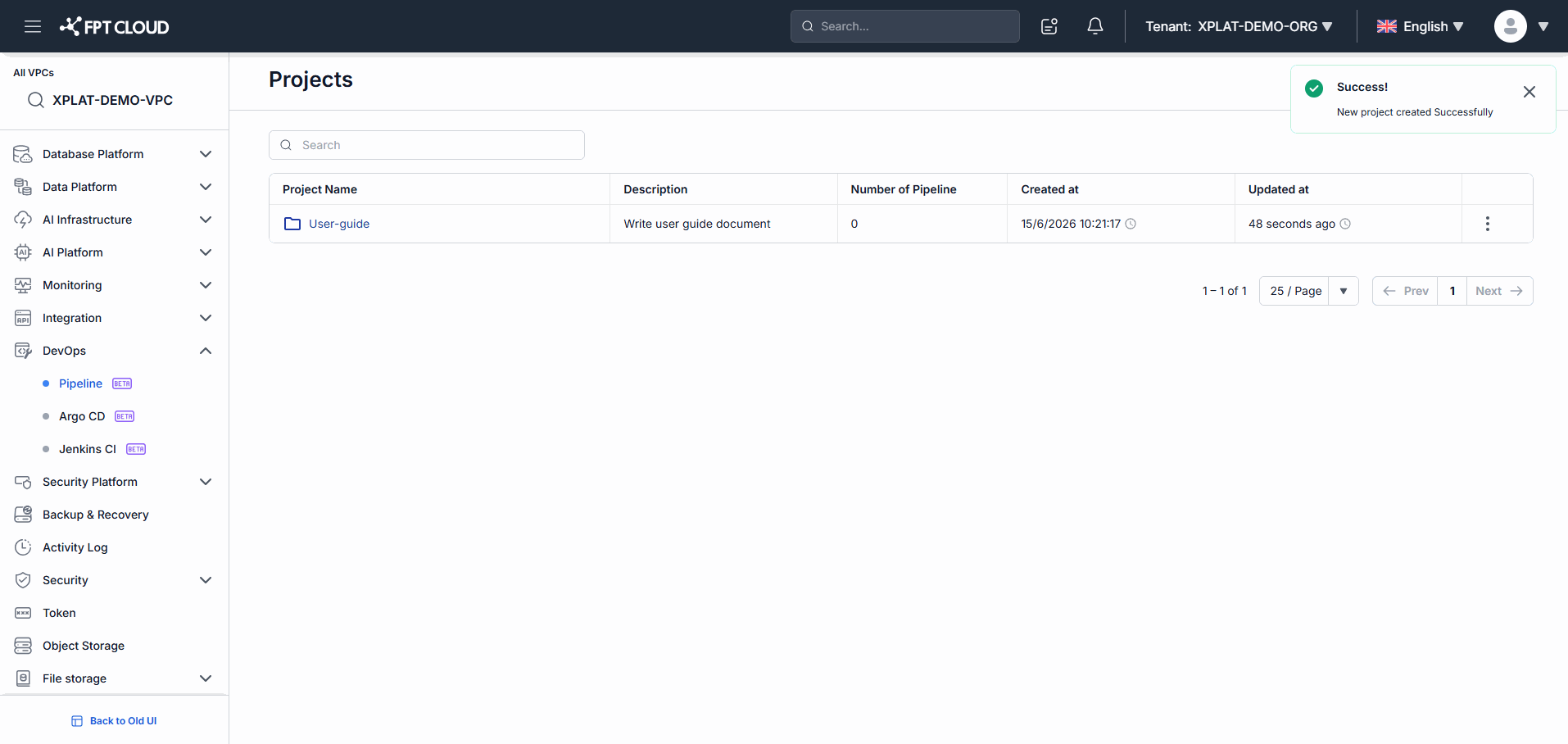
- The system creates the Project successfully.
- The Project appears in the Project list.
- You are redirected to the Project Home screen.
Edit a Project
Goal: The user wants to update a Project's details.
Step 1: Open the Project edit function
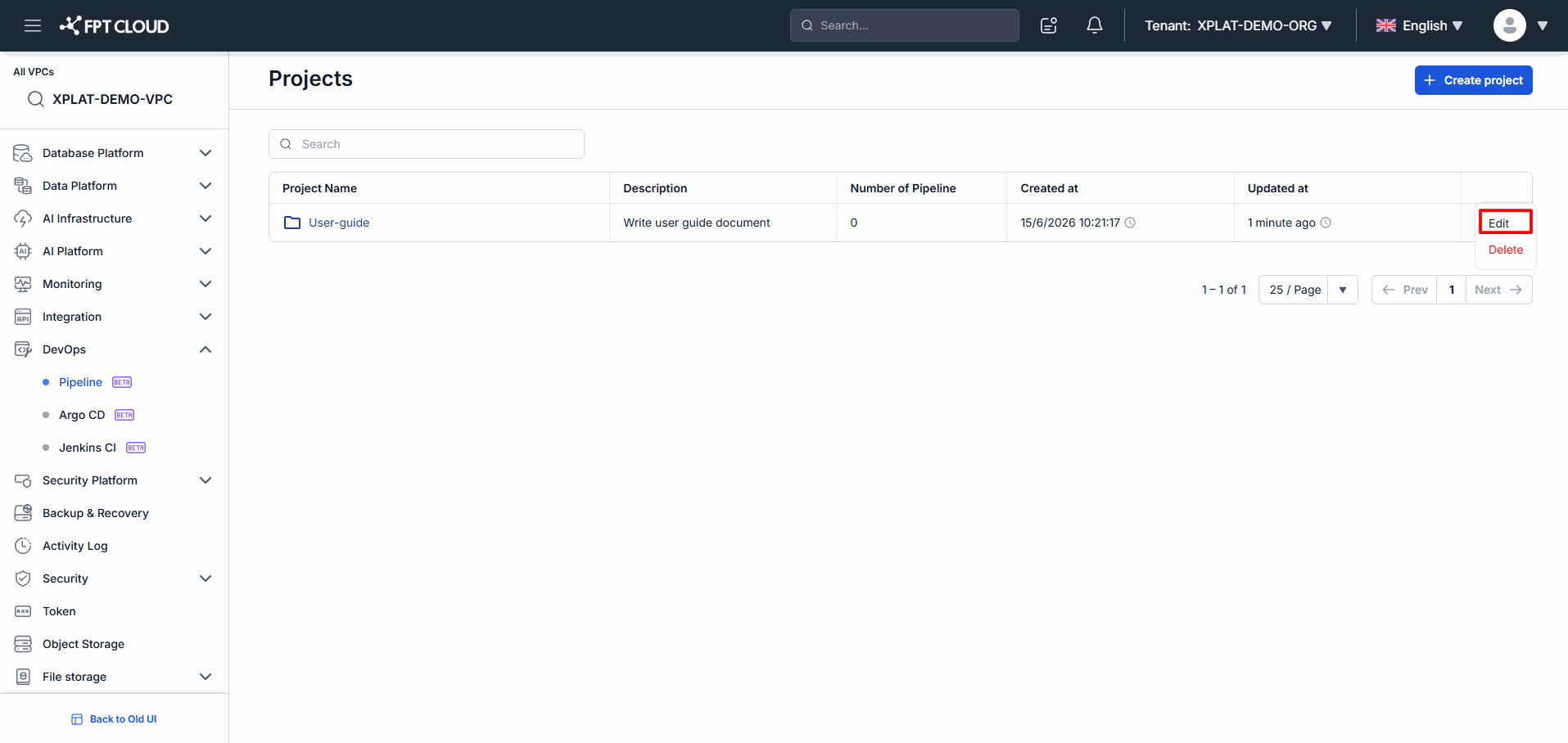
Instructions:
- On the Projects screen,
- Locate the Project you want to edit.
- Click Actions.
- Select Edit.
Step 2: Update the Project details
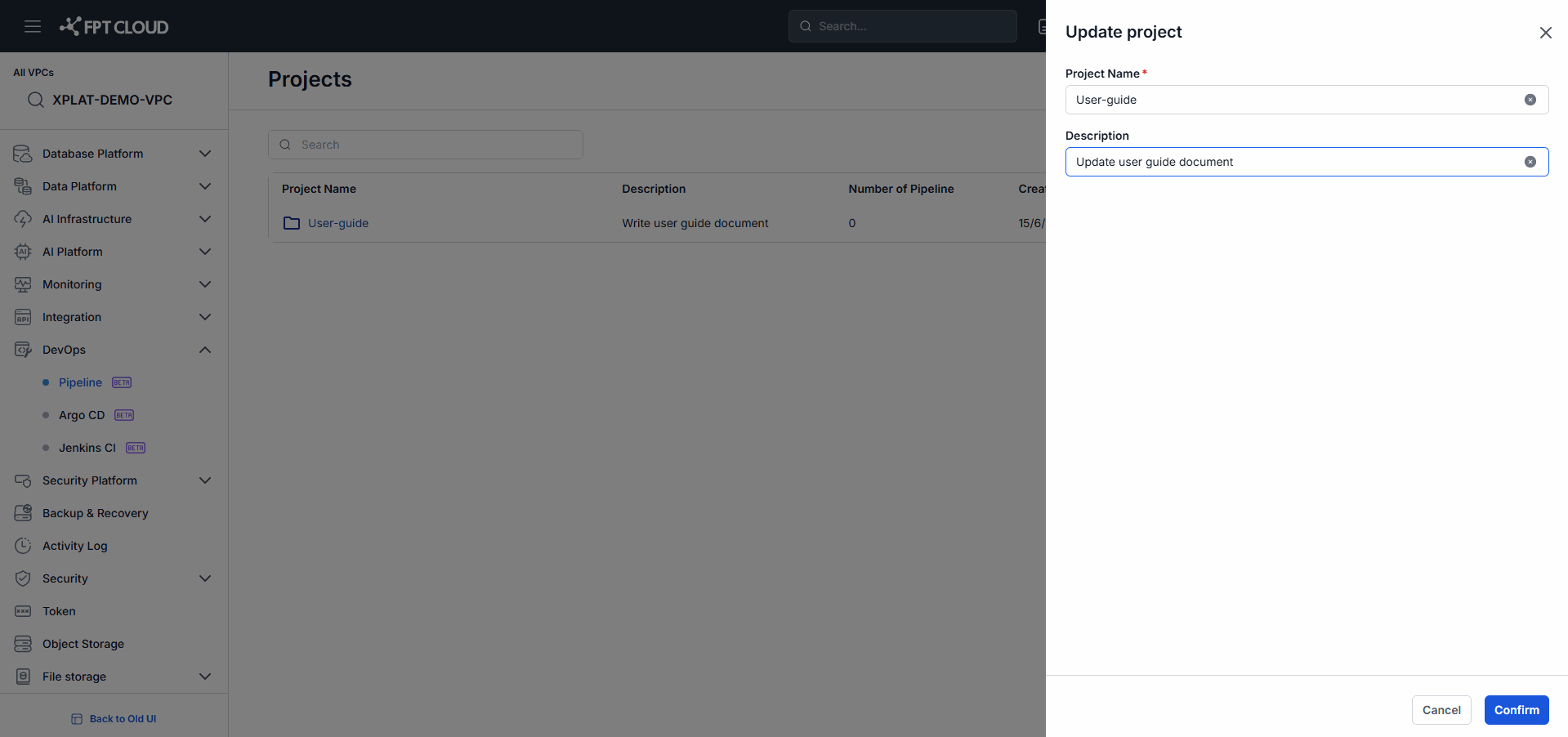
Instructions:
- Update the Project Name if needed.
- Update the Description if needed.
- Review the details before saving.
Step 3: Save the changes
Instructions:
- Click Confirm.
✅ Result
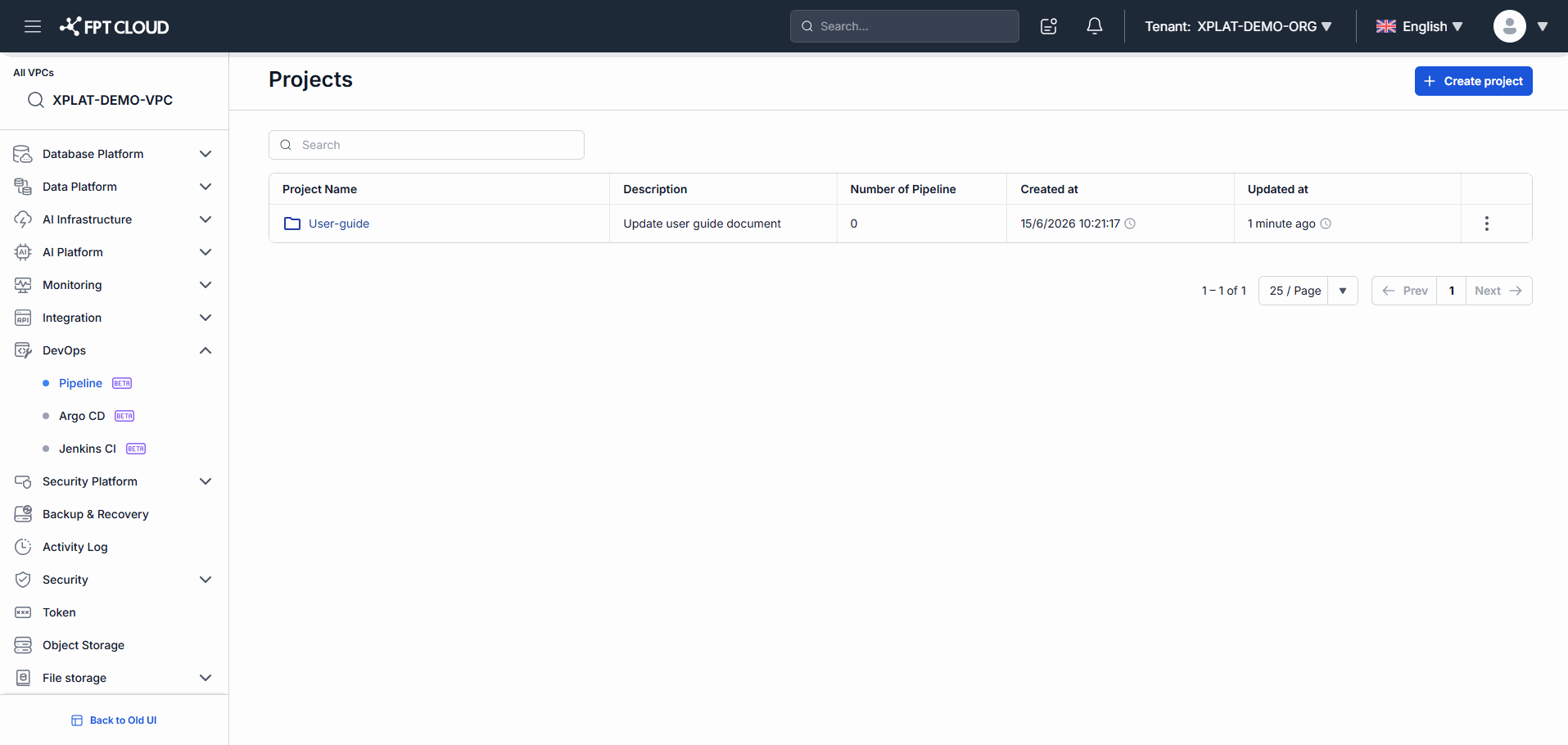
- The system updates the Project successfully.
- The new details appear in the Project list.
- The Updated at timestamp is refreshed.
Search for a Project
Goal: The user wants to find a Project by name.
Step 1: Enter a search keyword
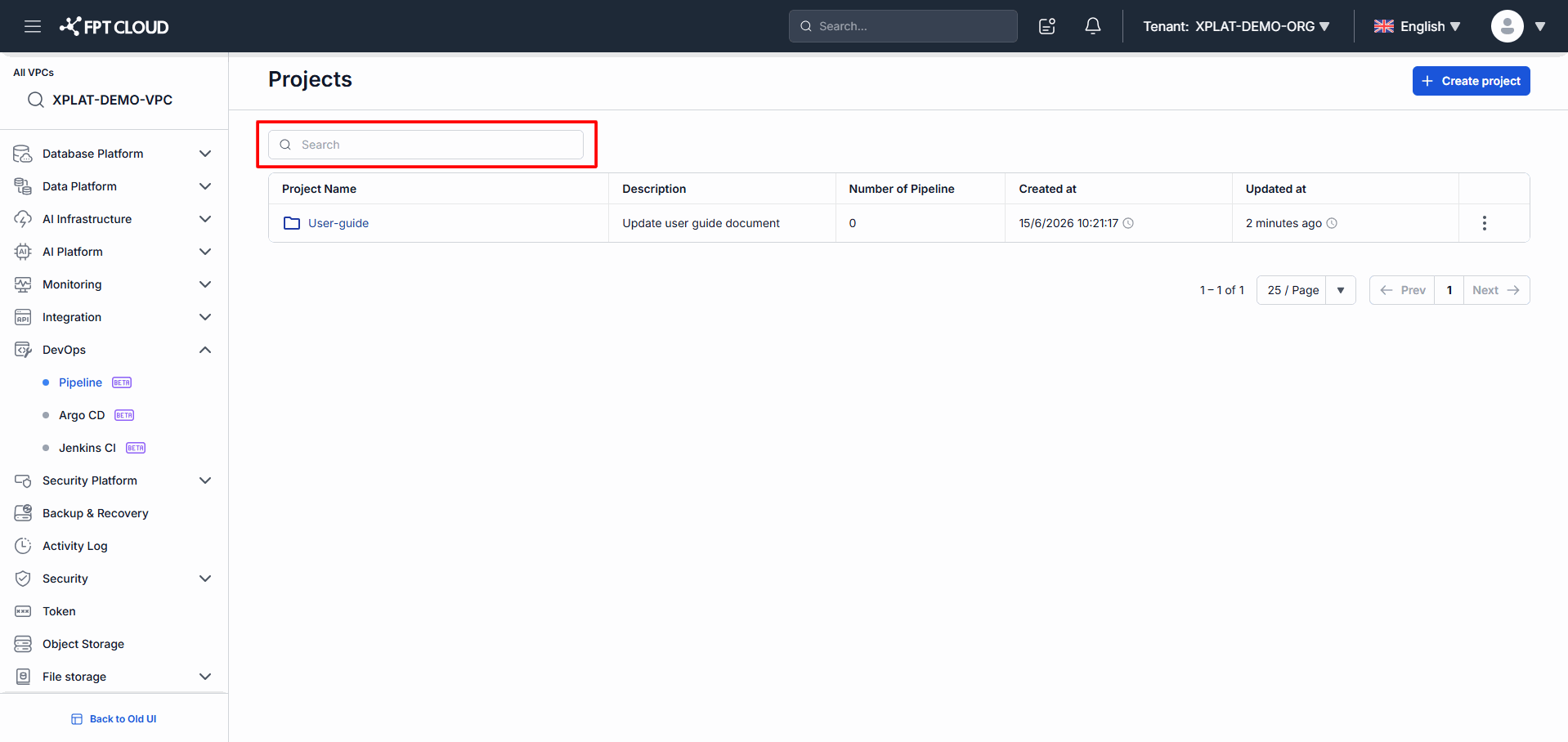
Instructions:
- In the Search box,
- Enter the full name or a partial name of the Project.
✅ Result
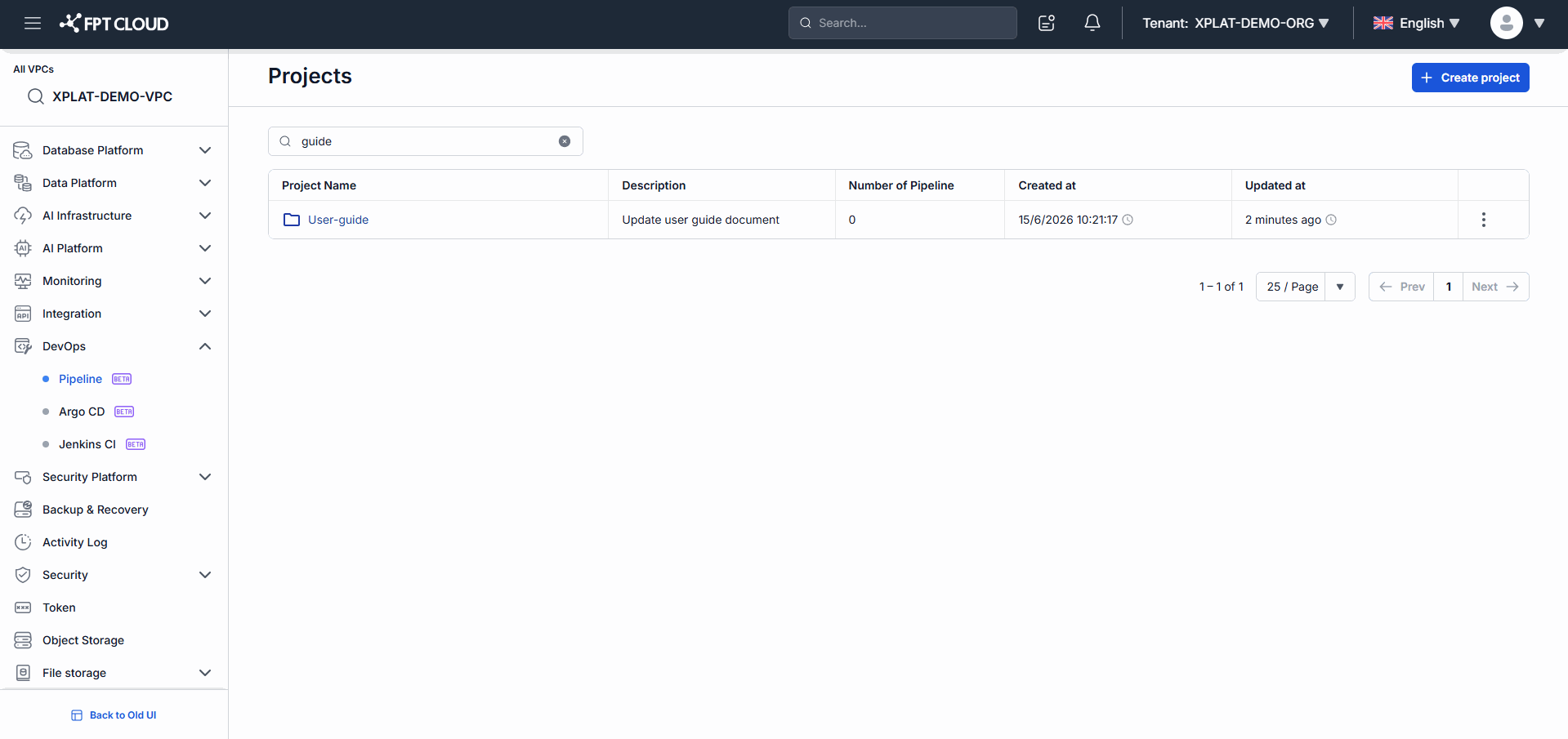
- The system displays the Projects that match the search keyword.
- Only the Projects you have access to are shown.
Access Project Home
Goal: The user wants to manage a specific Project.
Step 1: Open the Project
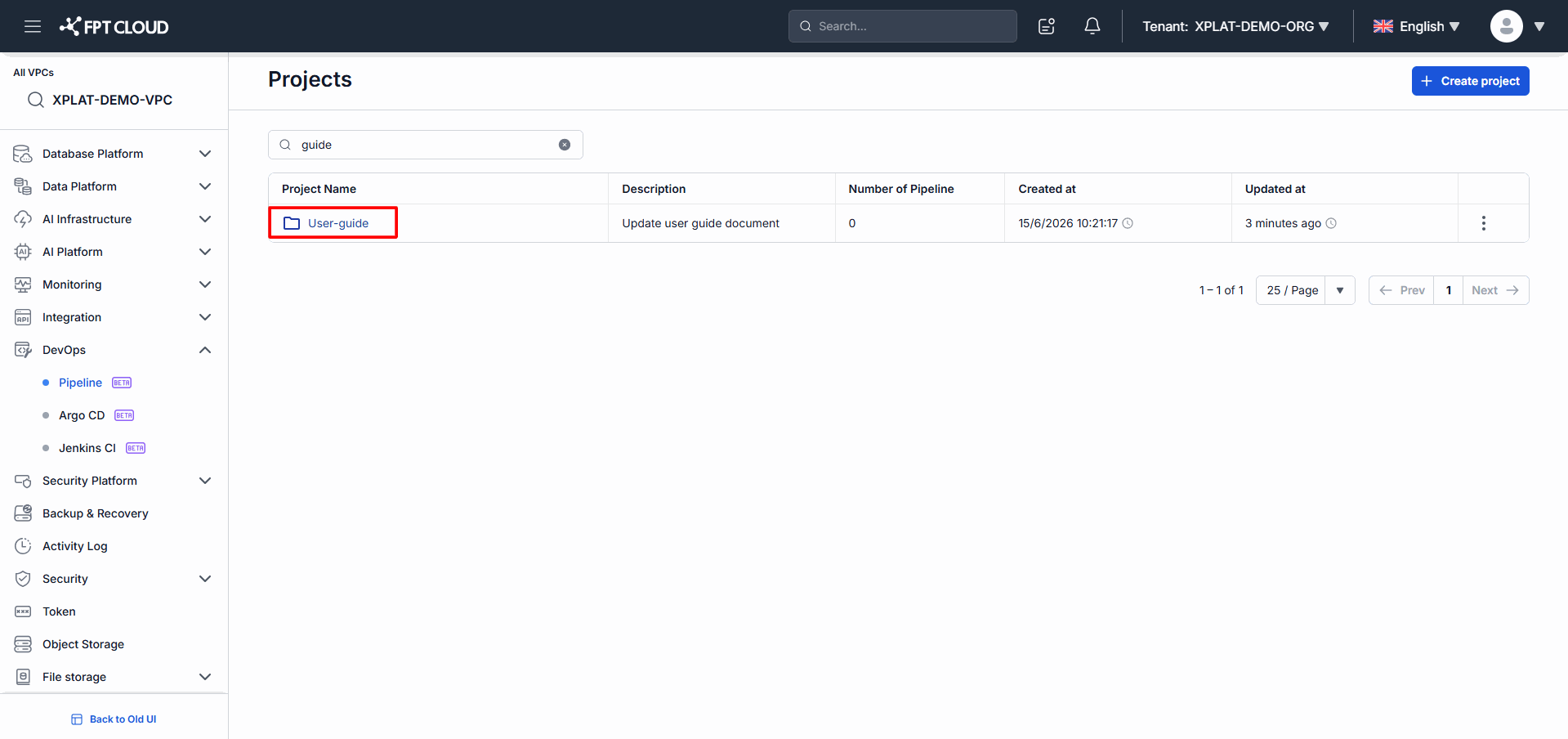
Instructions:
- On the Projects screen,
- Click the Project name in the list.
✅ Result
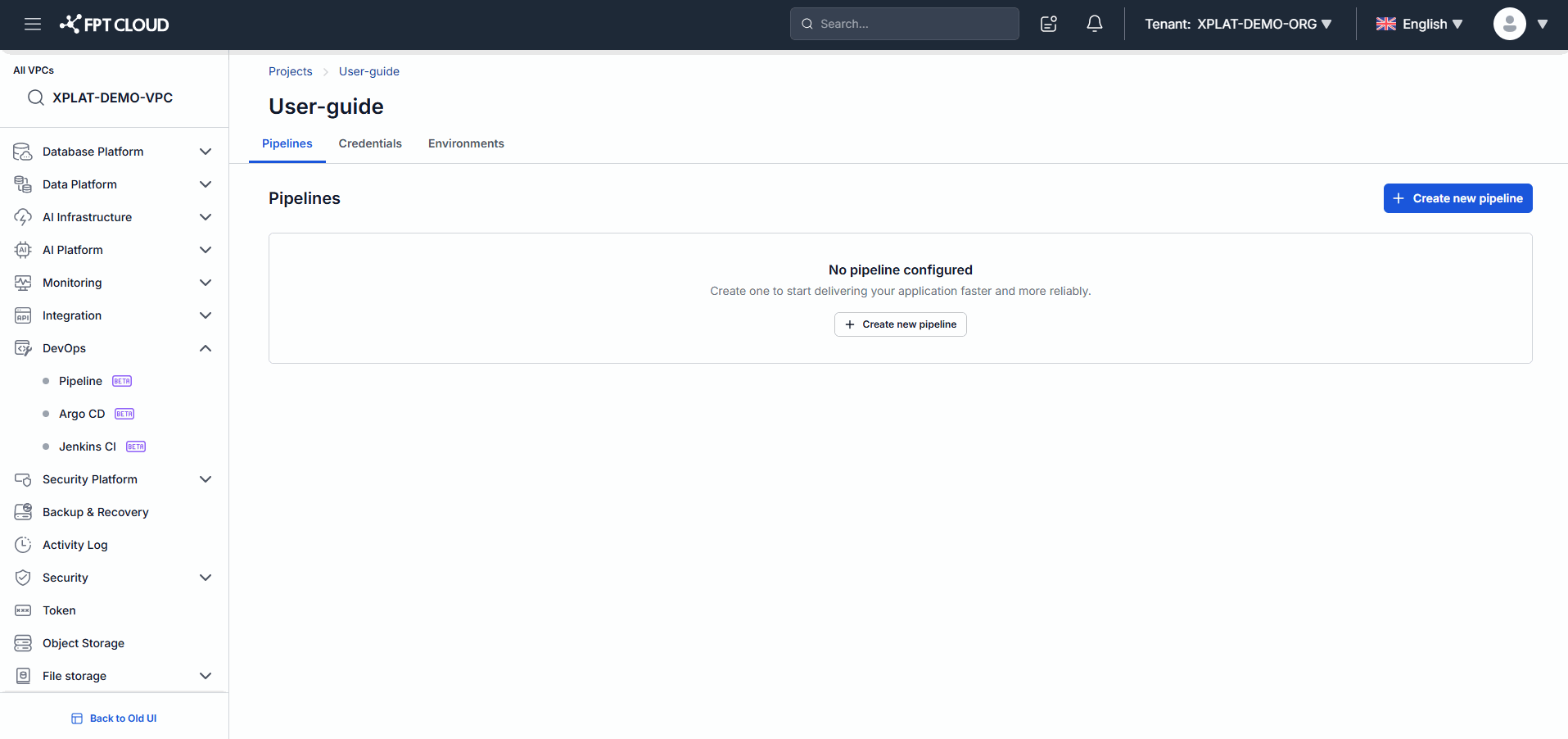
- The system opens the Project Home screen.
- You can now manage the Project's Pipelines and related resources.
2. Interface Reference
| UI Element | Description |
|---|---|
| Projects | Title of the Project management screen |
| Search | Search for Projects by name |
| Create project | Create a new Project |
| Project Name | The Project name; click it to open Project Home |
| Description | The Project description |
| Number of Pipeline | The number of Pipelines in the Project |
| Created at | The time the Project was created |
| Updated at | The time of the most recent update |
| Actions | Available actions for the Project |
3. Common Issues
| Issue | Cause | Resolution |
|---|---|---|
| A Project is missing from the list | Access has not been granted | Contact the Organization Admin |
| The Create project button is not visible | You lack permission to create Projects | Contact your Administrator |
| Cannot edit a Project | You lack sufficient edit permissions | Contact your Administrator |
| A Project does not appear in search results | The keyword is incorrect, or you lack access | Double-check your search keyword |
| Cannot open a Project | Your access has been revoked | Contact your Administrator |
4. Notes & Tips
💡 Name each Project after its application or service to keep it easy to identify.
💡 Use the Search function when your Organization has many Projects.
⚠️ Only Projects you have been granted access to appear in the list.
⚠️ Each Project supports a maximum of 50 Pipelines.
⚠️ After a successful edit, the Updated at timestamp is refreshed.