API Gateway の更新
負荷が変わったときや説明が古くなったときは、新しいクラスターを作成せずに API Gateway を更新します。API Gateway の詳細画面では、構成の各部分にそれぞれ Edit ボタンがあります。
ステップ 1API Gateway の詳細画面を開きます
1 / 4
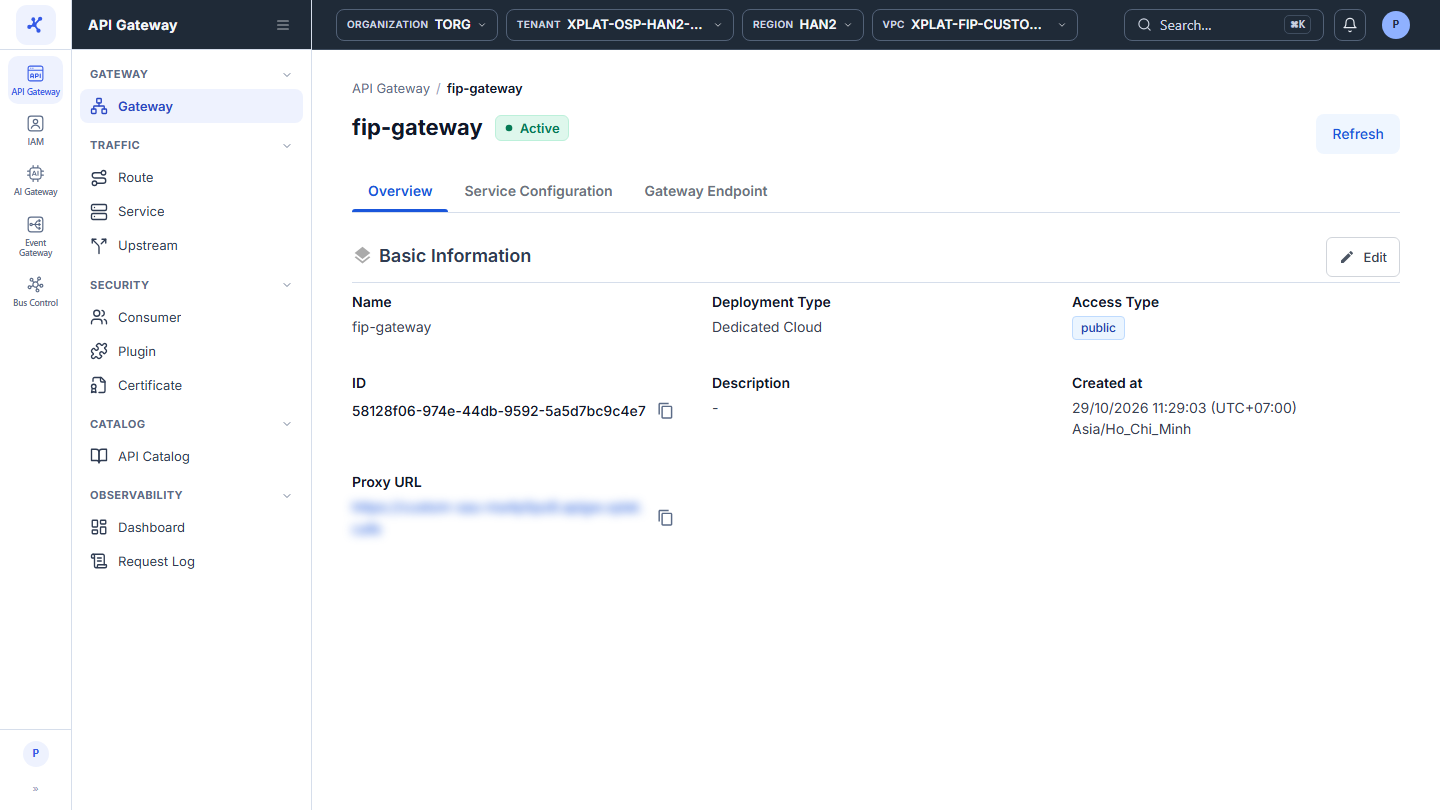
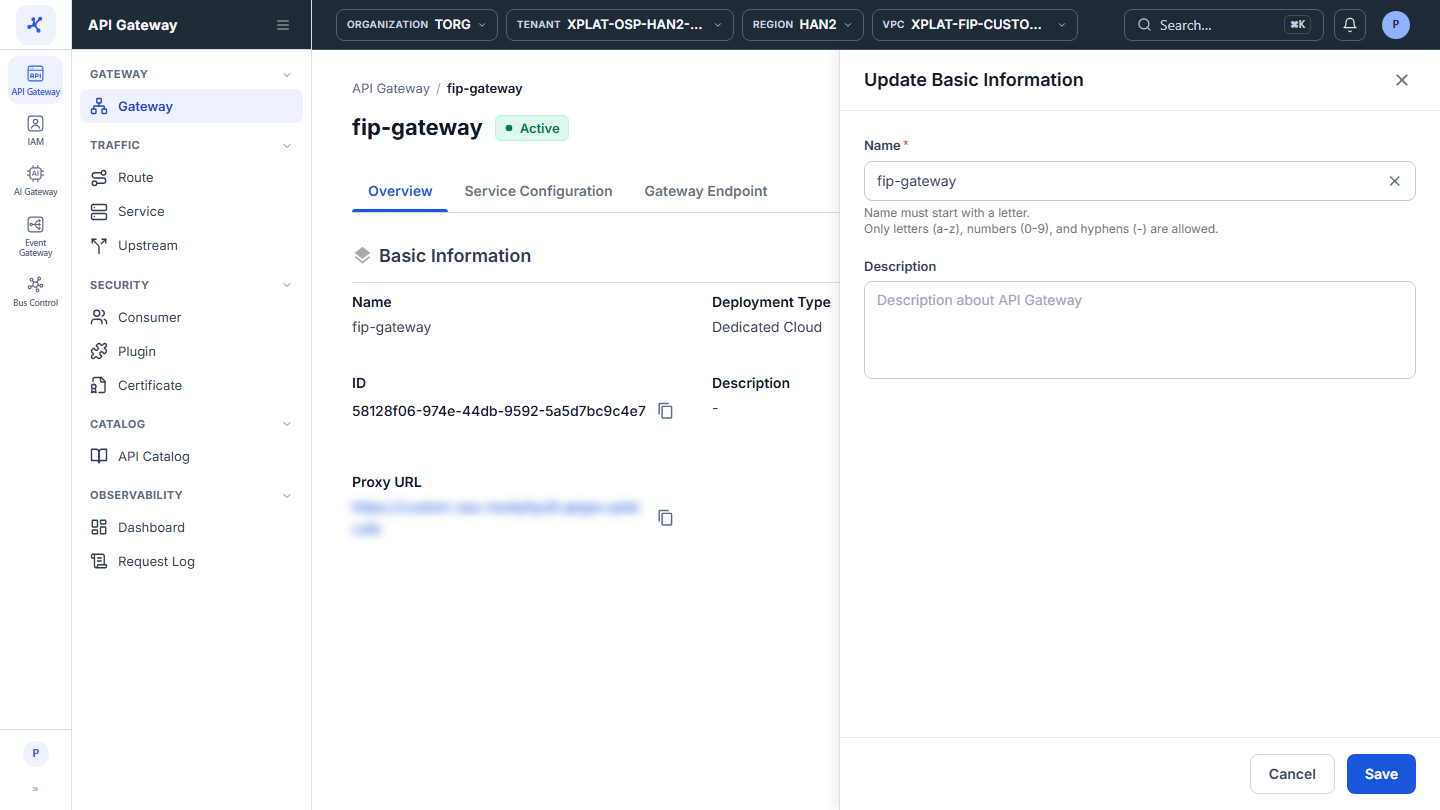
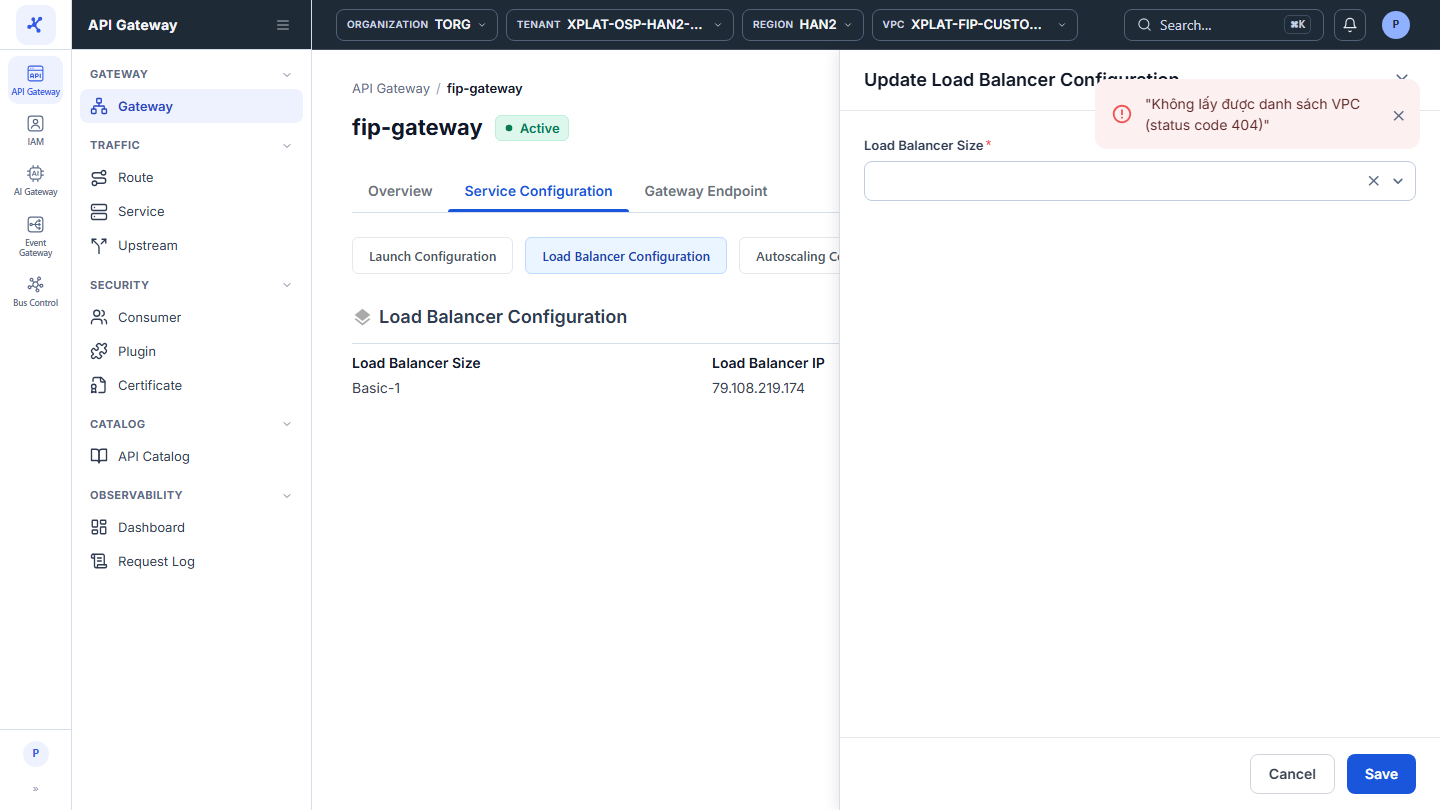
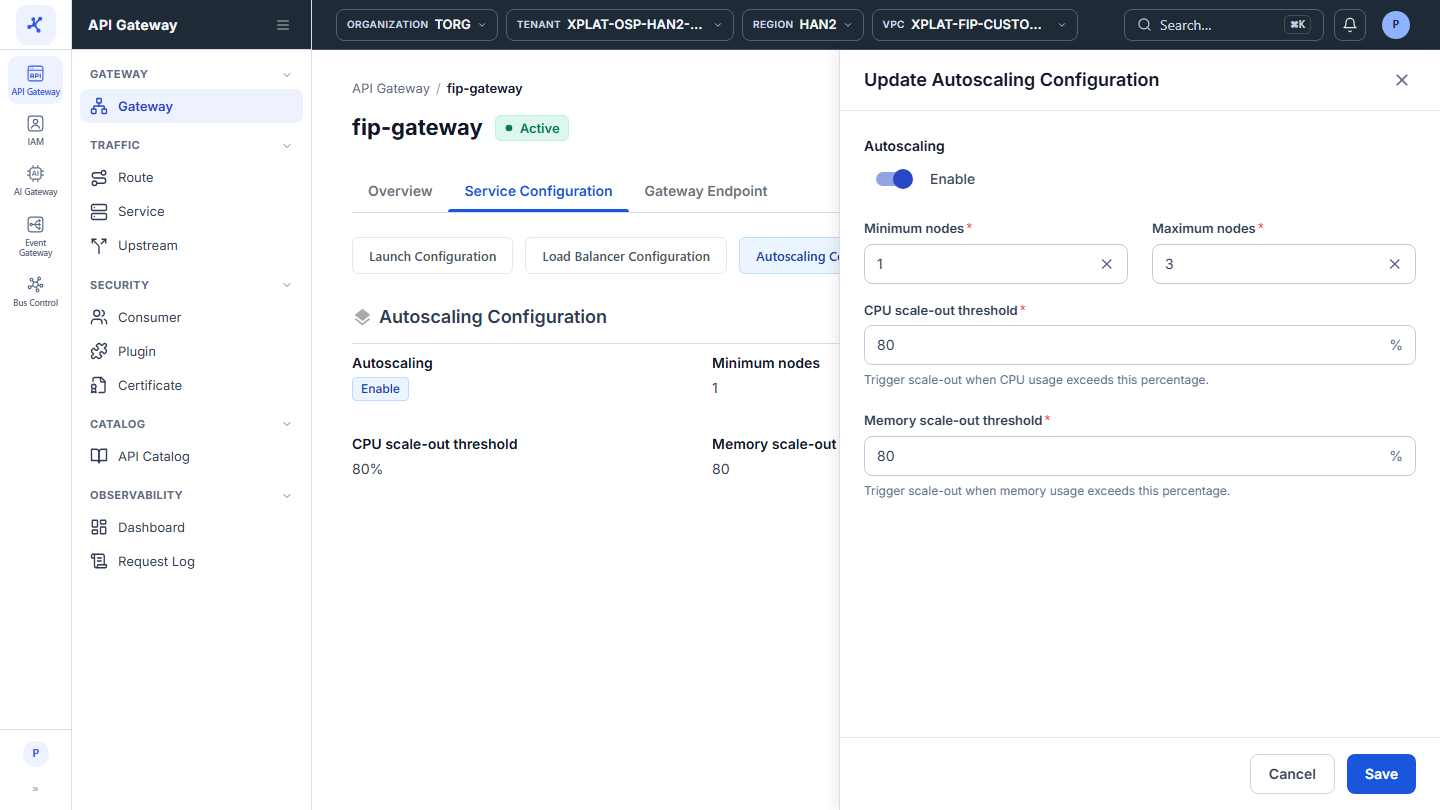
画像をクリックすると拡大します。
始める前に
- Org Admin ロールが必要です。ロールと権限を参照してください。
- API Gateway が Processing 状態の間は、Basic Information のみ更新できます。他の部分では API Gateway is not updated in this status というエラーが表示されます。API Gateway が Active になるまで待ちます。
API Gateway を更新する
API Gateway を更新するには、次の手順を実行します。
- 左側のメニューで API Gateway → Gateway を選択し、API Gateway 名をクリックします。
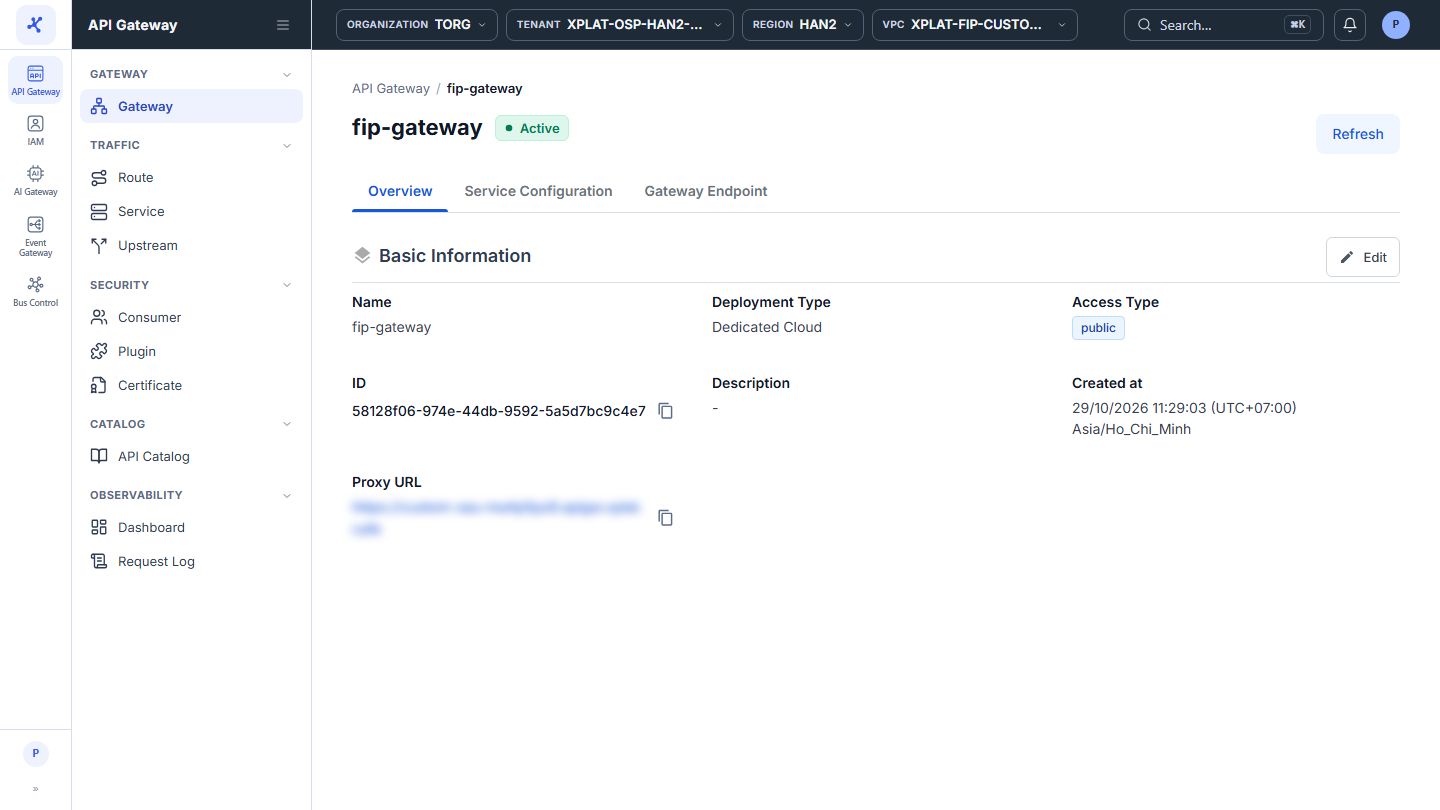
- 変更する部分の Edit をクリックし、右側に開くフォームでフィールドを更新します。
| 場所 | フォーム | 変更できるフィールド |
|---|---|---|
| Overview タブ → Basic Information | Update Basic Information | Name、Description |
| Service Configuration タブ → Launch Configuration | Update Launch Configuration | Flavor、Worker nodes。Cloud Provider、Tenant、Region、VPC、Storage Policy、Subnet は読み取り専用です |
| Service Configuration タブ → Load Balancer Configuration | Update Load Balancer Configuration | Load Balancer Size |
| Service Configuration タブ → Autoscaling Configuration | Update Autoscaling Configuration | Autoscaling(オンまたはオフ)、Minimum nodes、Maximum nodes、CPU scale-out threshold、Memory scale-out threshold |
各フィールドのルールは API Gateway の作成時と同じです。API Gateway の作成を参照してください。
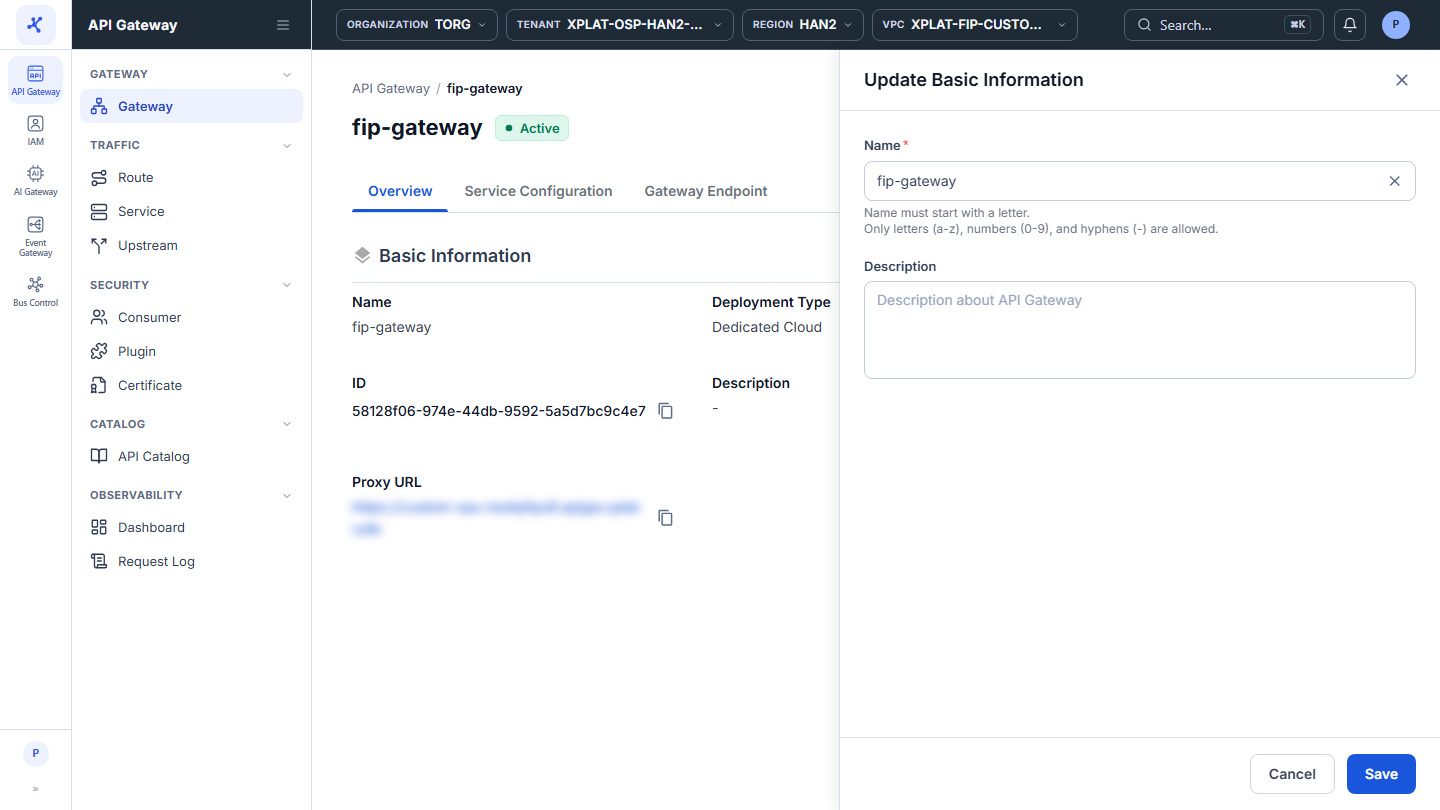
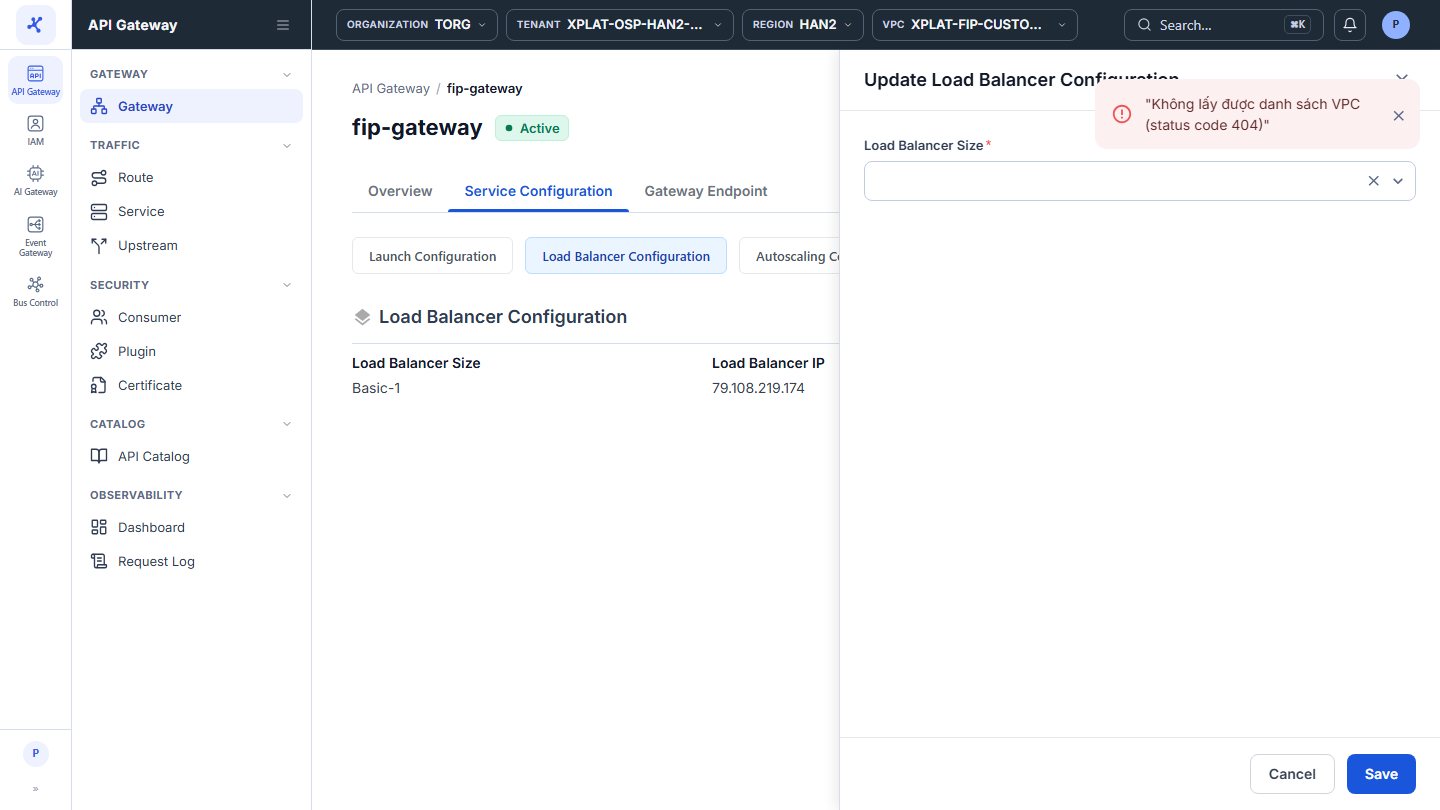
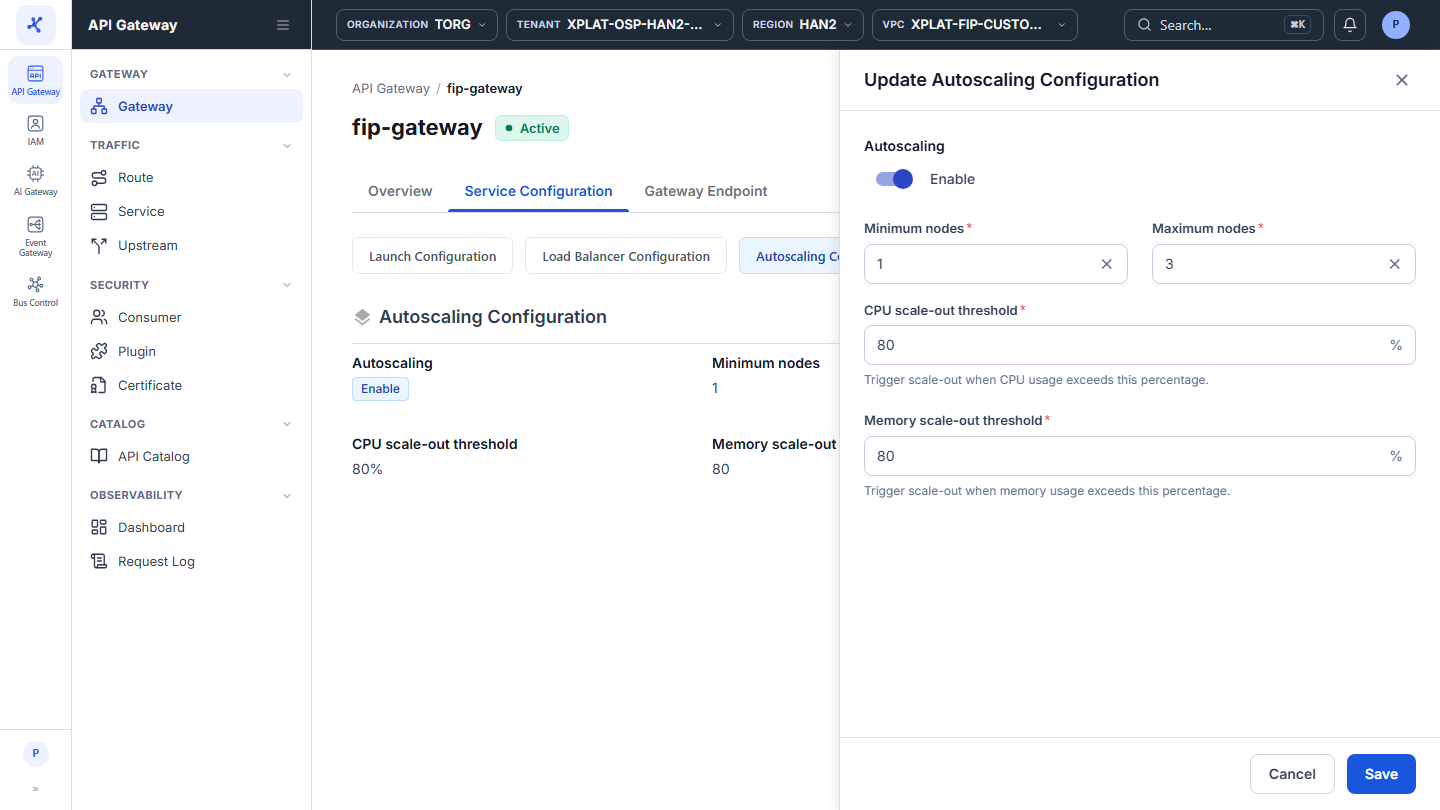
- Save をクリックします。すべての必須フィールドが有効な場合にのみ、ボタンが有効になります。
Update API Gateway Successfully というメッセージが表示され、フォームが閉じます。Launch、Load Balancer、Autoscaling の構成の変更はクラスターに適用されるため、変更が完了するまで API Gateway は Processing 状態になります。
保存せずにフォームを閉じるには、Cancel をクリックします。
よくある問題
| エラー | 原因 | 対処方法 |
|---|---|---|
| フィールドの下に <Field name> is required が表示され、Save が無効になる | 必須フィールドが空です | フィールドに入力します。 |
| API Gateway is not updated in this status | API Gateway が Processing 状態で、Basic Information 以外の部分を編集しました | API Gateway が Active になるまで待ってから、もう一度実行します。 |
| Something went wrong. Please try again later | タイムアウトまたはシステムエラーです。フォームのデータは保持されます | しばらくしてから Save をもう一度クリックします。 |