Understanding Your Dashboard
After completing the onboarding survey, you land on the Workspace Dashboard — your home screen in FPT AI Factory Portal. This page explains what each section shows and what to do when you first arrive.
First-time tour
The first time you log in, a short guided tour walks you through the key areas of the interface. It runs automatically on the Workspace Dashboard.
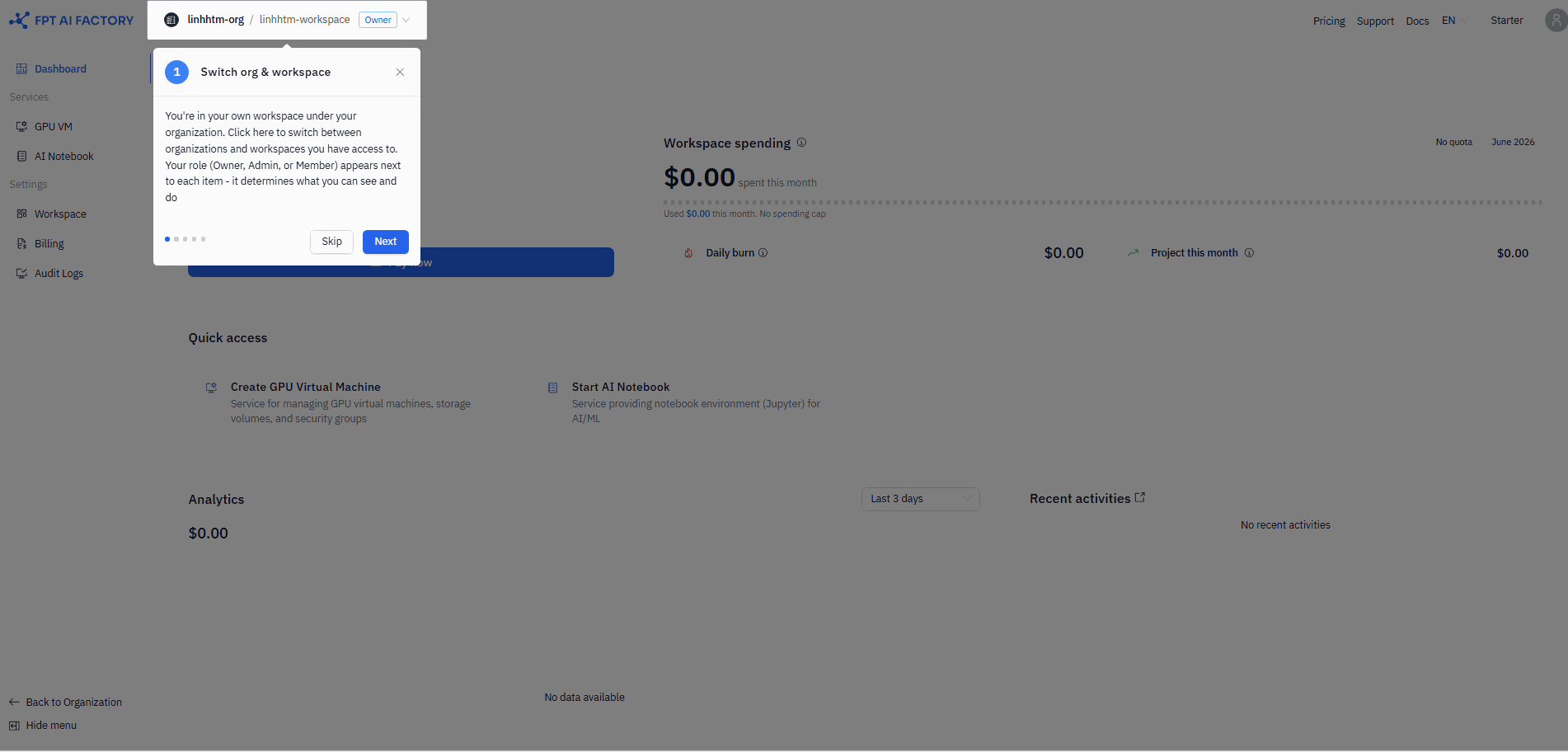
| Step | What it highlights |
|---|---|
| 1 | Switch org & workspace — the switcher at the top lets you move between organizations and workspaces. Your role (Owner, Admin, or Member) is shown next to each item. |
| 2 | Navigation menu — the left sidebar gives access to Dashboard, Services, and Settings. Some items are hidden if your role does not have permission. |
| 3 | Quick access — service cards for every active service in your workspace. Click a card to go directly to that service. |
| 4 | Analytics — the spending chart for your workspace. Change the time range to spot trends or unusual spikes. |
| 5 | Quotas — your workspace spending limit. When usage reaches the quota, new resources cannot be created until the period resets or the quota is raised. |
You can click Skip on step 1 to dismiss the tour at any time. The tour does not repeat after it is completed.
Workspace Dashboard
The Workspace Dashboard is role-dependent — what you see depends on your role in the workspace.
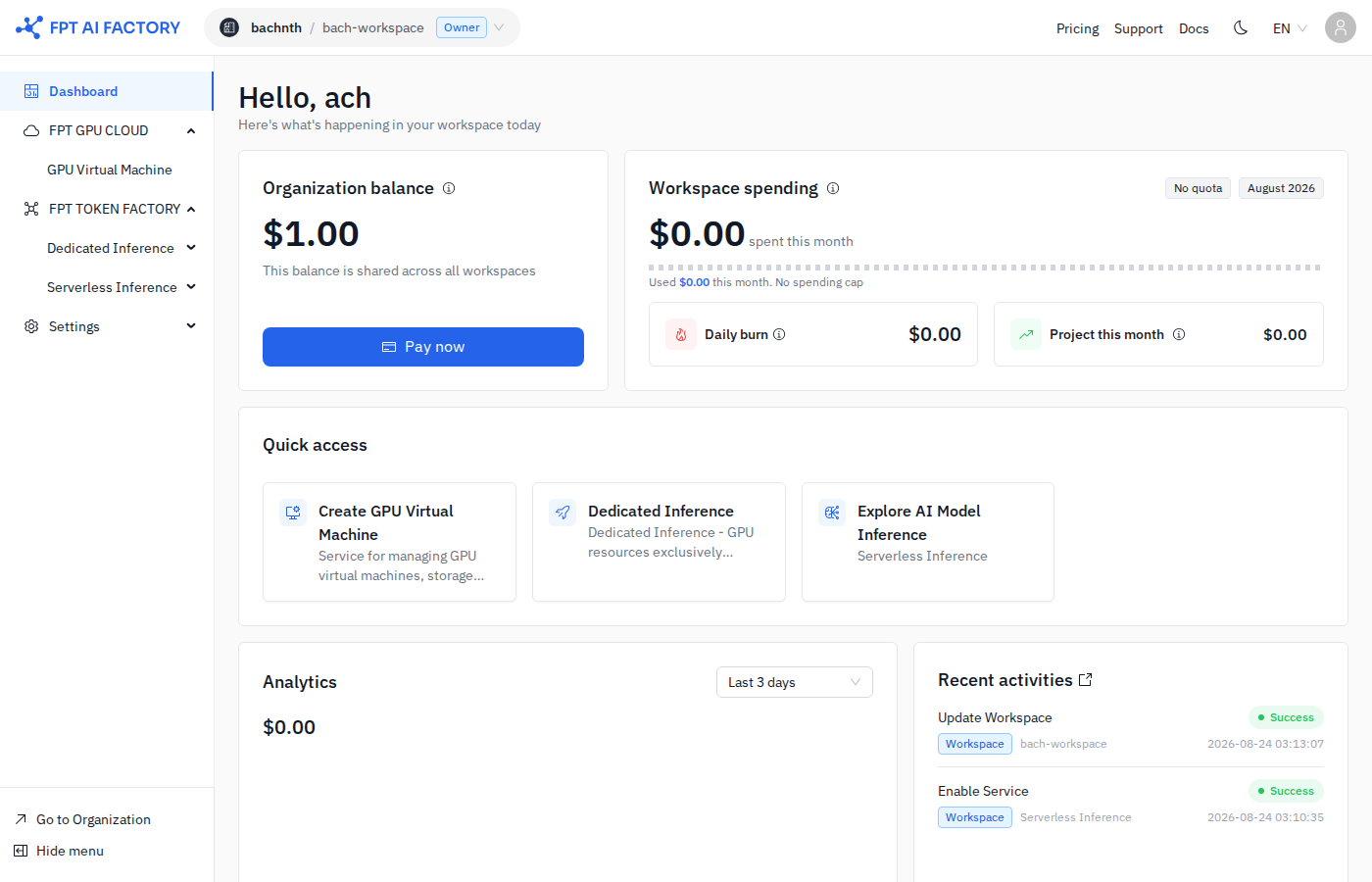
Organization Owner
| Section | What it shows |
|---|---|
| Organization balance | Total credit balance shared across all workspaces. Includes a Pay now button to top up. |
| Workspace spending | How much of the workspace quota has been used this period, with a progress bar, daily burn rate, and comparison to the previous period. |
| Quick access | Cards for each active service in this workspace. |
| Spending analytics | A chart of spending over time. Filter by time range: Last 3 days, Last 30 days, This month, or Last 12 months. |
| Recent activities | The 5 most recent audit log entries. Click Audit logs to see the full history. |
Workspace Admin
Same layout as Owner, except:
- The Organization balance card is hidden — Admins cannot see or manage the org-level wallet.
- The Workspace spending card shows quota usage and daily burn, but no Pay now button.
Workspace Member
- No billing section (no org balance, no quota card).
- Sees Quick access, Spending analytics, and Recent activities only.
- If no services are active: a banner says "No active services — Contact admin."
Workspace spending card
The spending card changes appearance depending on whether a quota is set for the workspace.
| Scenario | What you see |
|---|---|
| Monthly quota | Remaining amount, progress bar, used/limit label, daily burn, vs last month |
| Daily quota | Remaining amount, progress bar, used/limit label, hourly burn, vs yesterday |
| No quota set | Total spend this month, dashed progress bar ("no spending cap"), daily burn, projected spend for the month |
The progress bar color indicates how close you are to the quota limit:
| Color | Meaning |
|---|---|
| Blue | Under 70% used — normal |
| Orange | 70–89% used — approaching limit |
| Red | 90% or more used — near limit |
When usage reaches 100%, new resources cannot be created in this workspace until the period resets or the quota is increased.
Organization Dashboard
If you are an Organization Owner, you also have access to the Organization Dashboard — a cross-workspace summary view. Switch to it from the org/workspace switcher at the top.
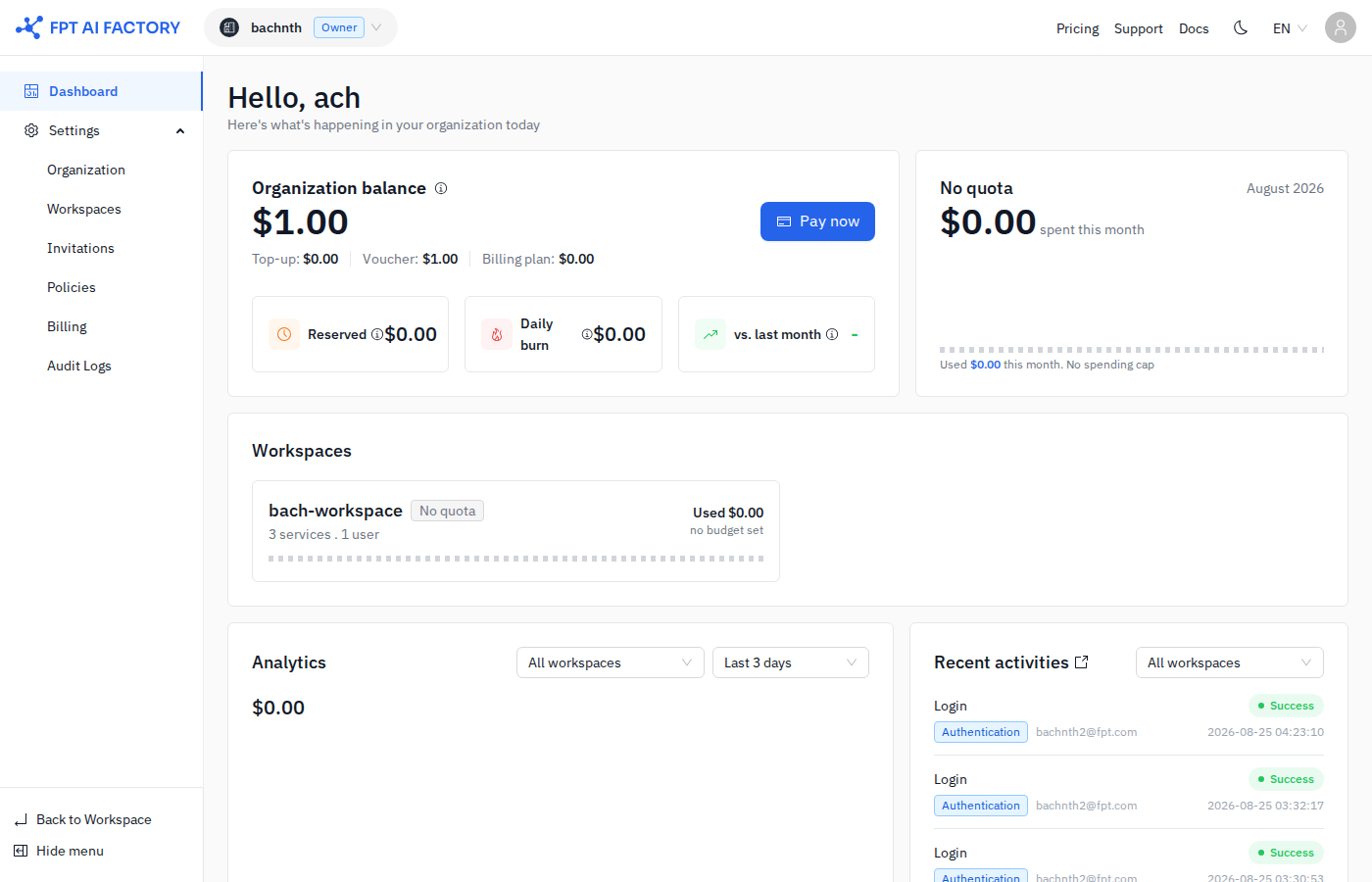
| Section | What it shows |
|---|---|
| Organization balance | Total wallet balance broken down by Billing plans, Voucher, and Top-up credits. Daily burn rate and vs last month comparison. |
| Quota | Organization-level spending limit and how much has been used across all workspaces. |
| Workspace summary | A grid of all workspaces, each showing service count and member count. Click a workspace name to go to its dashboard. |
| Spending analytics | Chart filterable by workspace and time range. |
| Recent activities | Latest 5 audit log entries across the organization, filterable by workspace. |
The Organization Dashboard is only visible to the Organization Owner. All other roles go directly to the Workspace Dashboard.
What's next
- Workspaces — configure services and quotas for your workspace.
- Audit Logs — view the full activity history for your organization or workspace.