Các thao tác cơ bản với SCM asset (Repo/Project)
SCM asset bao gồm Source Code repository được tích hợp qua GitHub, GitLab hoặc GitLab Server.
Các thao tác chung (Disable, Enable, Delete), xem Quản lý Assets.
Thêm SCM asset
- Trong Workspace, click Add Asset.
- Chọn GitHub, GitLab hoặc GitLab Server.
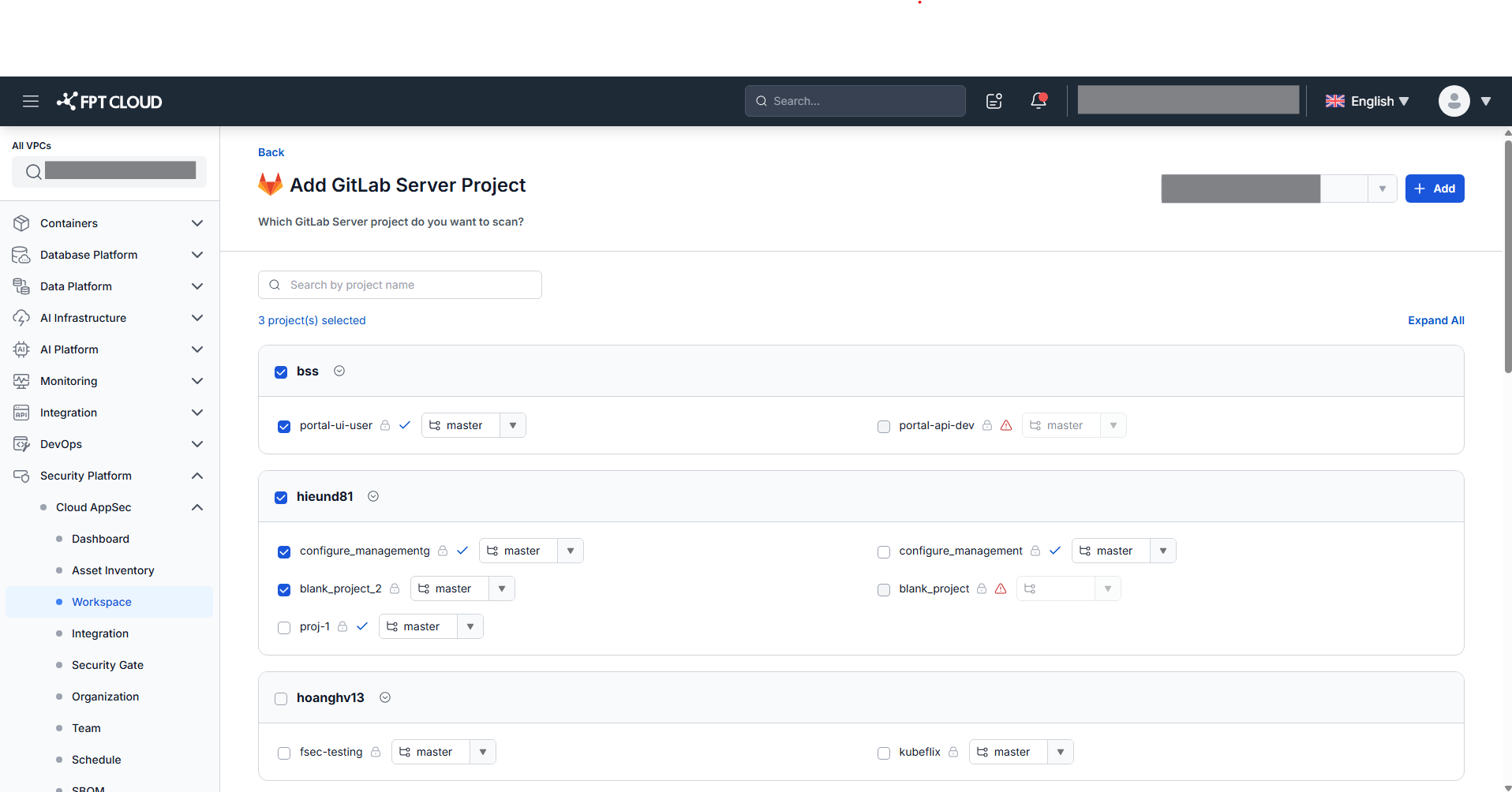
Popup Add Asset chỉ hiển thị nguồn đã được tích hợp trong màn Integration. Click nguồn chưa tích hợp sẽ chuyển hướng sang tab Integration.
- Chọn repo/project và branch, sau đó click Add.
Sau khi thêm thành công, hệ thống tự động chạy scan đầu tiên và hiển thị kết quả trong tab All Assets.
Xem tổng quan asset
Click tên SCM asset bất kỳ trong danh sách để mở màn hình Asset Overview.
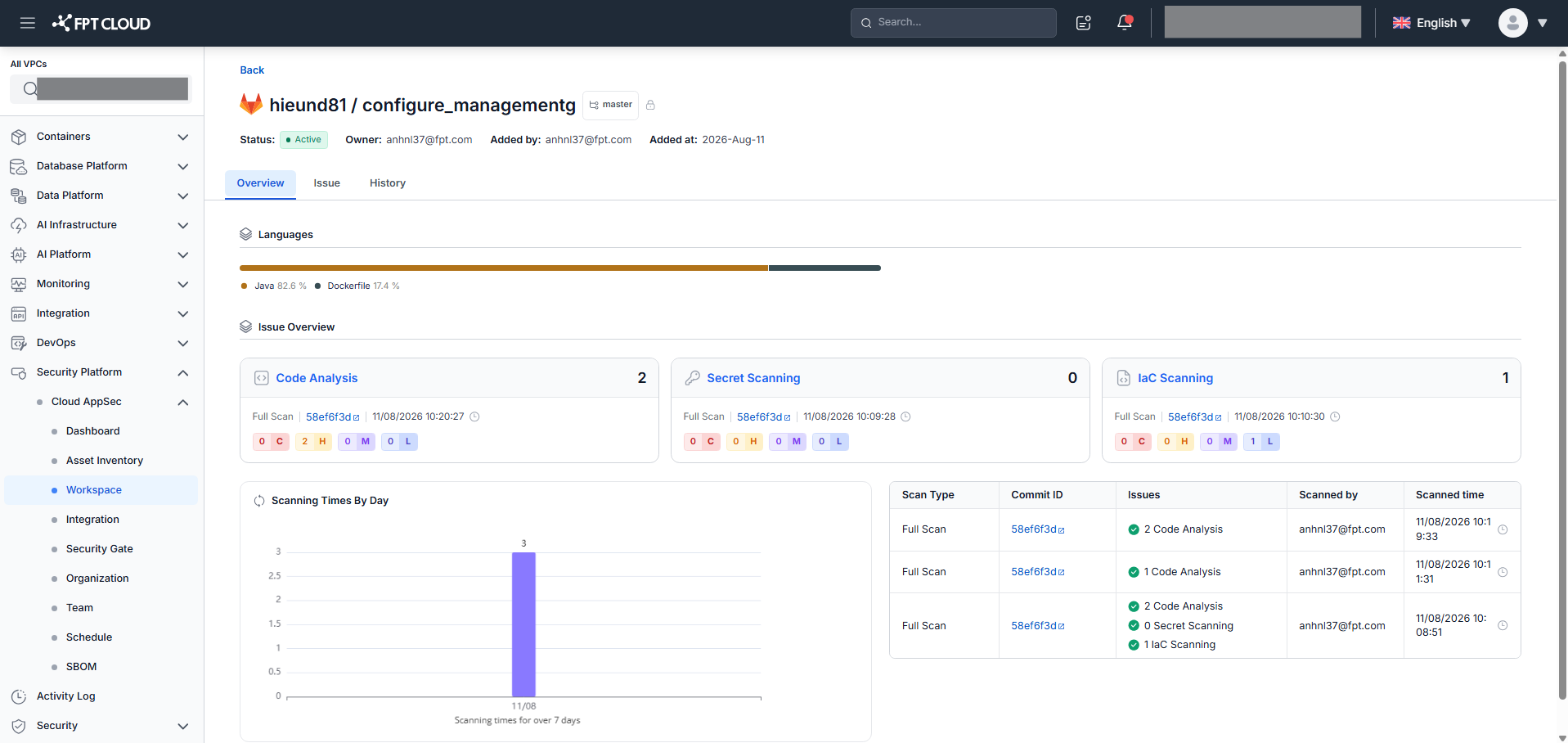
Tổng quan hiển thị:
- General information: Asset Status, Language, Owner, Added By, Added At
- Language chart: biểu đồ ngang hiển thị tỷ lệ ngôn ngữ (top 5 + "Other")
- Issue overview: Scan Type, Commit + Scan Time, Total Open Issues, số issue theo Severity, biểu đồ Scanning Times By Day (7 ngày gần nhất)
- Latest requests: tối đa 3 scan request gần nhất
Xem lịch sử scan
Chọn tab History trên màn hình Asset Overview.
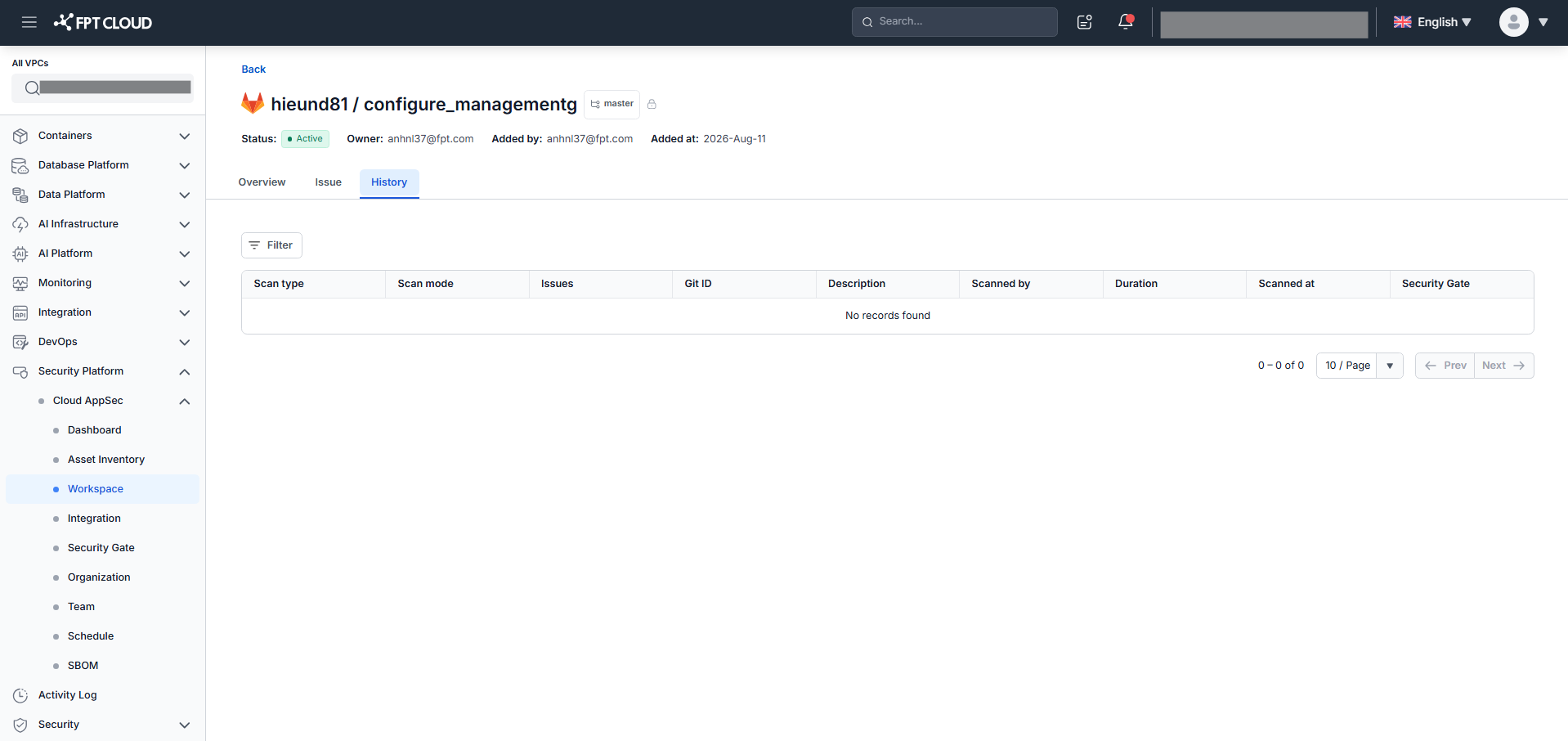
Lọc lịch sử theo Scan type và Time range.
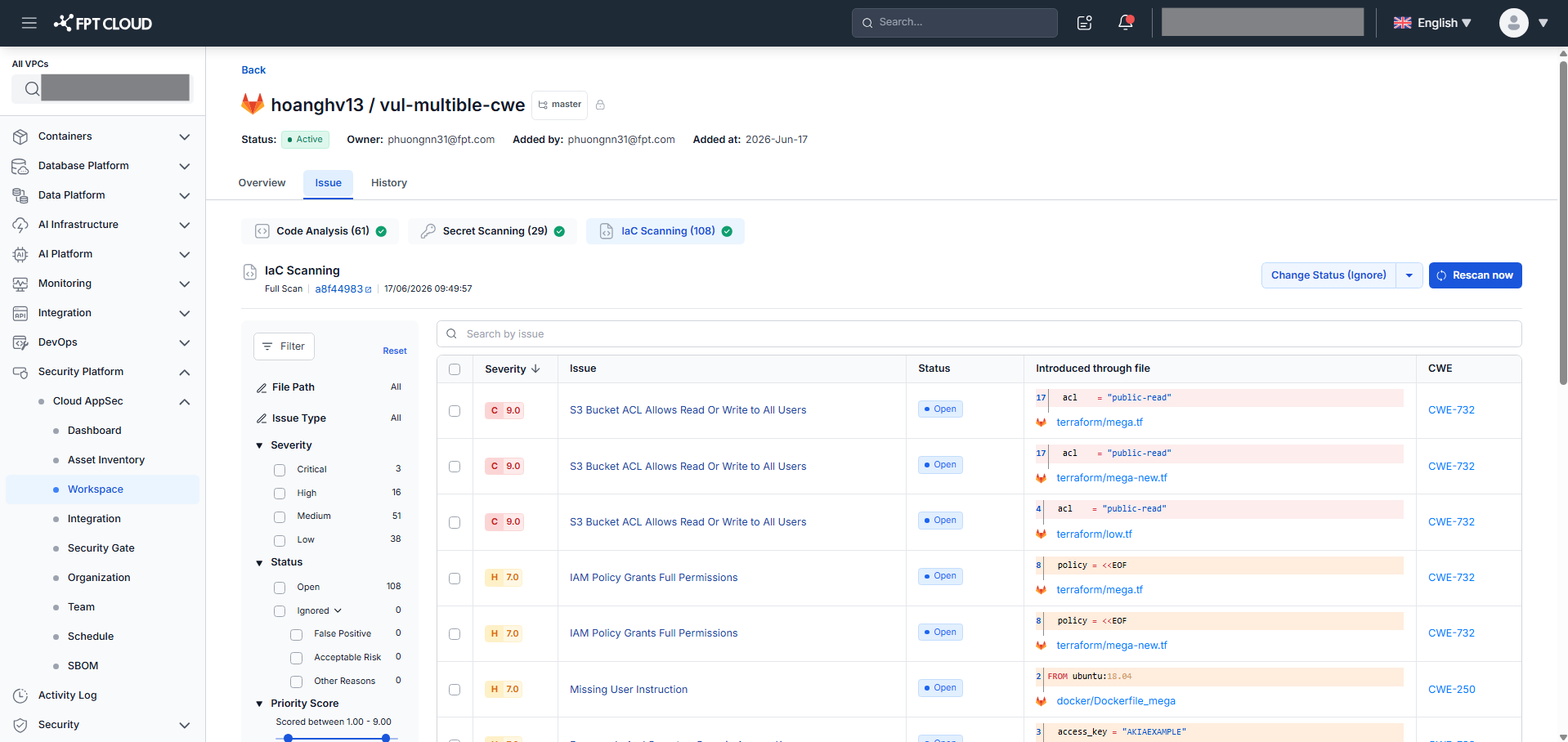
Xem danh sách issue
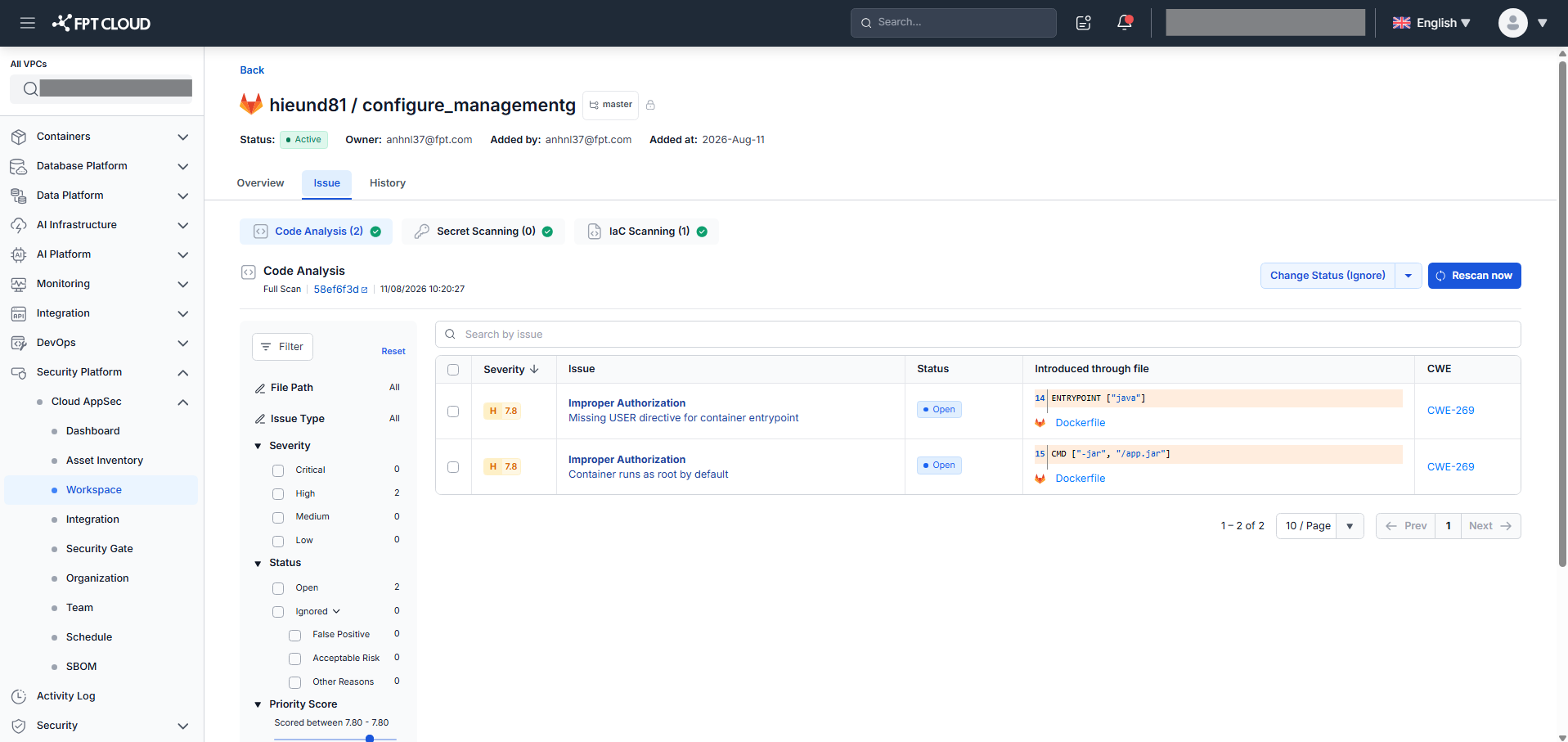
Chọn tab Issue của asset để xem issue theo từng loại scan (Code Analysis, IaC Scanning, Secret Scanning).
Code Analysis:
IaC Scanning:
Secret Scanning:
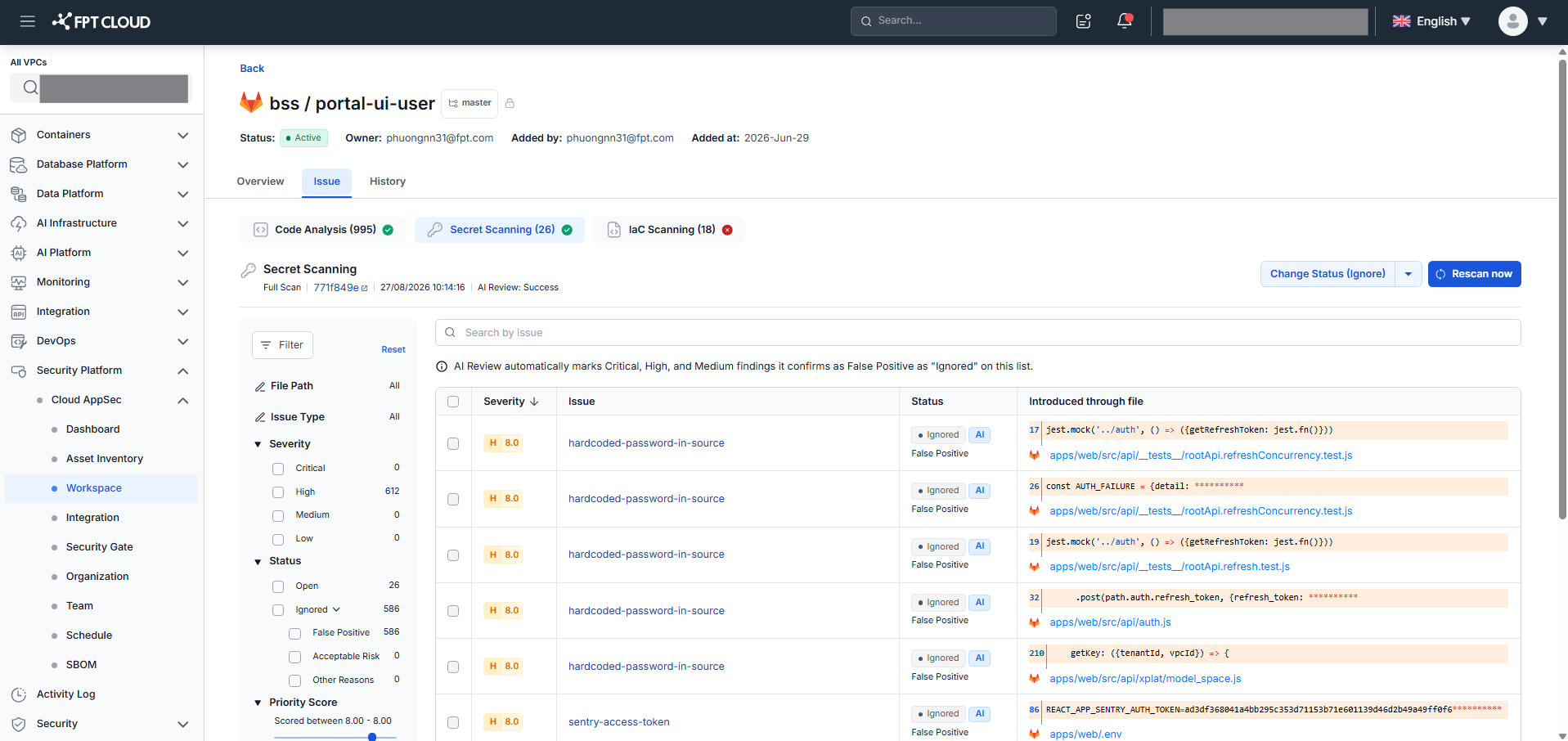
Mỗi issue card hiển thị: Severity, Vulnerability Type, Issue ID, CWE reference, Score (0–10), Issue Status và Code Block.
Filter theo: Severity, Status, Priority Score, Security Category, Vulnerability Type, OWASP Top 10, CWE.
Sort theo: Severity (C→H→M→L), Score, Created Time. Mặc định: Score giảm dần.
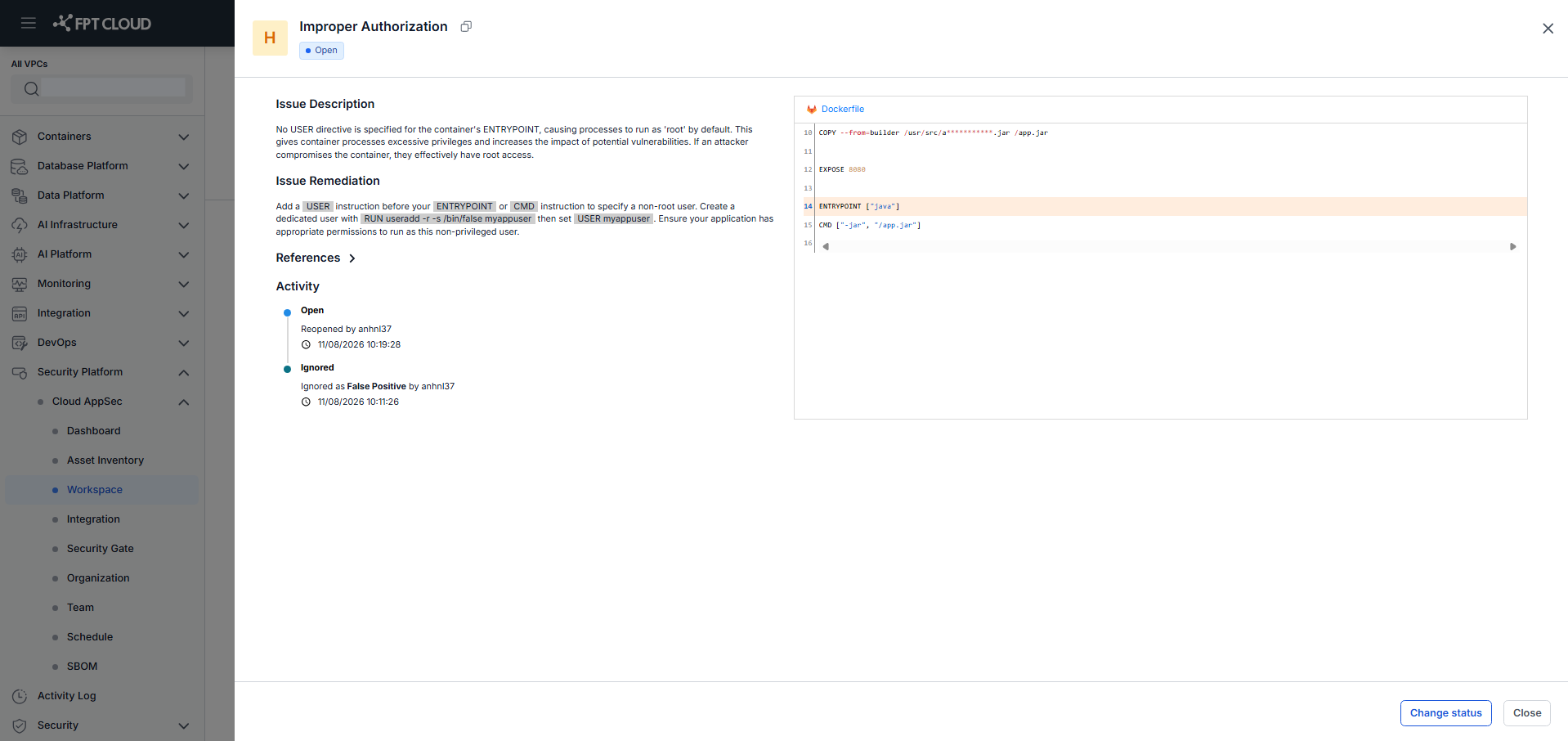
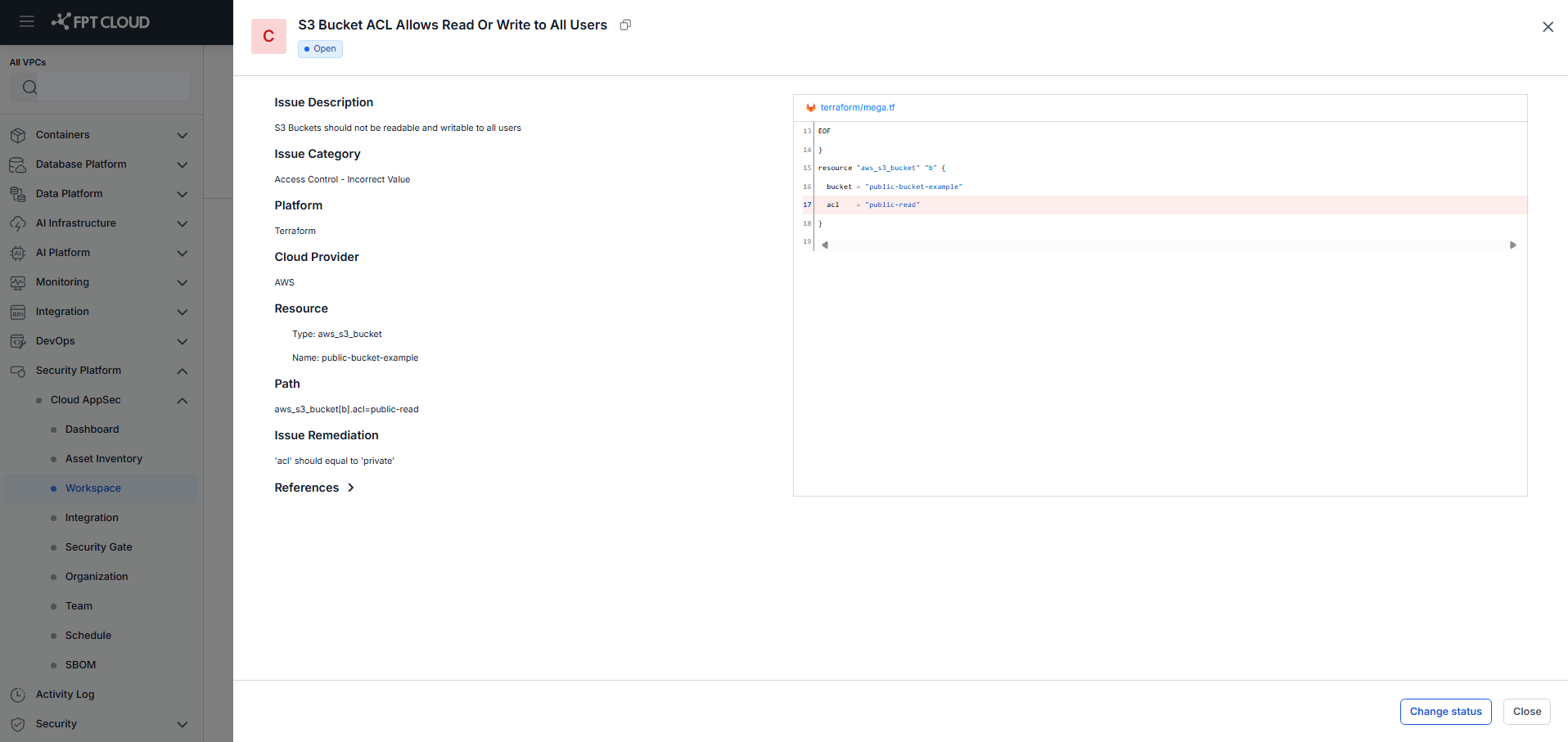
Xem chi tiết issue
Click Details trên issue card bất kỳ để mở popup Issue Detail.
Code Analysis:
IaC Scanning:
Secret Scanning:
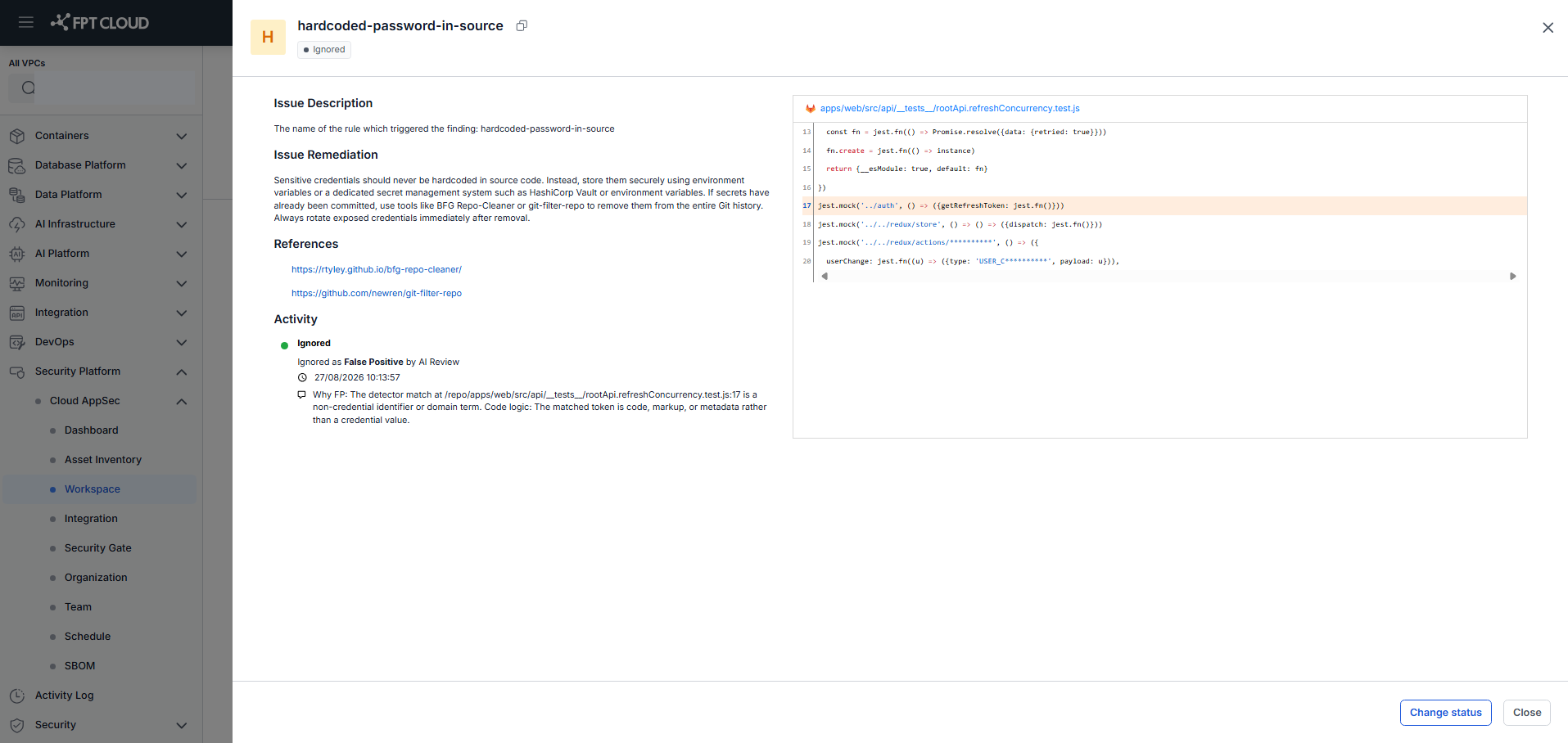
Issue Detail hiển thị: Severity, Vulnerability Type, Issue Status, Issue Description, Issue Remediation, References, Issue File, Code Block (với dòng lỗi được highlight) và Activity log.